
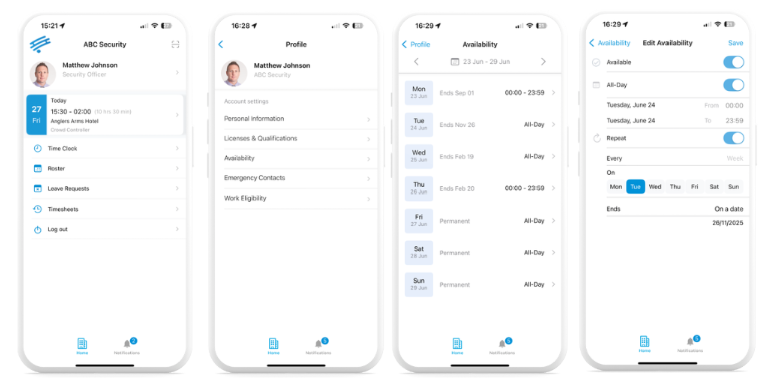
1. From the Cerely home screen, tap your name at the top-left corner of the screen
2. Select ‘Availability’ from the menu
3. To edit your availability:
-
Tap the date range or select an individual day you’d like to update
4. Set your availability preferences:
- Toggle ‘Available’ ON to mark yourself available
- Toggle ‘Available’ OFF if you are unavailable for that day
5. For full-day availability:
-
Toggle ‘All Day’ ON if you're available for the entire day
6. For specific availability times:
-
Select your Start Time and End Time to set when you're available
7. To repeat availability weekly:
-
Toggle ‘Repeat’ ON if you are available on the same day and time every week
Important Notes Before You Start:
- You must provide at least two weeks’ notice from the current week when updating your availability through the app.
- Changes cannot be made to your availability within the next two weeks via the app.
- Updating your availability does not affect your current or already scheduled shifts.
- If you are unavailable to work within the next two weeks (e.g., due to illness), please contact your manager immediately.