
1. From the main menu in Cerely, select Personnel
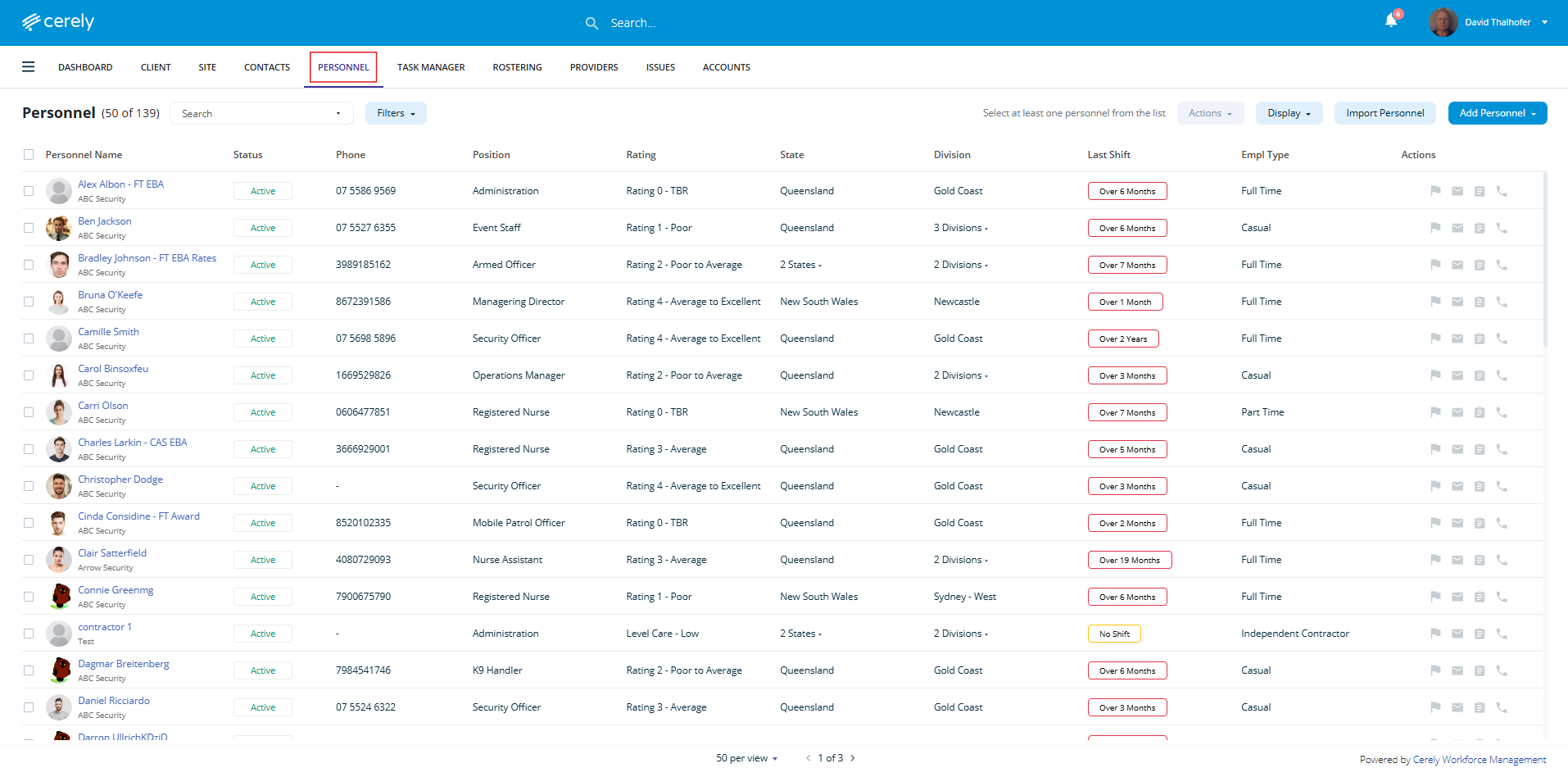
2. Locate and select the employee you want to add a certificate to
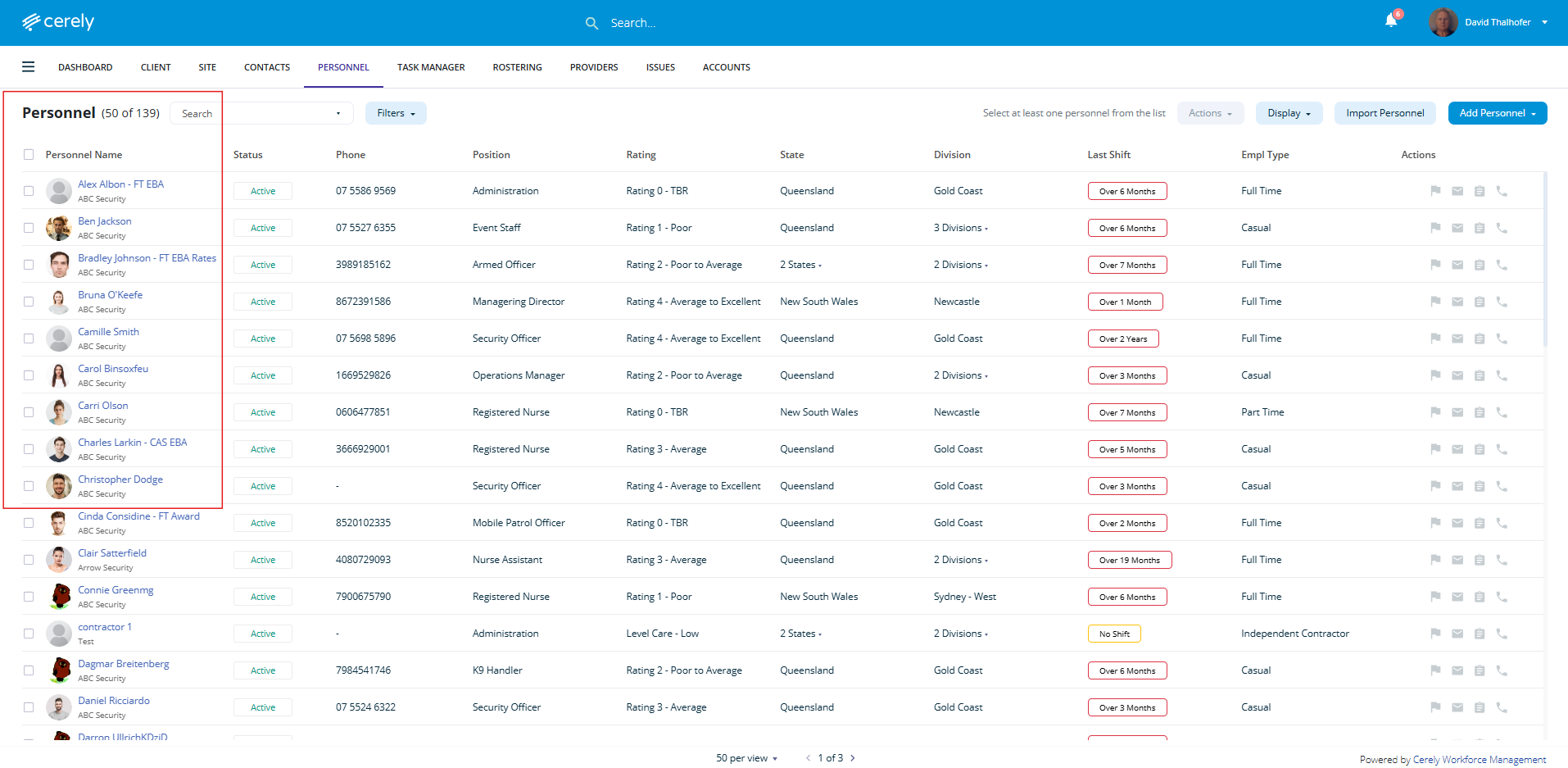
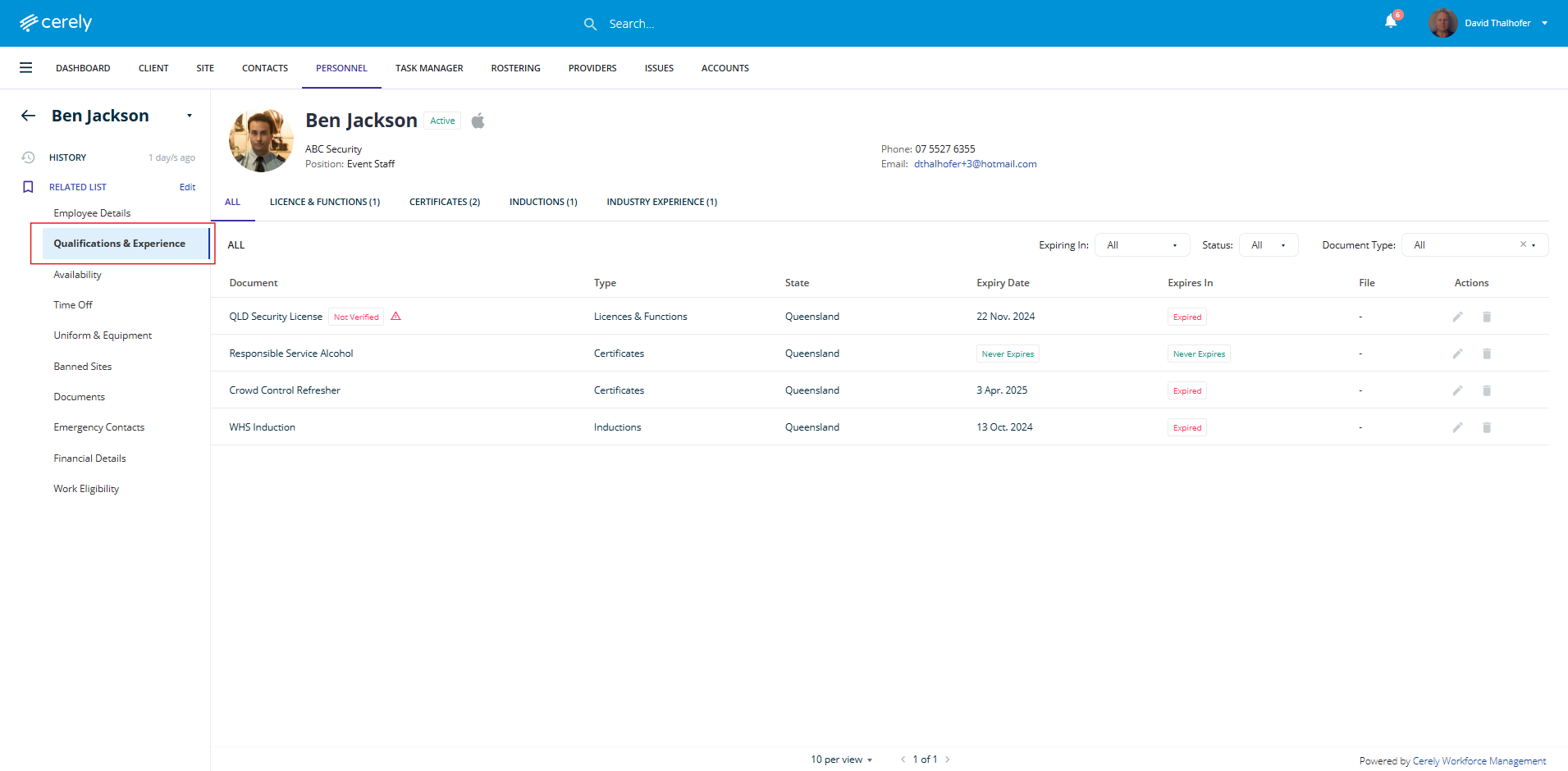
3. From the left-hand side menu within the employee profile, select Qualifications & Experience
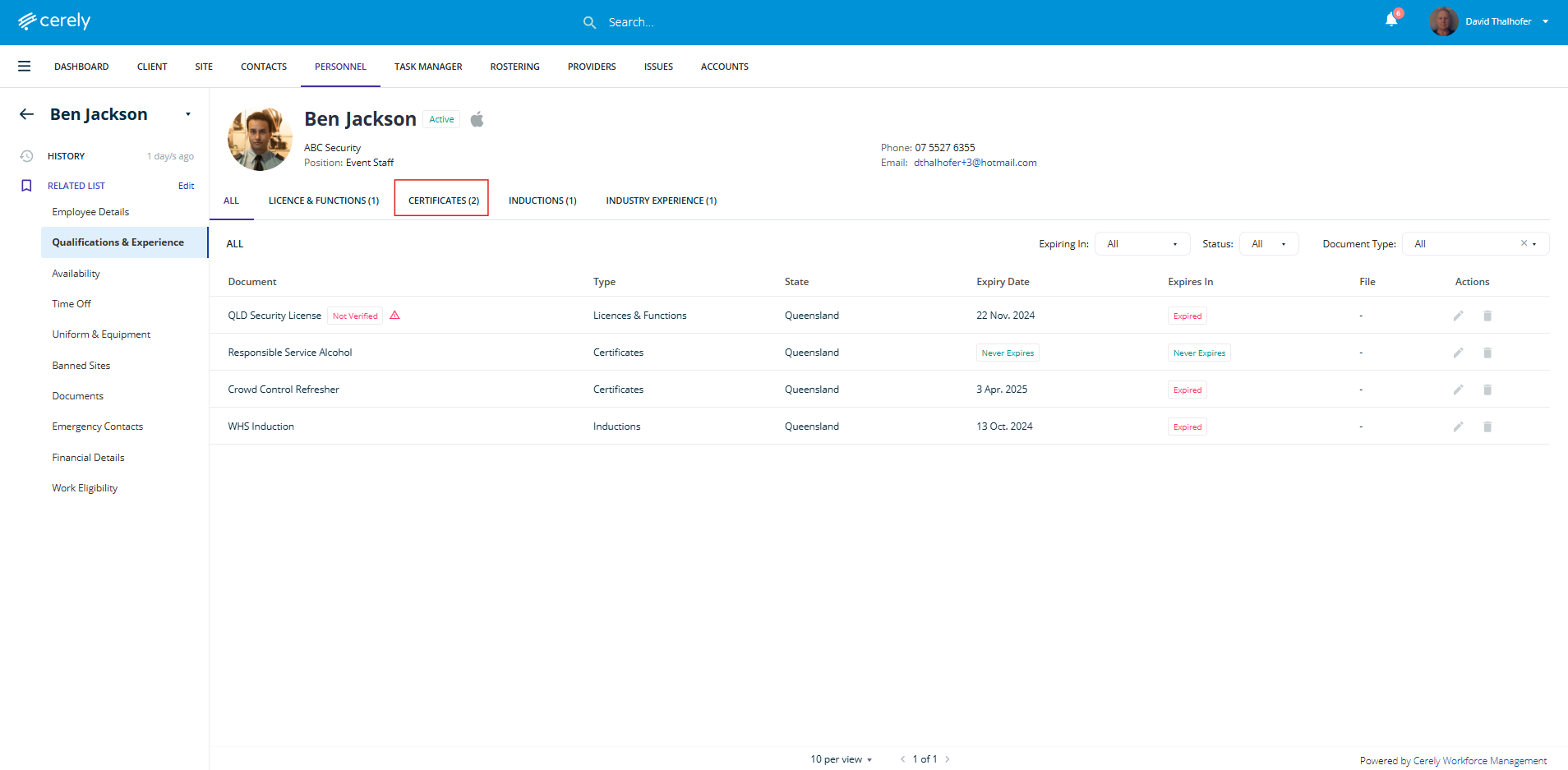
4. At the top of the screen, select Certificates from the menu
5. Select + Add to create a new record
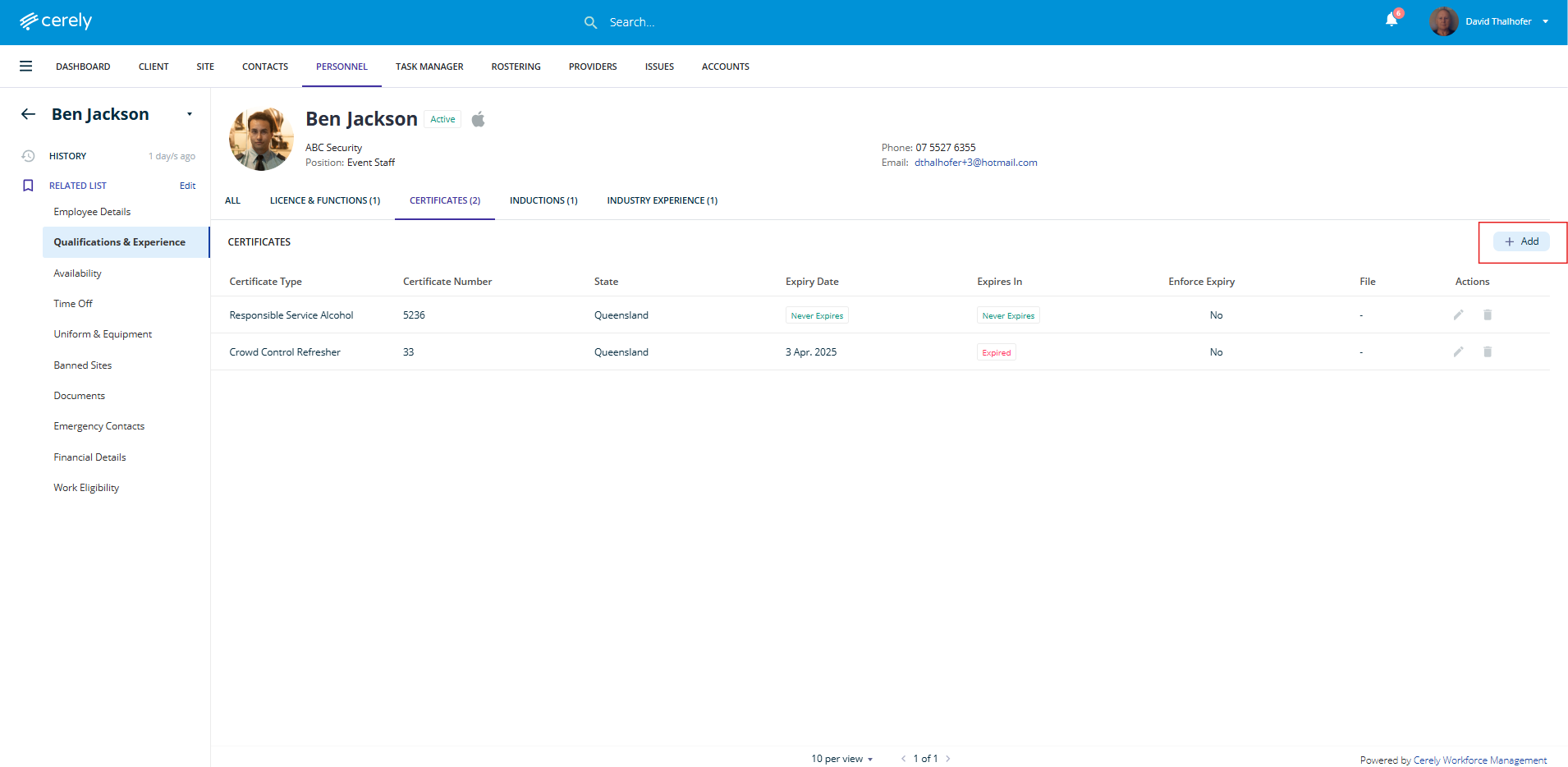
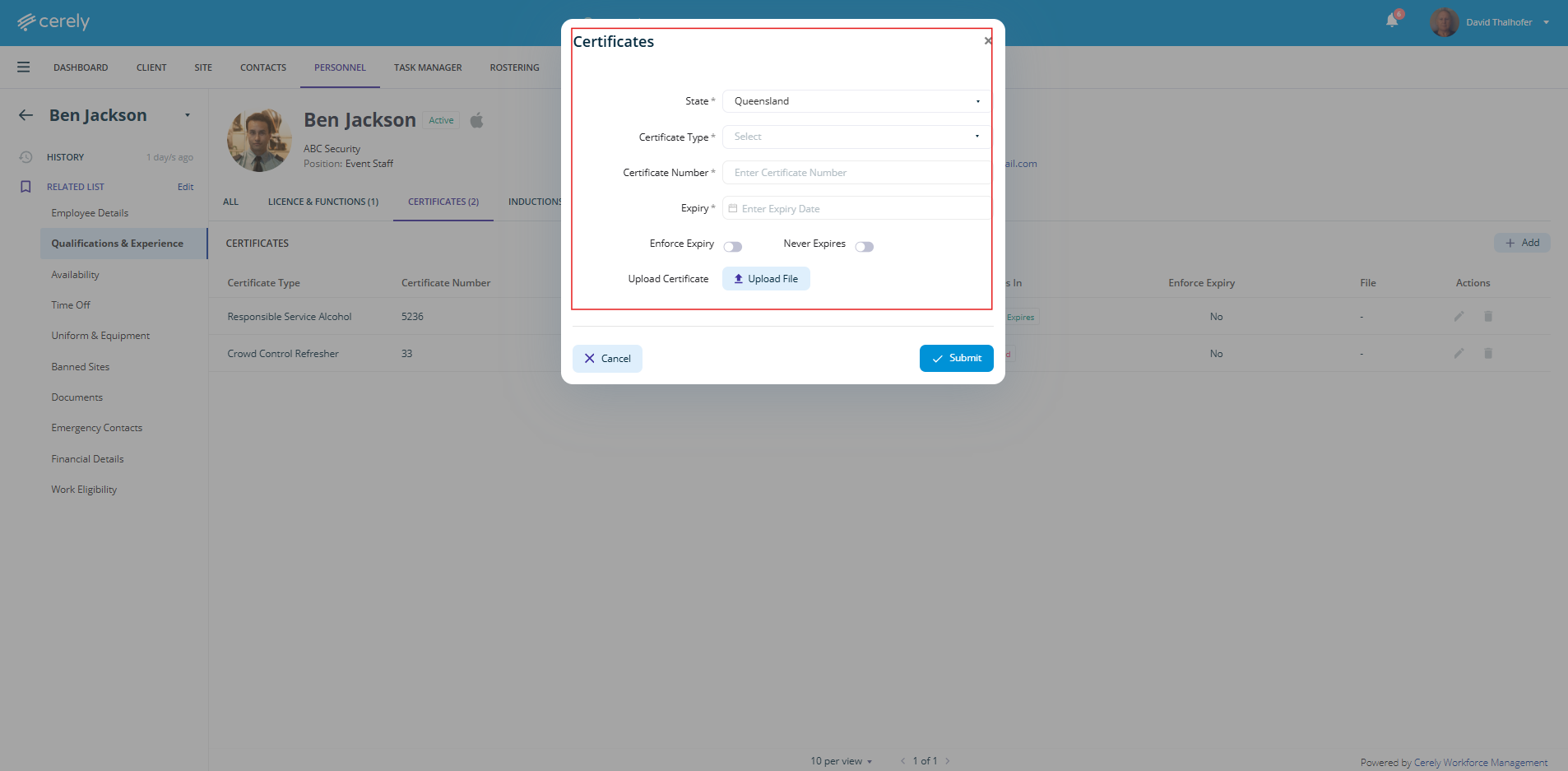
6. Enter certificate details
In the pop-up window, complete the following fields:
| Field | Description |
|---|---|
| State | Select the state where the certificate was issued |
| Certificate Type | Select the certificate type from the dropdown menu |
| Certificate Number | Enter the certificate reference number |
| Expiry Date | Enter the certificate expiry date |
| Enforce Expiry | Toggle on to prevent rostering if the certificate expires |
| Never Expires | Toggle on if the certificate does not have an expiry |
| Upload Certificate | Upload a copy of the certificate for record-keeping |
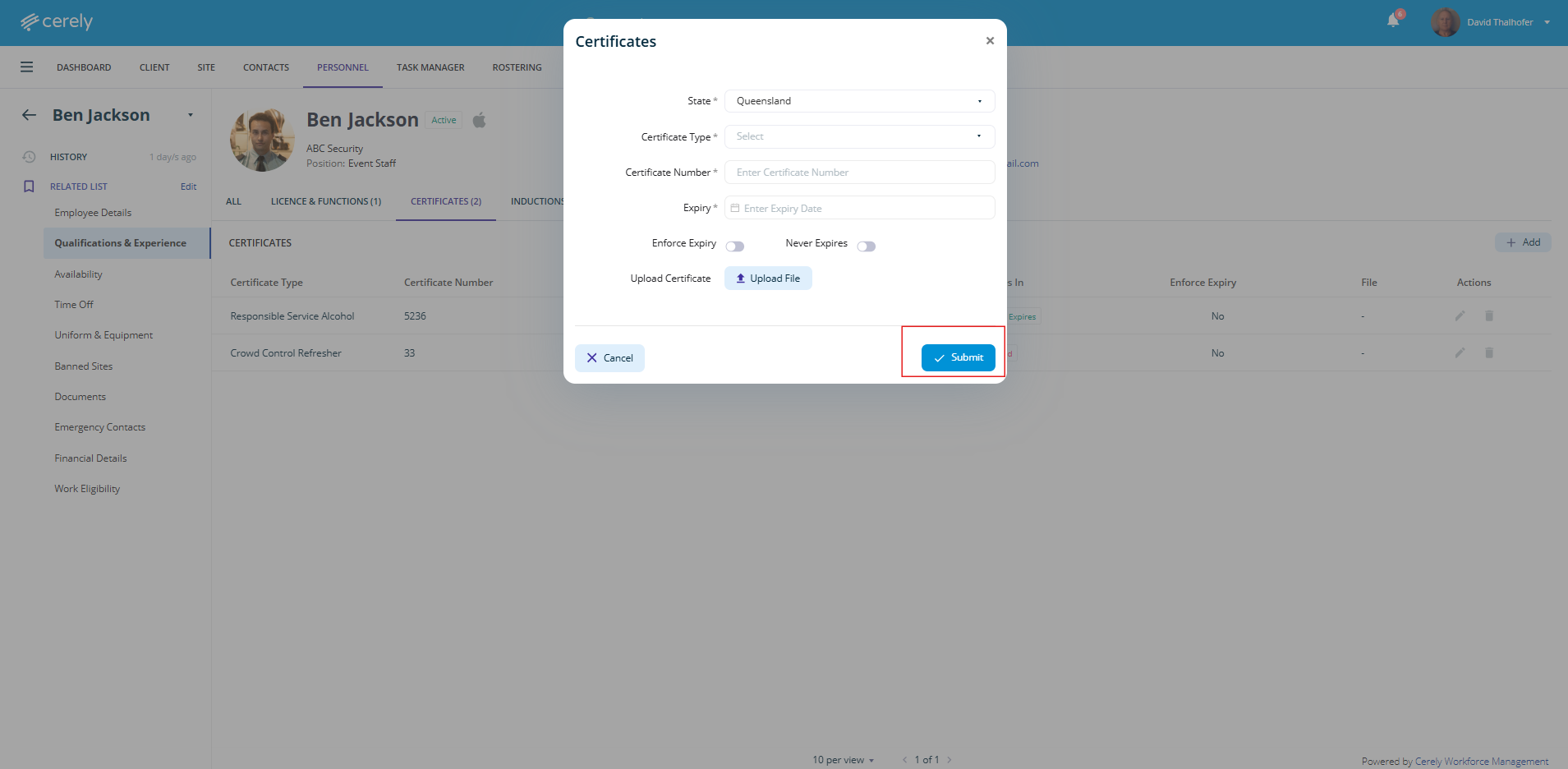
7. Save the certificate
Select Submit to add the certificate to the personnel profile
The certificate will now appear in the employee’s Qualifications & Experience list and will be used for compliance tracking and rostering requirements.
Important
If Enforce Expiry is enabled, Cerely’s rostering algorithm will prevent the employee from being assigned to shifts requiring this certificate once it has expired.