
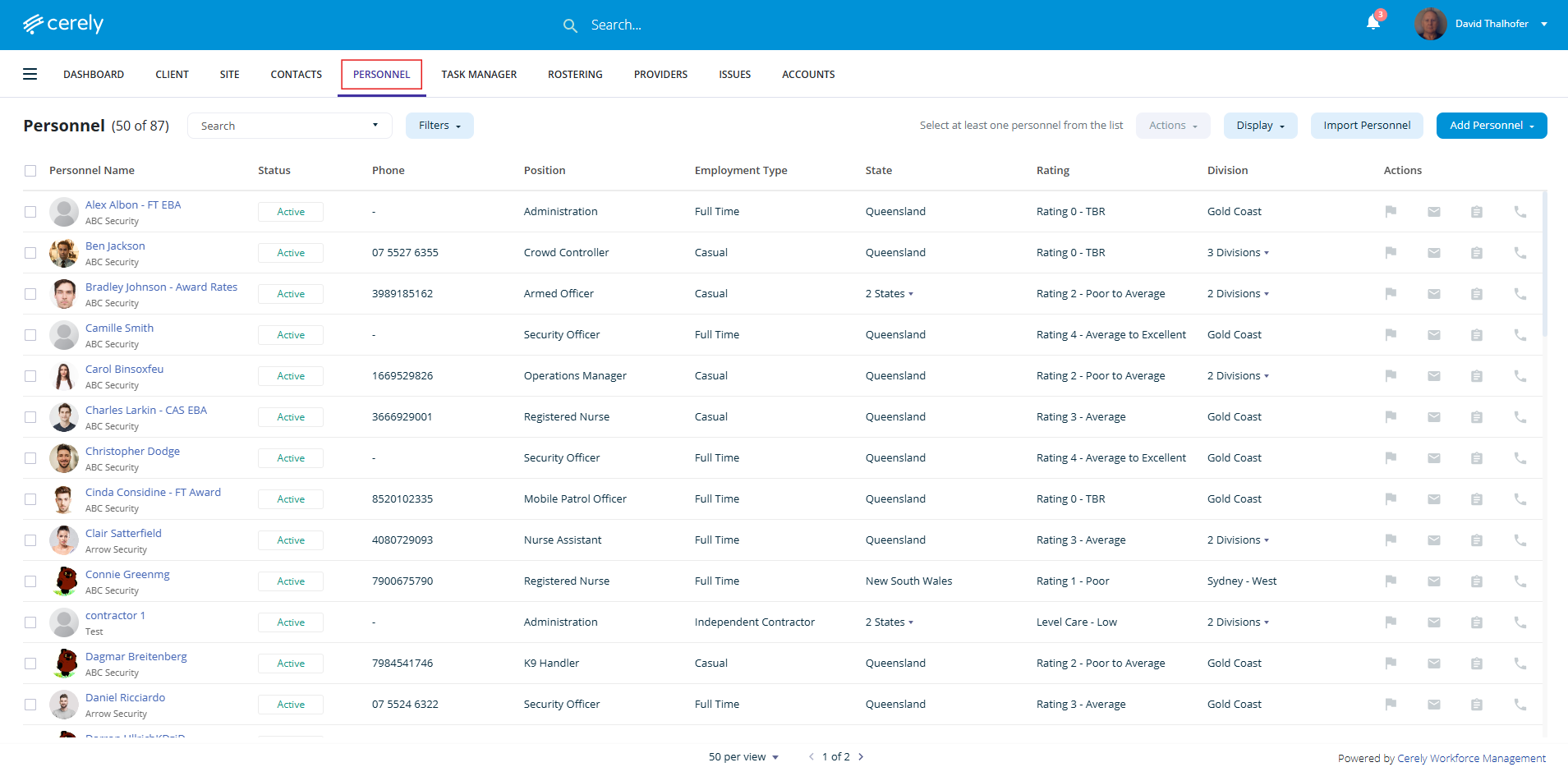
1. From the home screen in Cerely, click on the Personnel tab from the Cerely top main menu
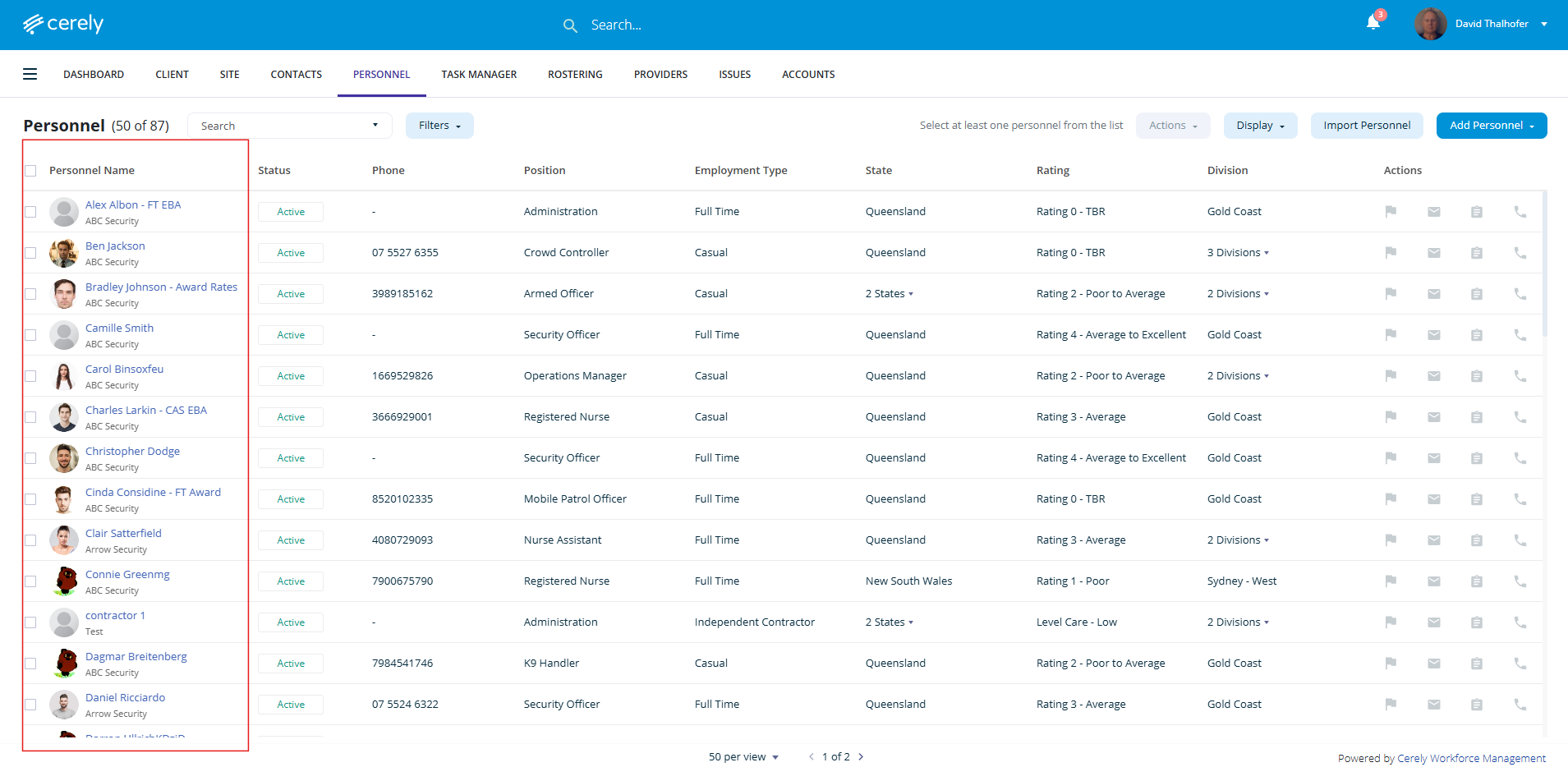
2. Select an employee from the list
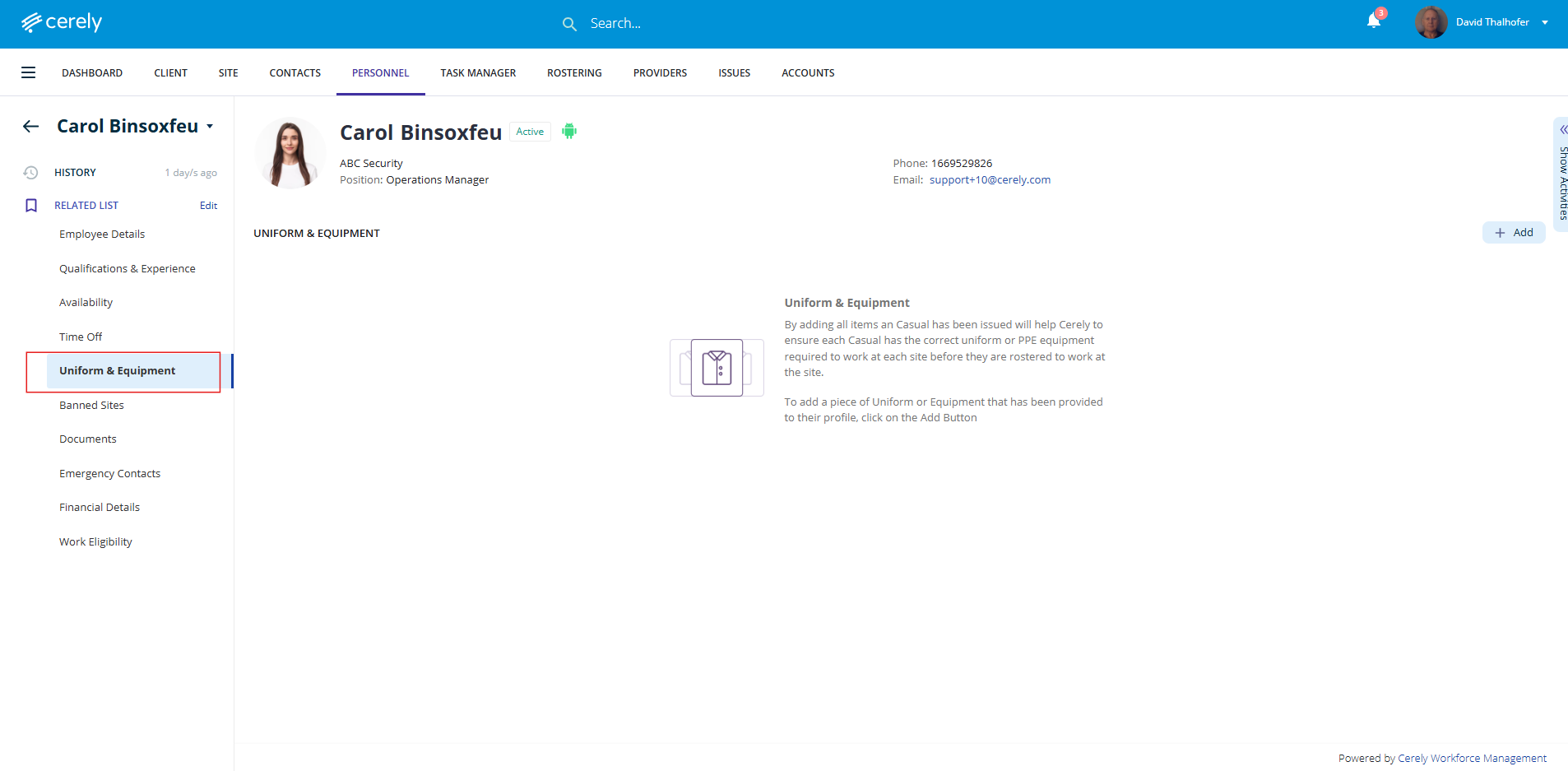
3. On the left-hand menu, select Qualifications & Experience
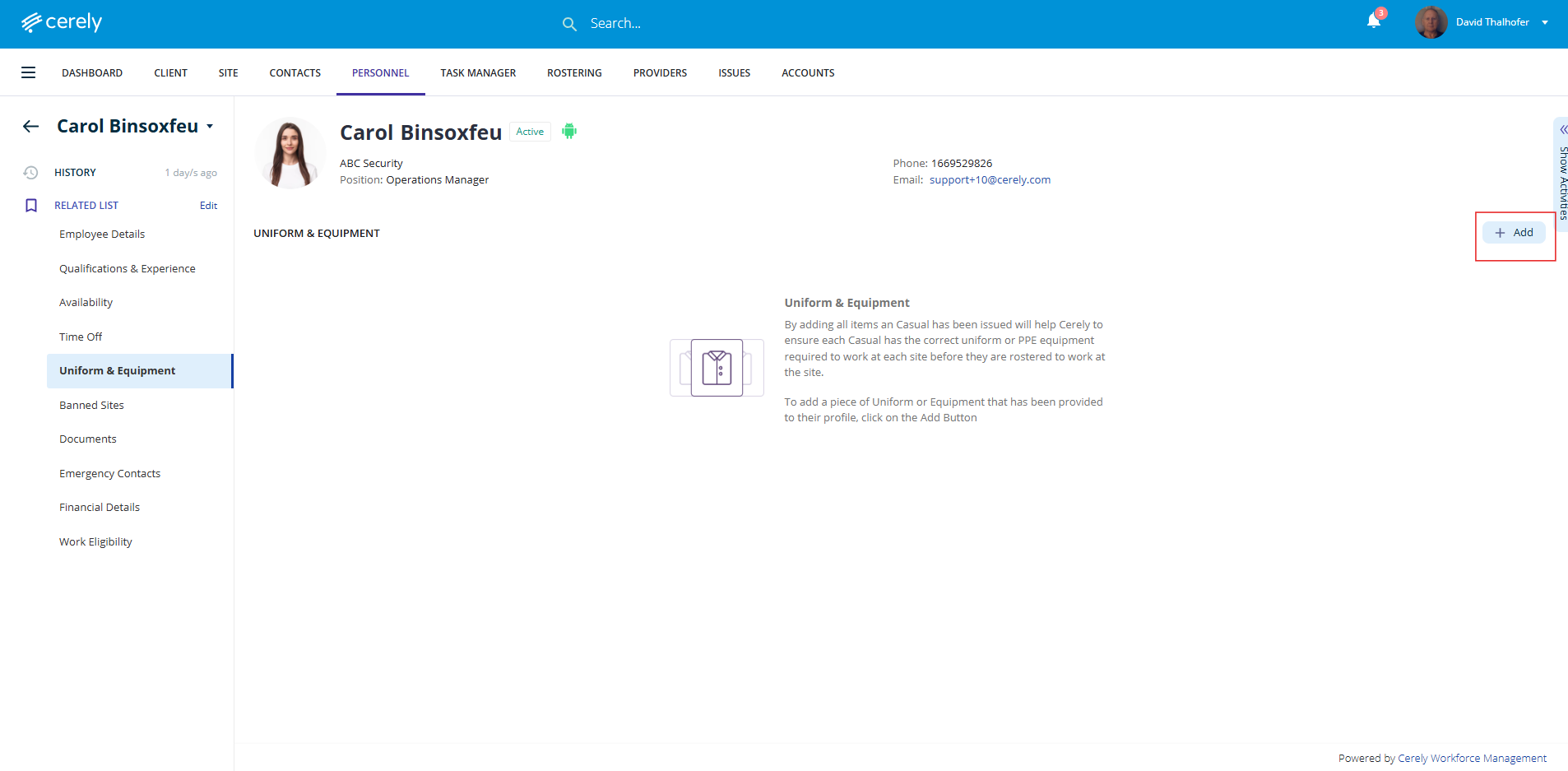
4. Click on the + Add button and complete the following fields:
- Type: Select the category (e.g. Uniform, Equipment)
- Item: Choose the specific item (e.g. Hi-Vis Vest, Body Camera)
- Size: Input size (if applicable)
- Quantity: Number of items issued
- Condition: Select condition (e.g. New, Used)
- Deposit Paid: Enter any deposit amount paid by the employee
- Date Issued: Choose the date the item was issued
- Issued By: Enter the name of the person issuing the item
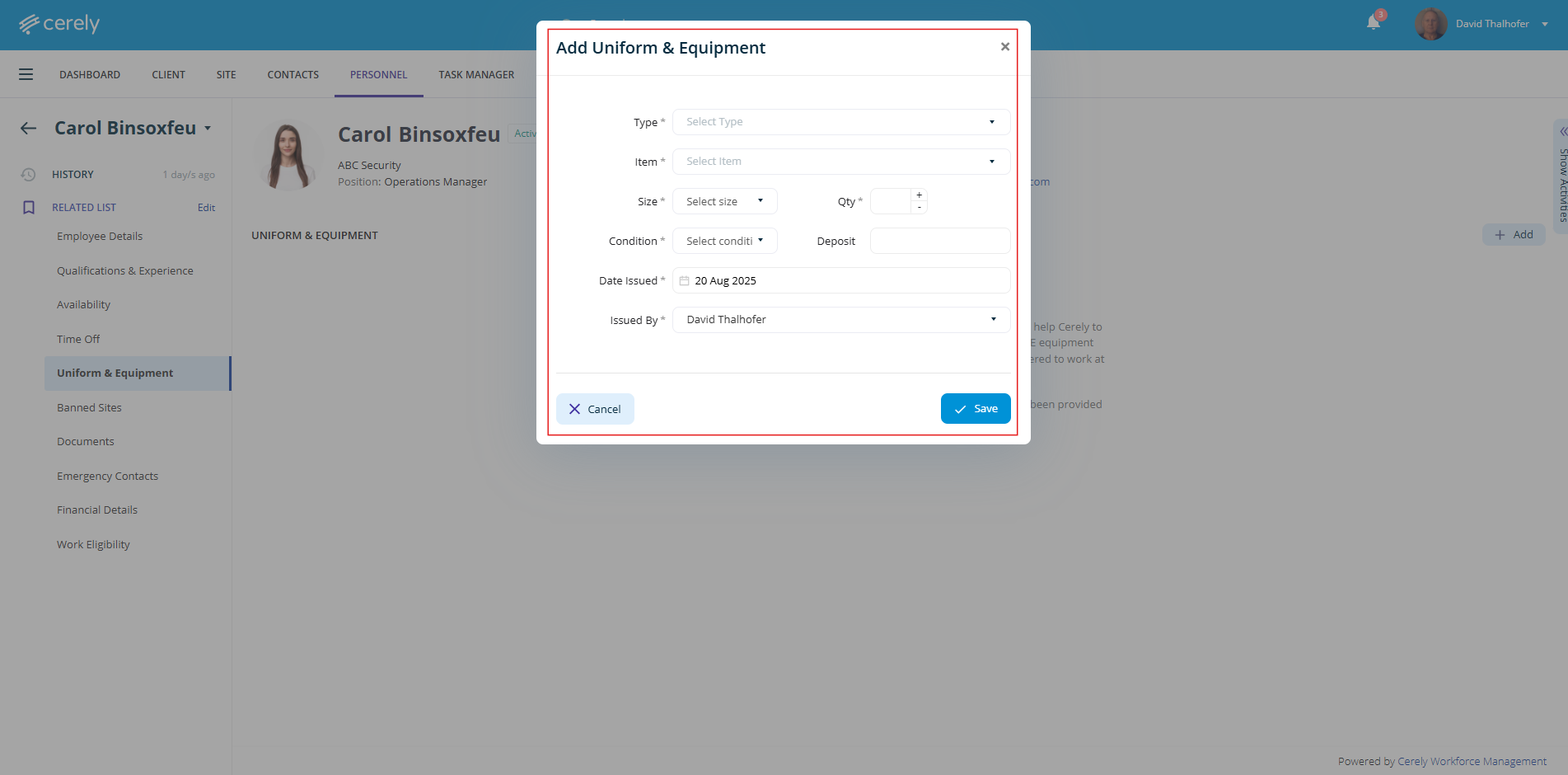
5. Click on the Save button to assign the uniform or equipment to the employee’s profile
Important Notes
-
Uniform & Rostering Integration:
Uniform and equipment entries correlate directly with shift rostering where PPE requirements are configured against the site.
-
If an employee does not have the required uniform or equipment in their profile, a system warning will appear when attempting to roster them to that site or shift.