
1. From the home screen in Cerely, click on the Personnel tab from the Cerely top main menu
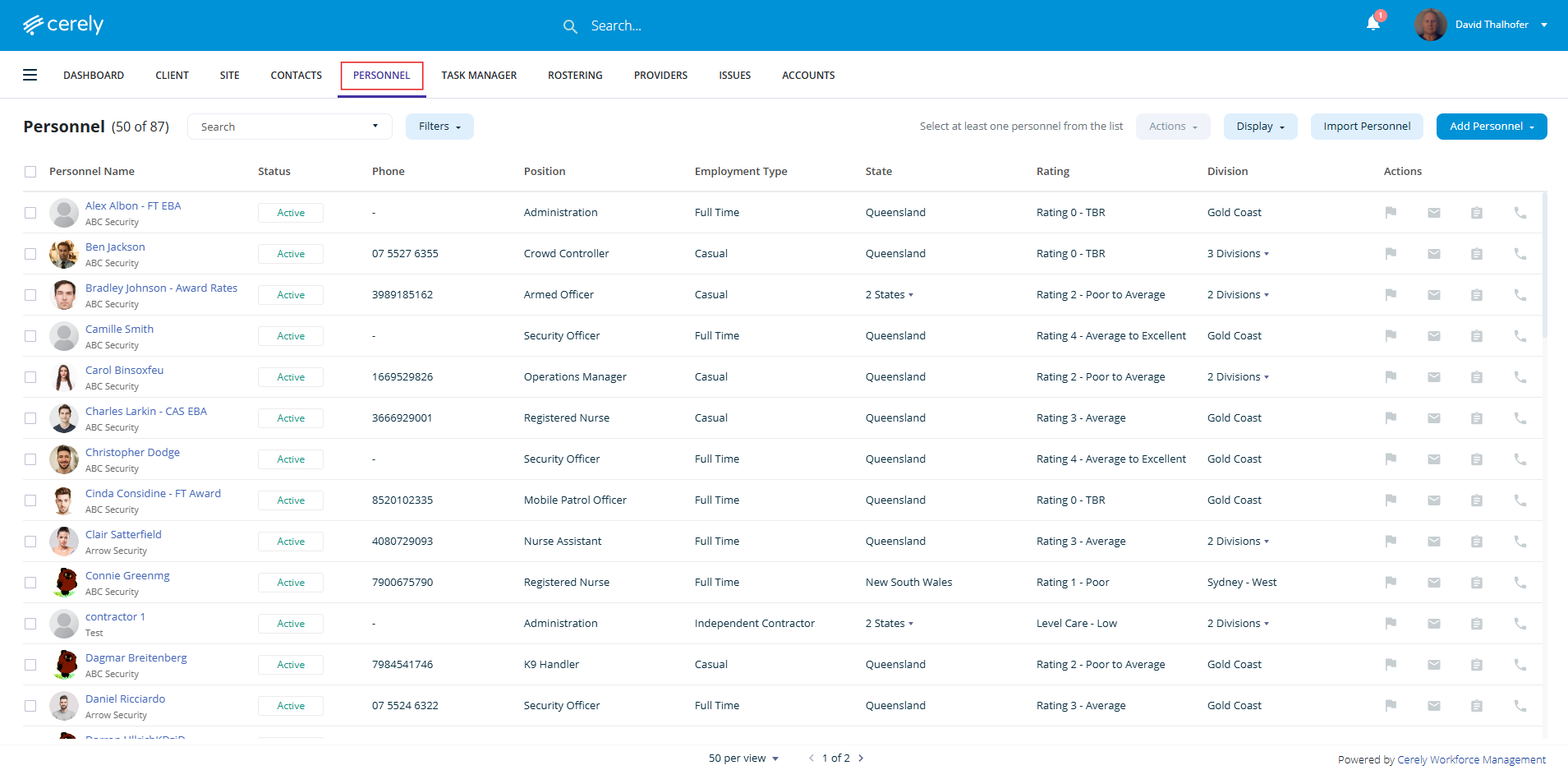
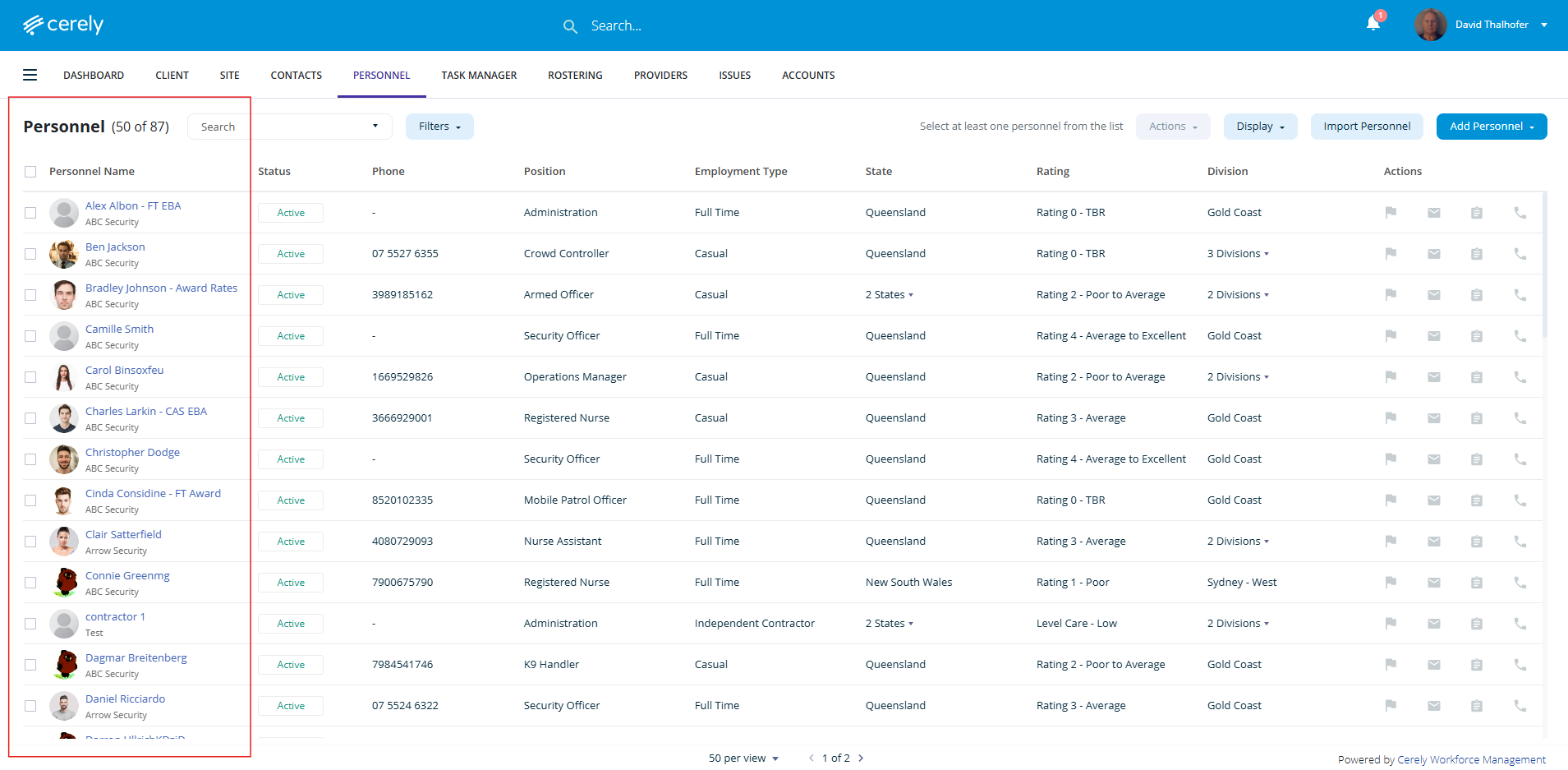
2. Select and click on the employee profile whose eligibility you want to update
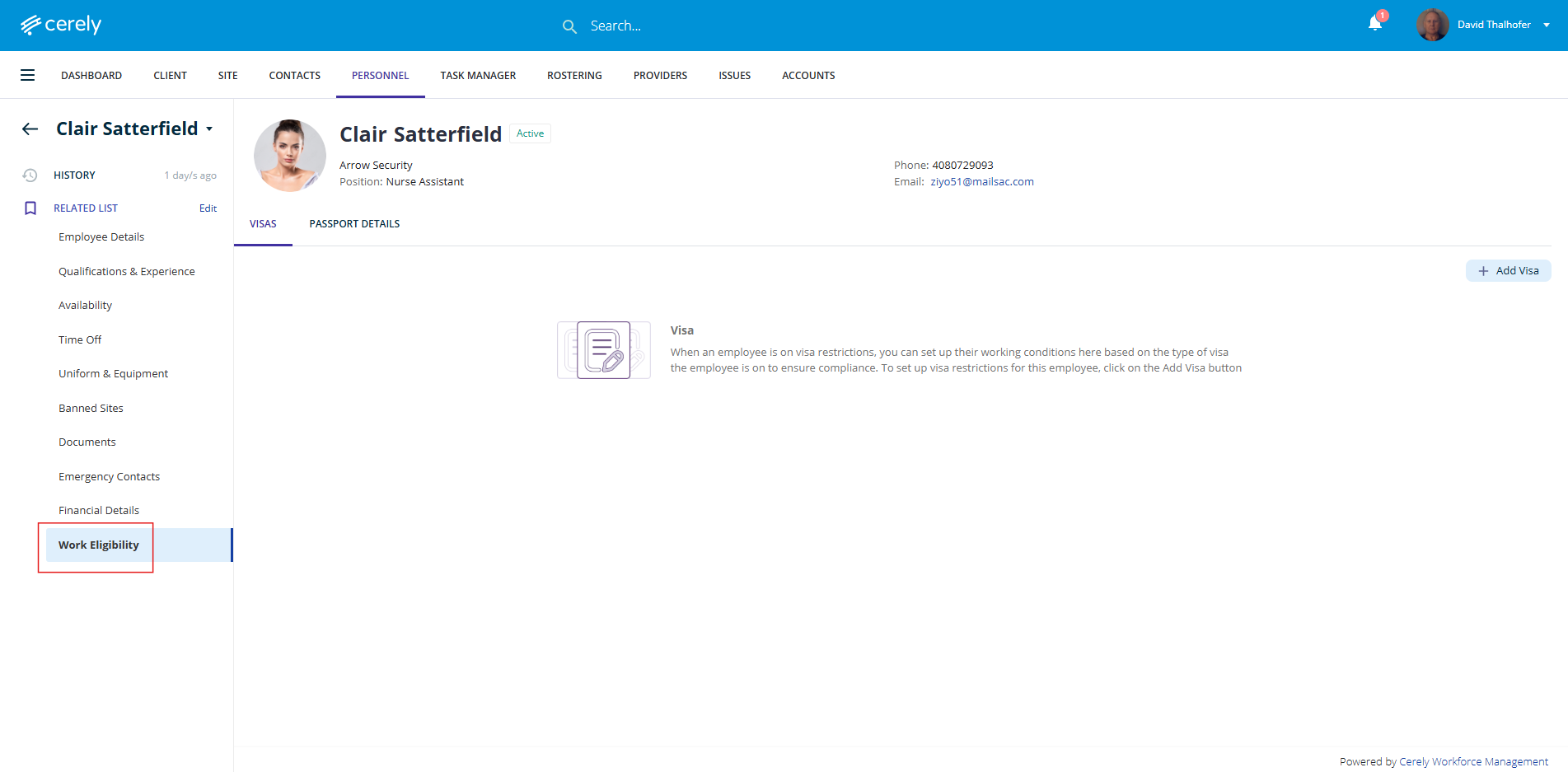
3. On the left-hand side menu, select Work Eligibility
Adding Visa Details
1. Click on the + Add Visa button
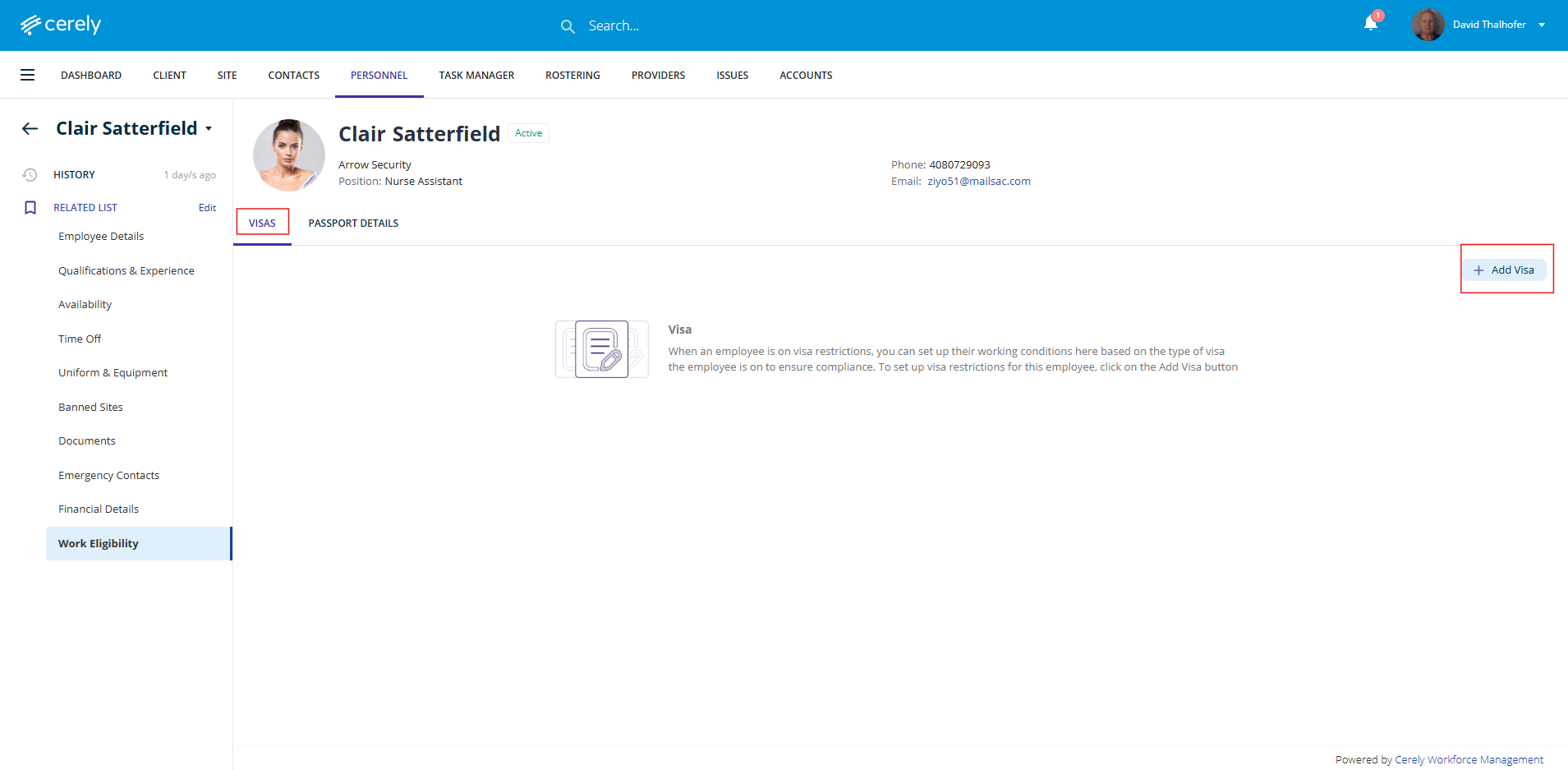
2. Complete the required visa fields and information:
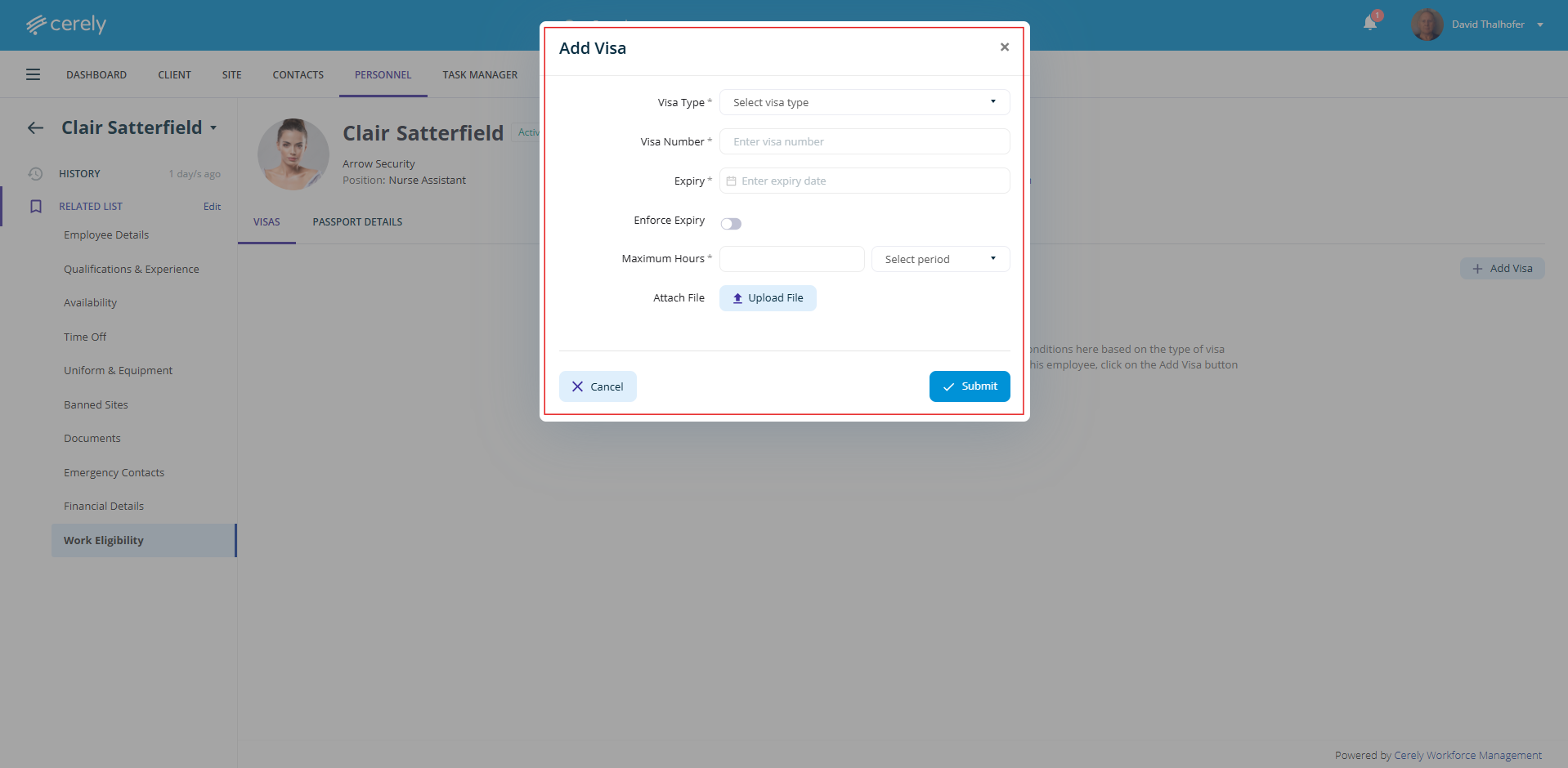
- Visa Type (e.g. Working Holiday, Student Visa)
- Visa Number
- Expiry Date
- Enforce Expiry (Yes/No)
- If set to Yes, the system will prevent rostering past the expiry date
- If set to No, you’ll receive a warning, but can still proceed with rostering
- Maximum Hours – if applicable to the visa condition
- Period (e.g. per week/fortnight)
3. Upload a copy of the visa document for records
Adding Passport Details
1. Click on the + Add Passport button
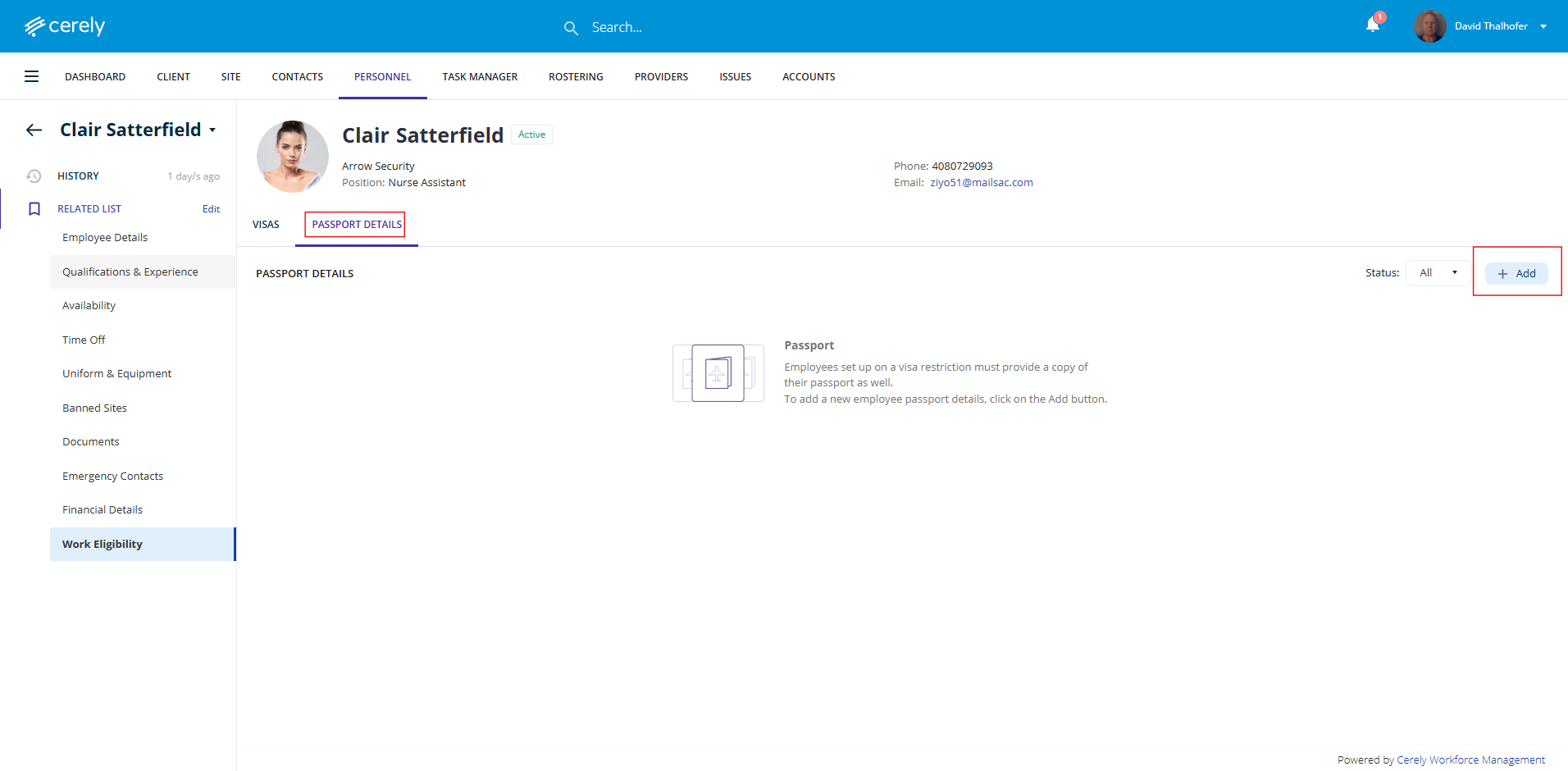
2. Complete the required passport fields and information:
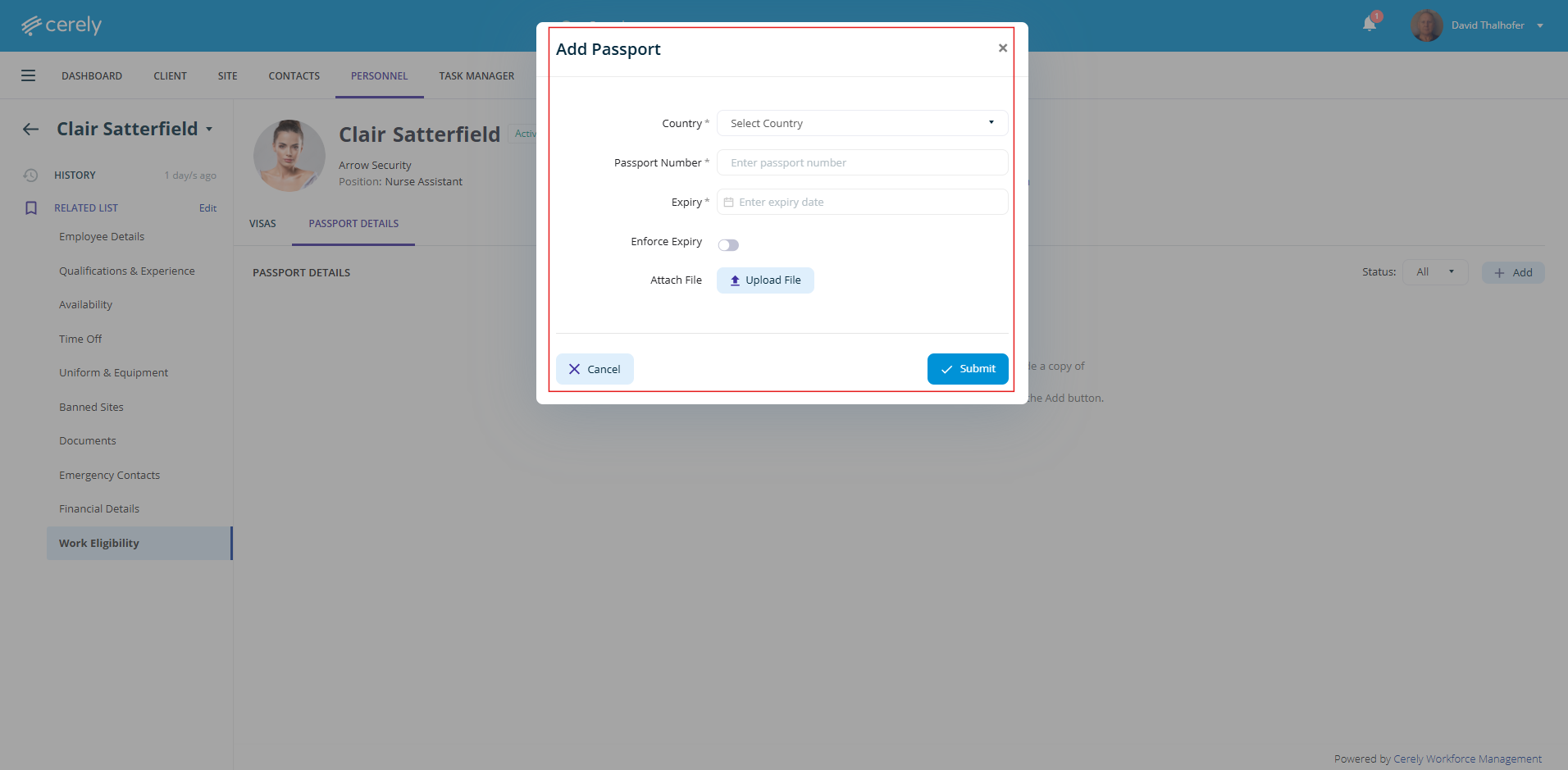
- Country
- Passport Number
- Expiry Date
- Enforce Expiry (Yes/No)
- Same enforcement options apply as with visa expiry
3. Upload a copy of the passport document
Note: Keeping employee work eligibility up-to-date ensures the system can flag any compliance issues before rostering and helps manage employee limits based on visa type.