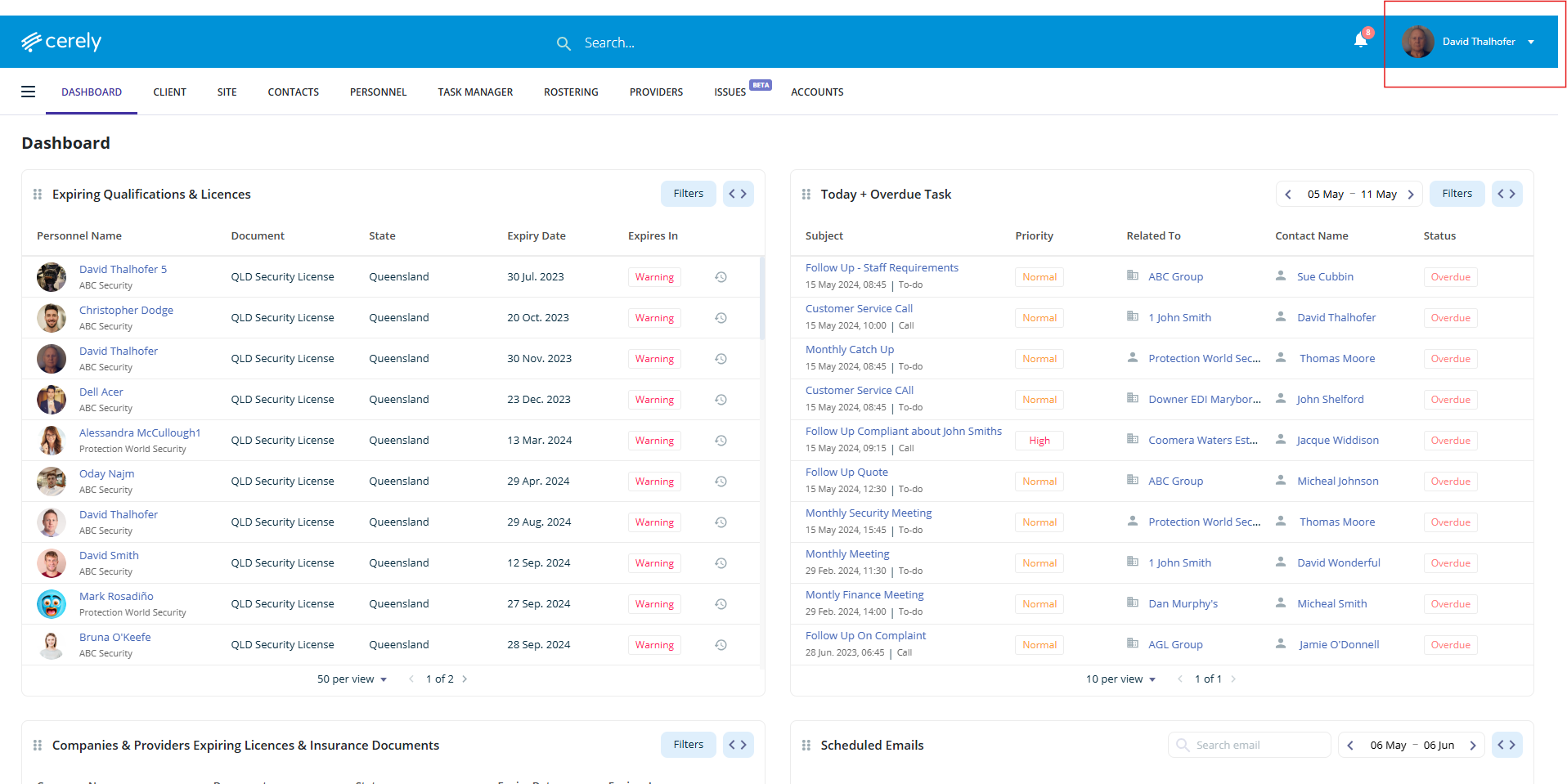
1. From the main menu, click your Profile Icon in the top right-hand corner
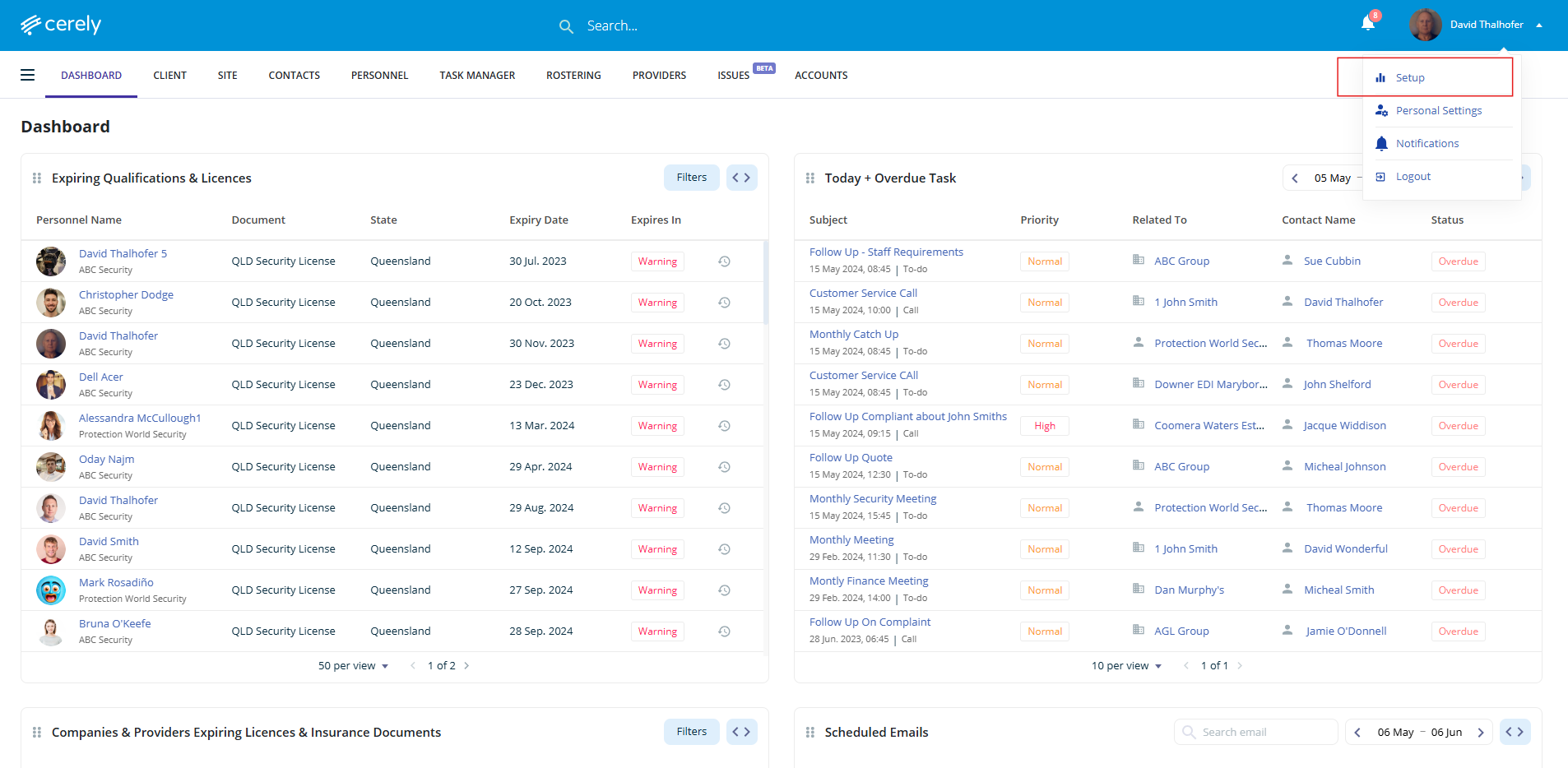
2. Click on Setup from the dropdown menu
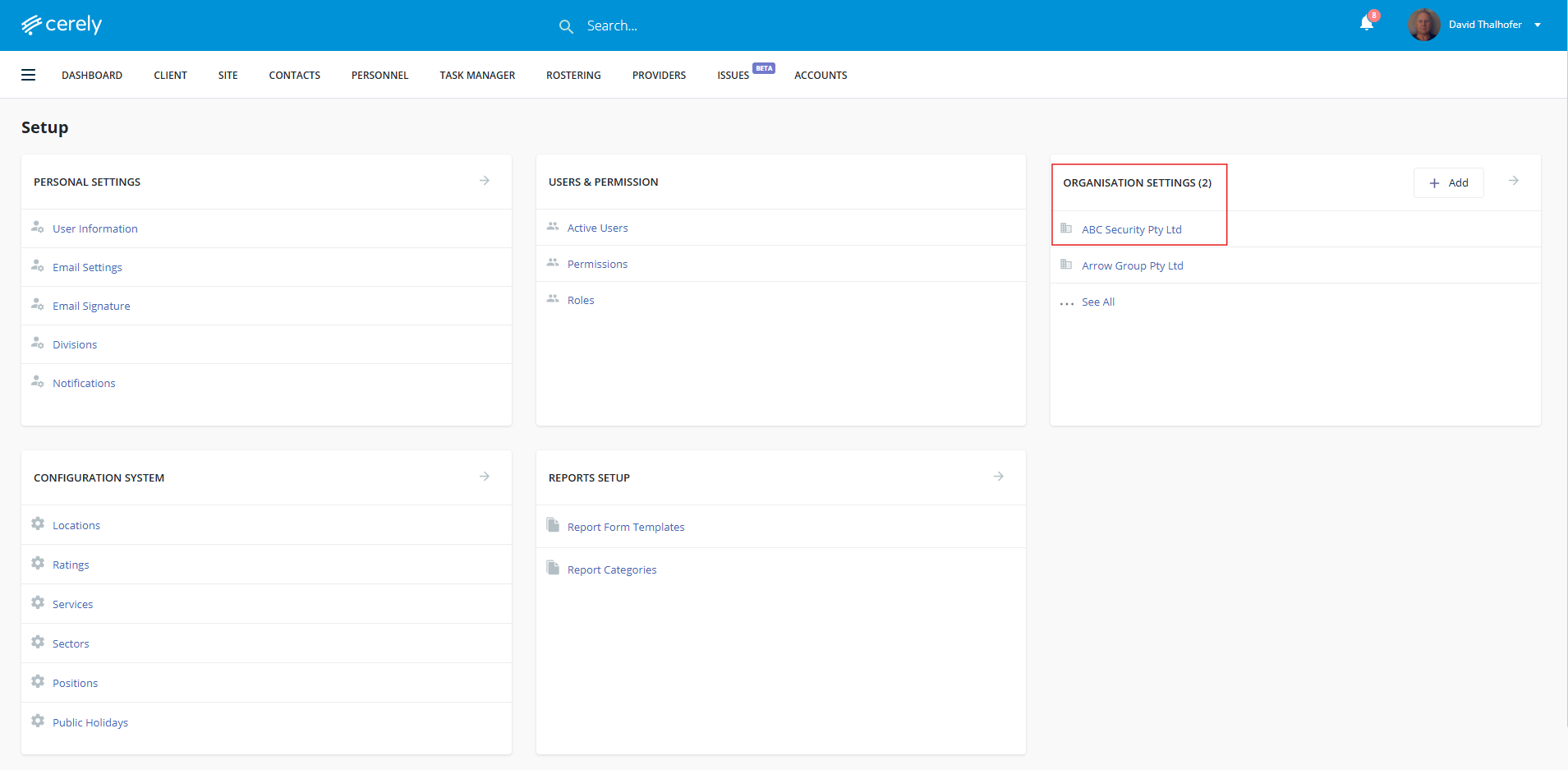
3. From the Setup screen under Organisation Settings, click on your company name
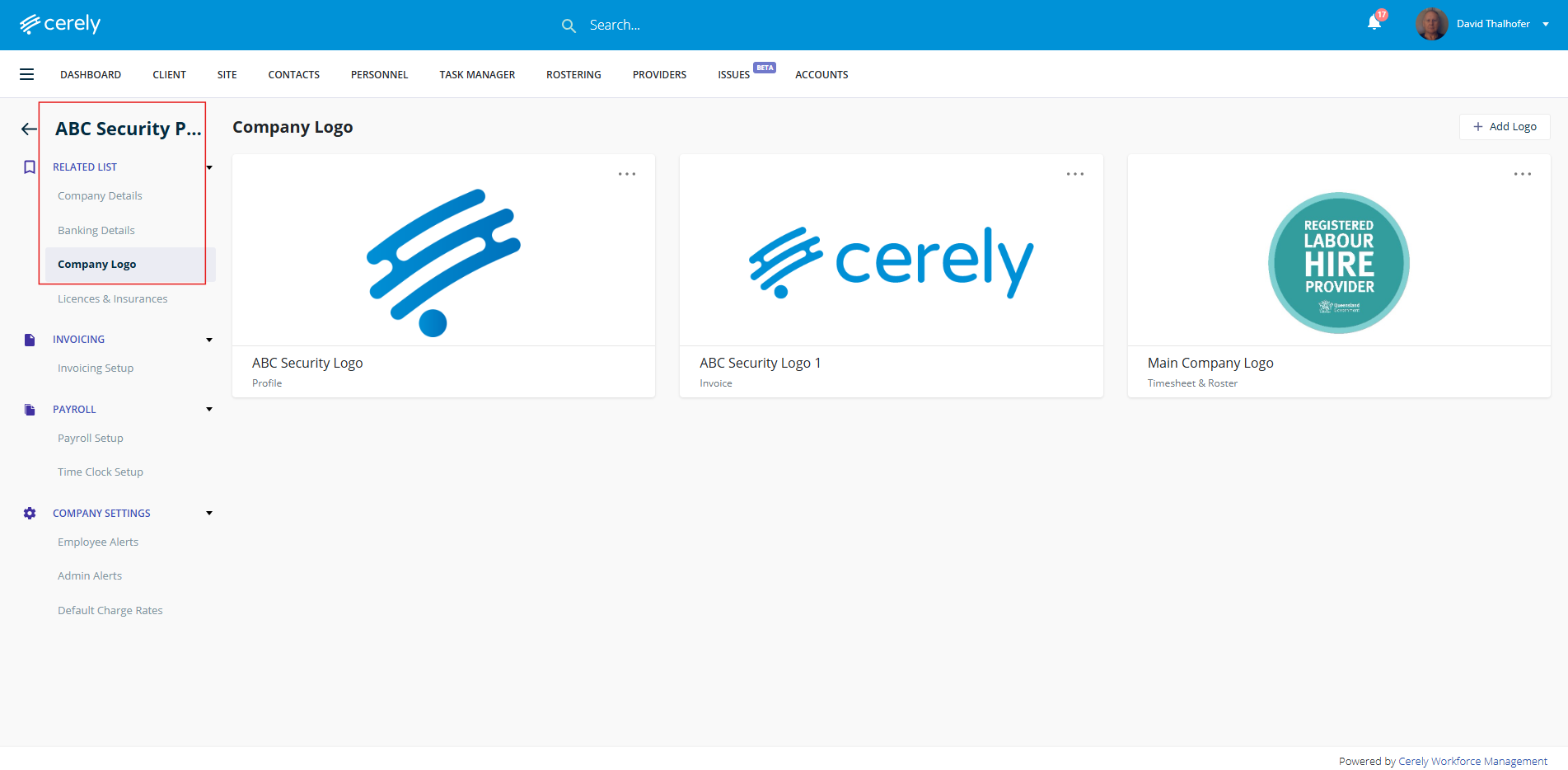
4. In the left-hand menu, click on company logo
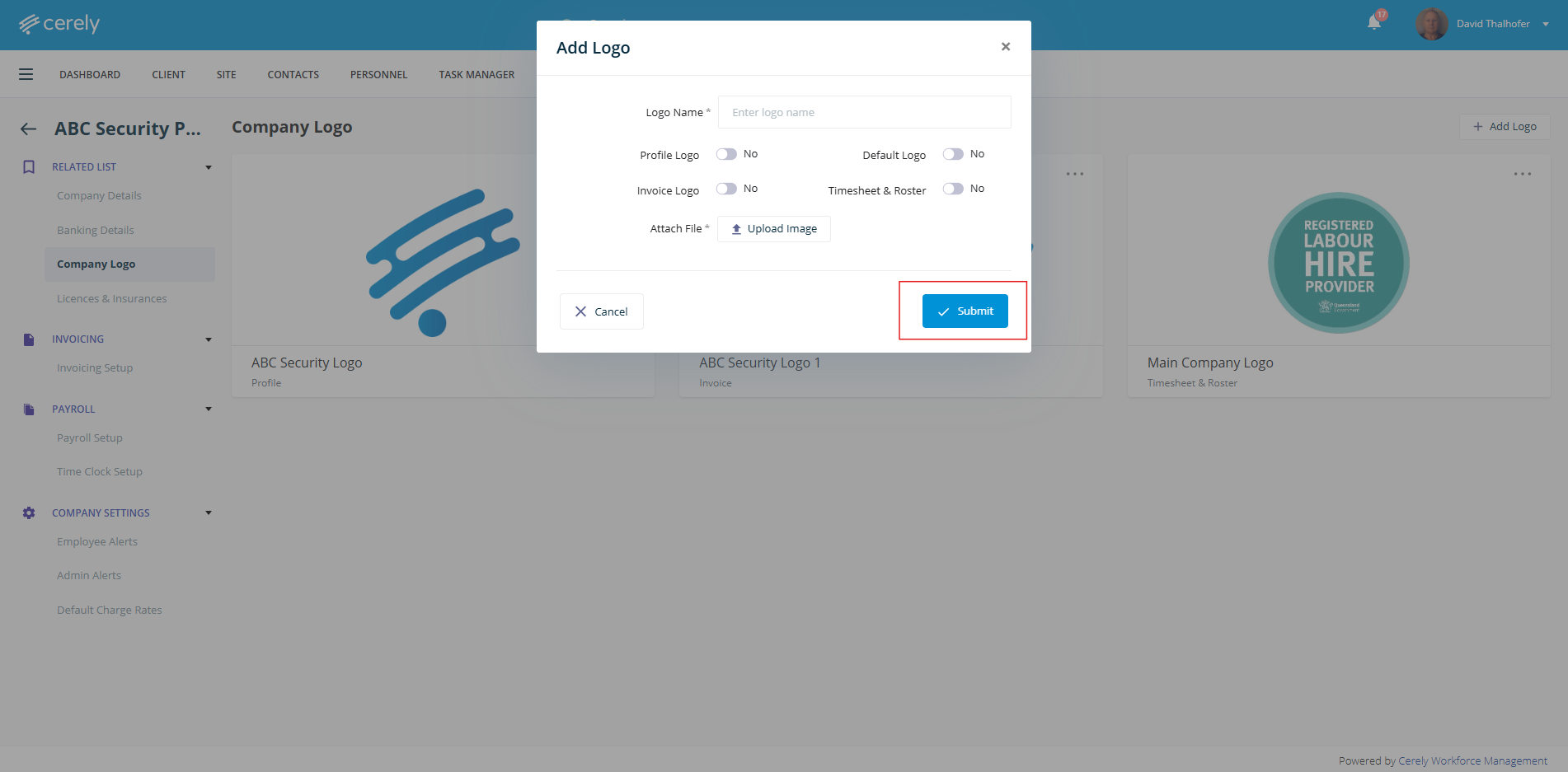
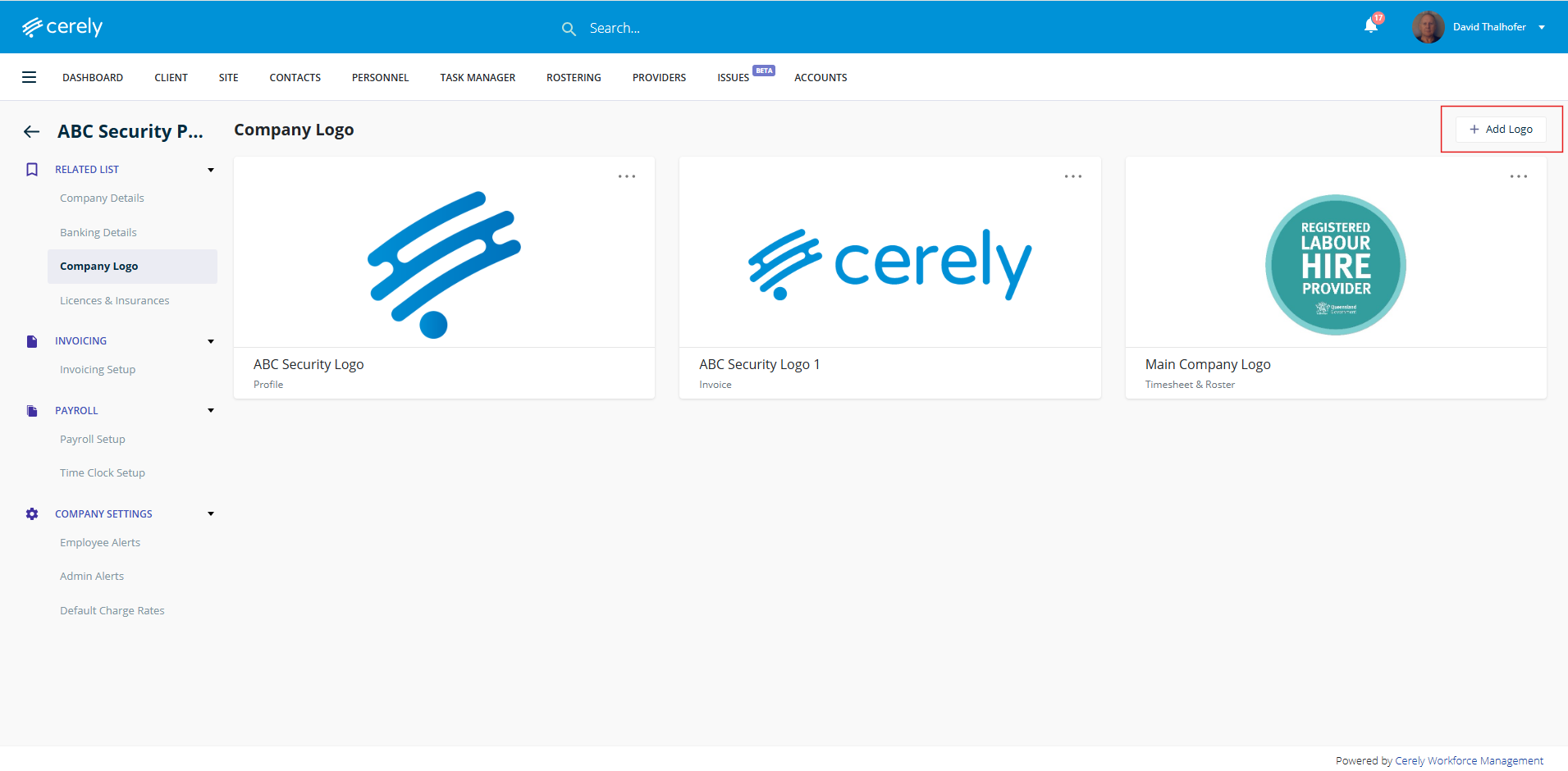
5. Click the + Add Logo button
6. Add the necessary details in the fields in the pop up screen, select where you'd like your logo to appear within the platform by toggling on or off the options, and upload your logo file from the location where this is saved on your computer or drive
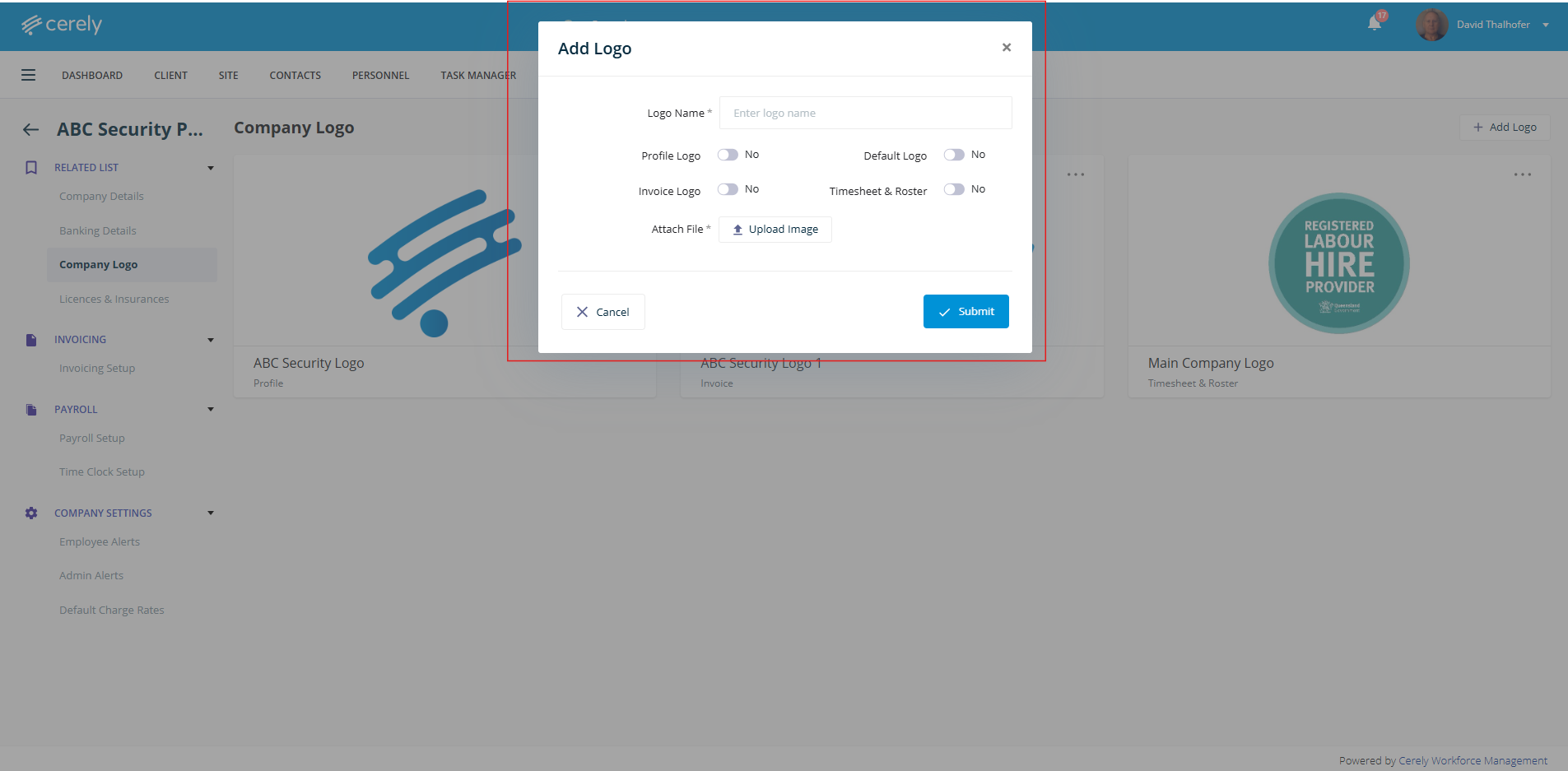
7. Click the submit button to save the logo settings and upload the logo file