
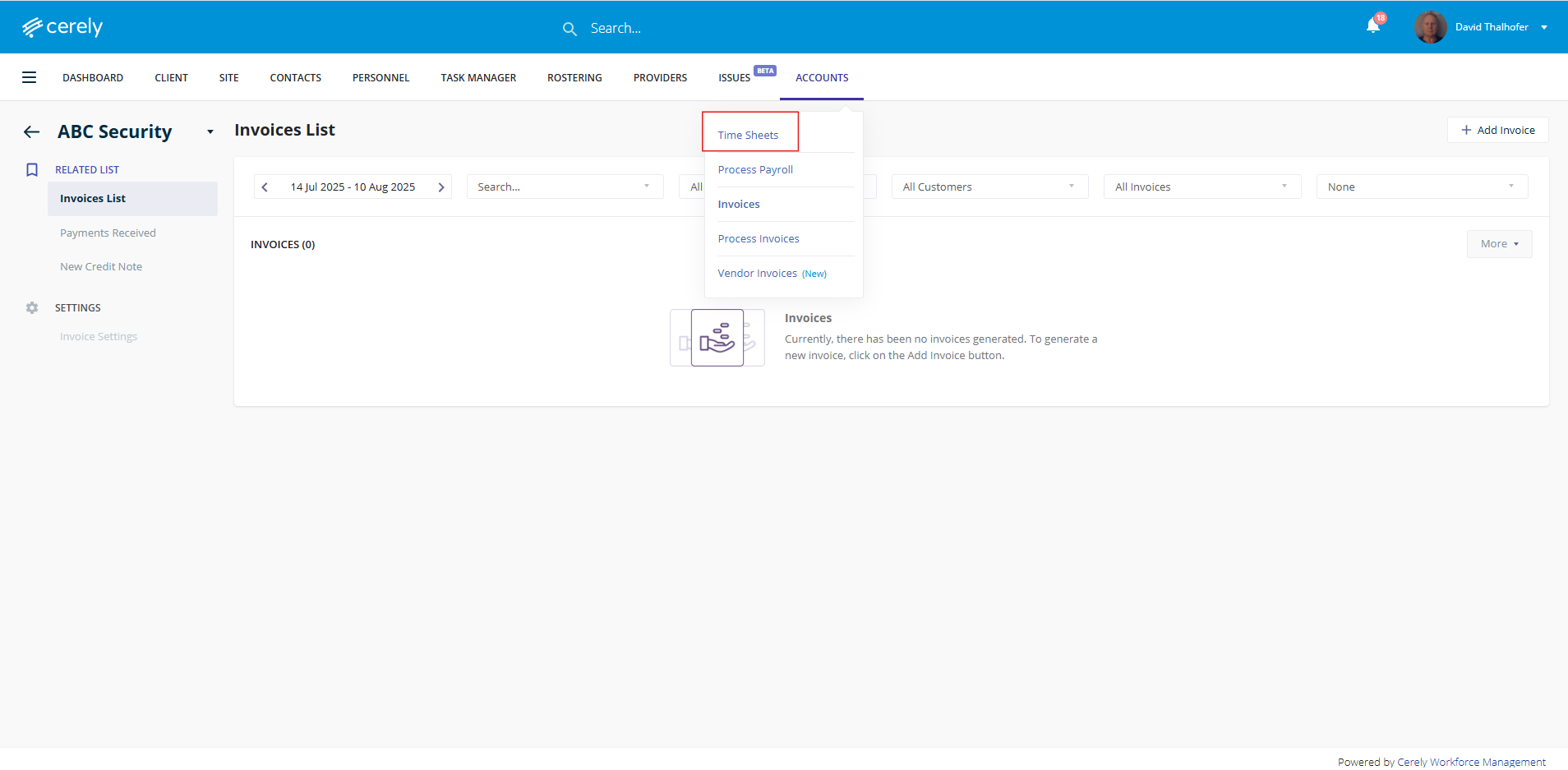
1. From the home screen in Cerely, click on the Accounts tab from the Cerely top main menu and then click on Time Sheets from the drop down menu.
2. Select the relevant date range for the previous week
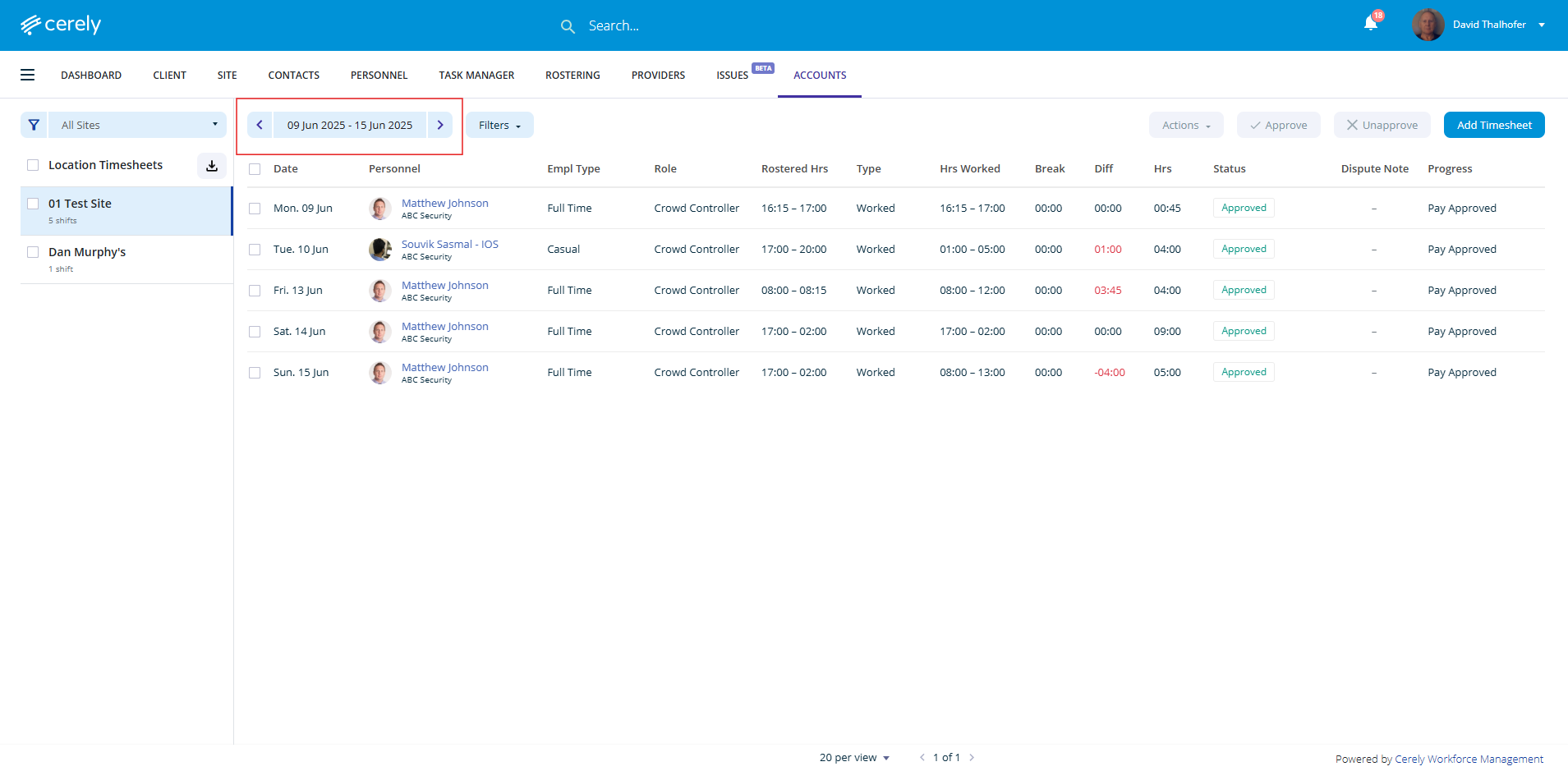
3. The timesheets for review and approval will display in the list
- You can approve timesheets individually by selecting each one and clicking the Approve button
- To approve in bulk, select multiple timesheets using the select boxes, then click the Approve button
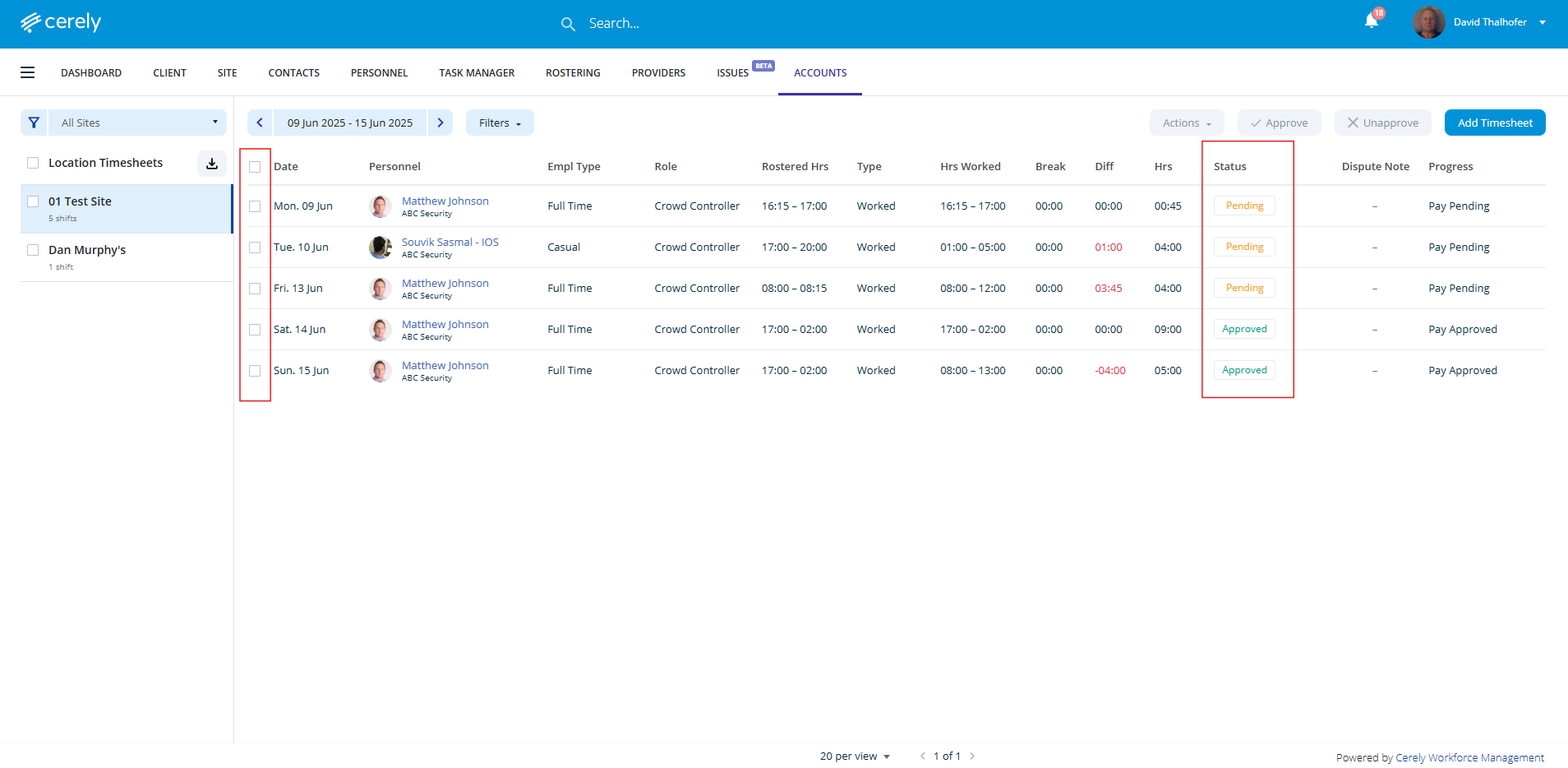
Timesheet Statuses in Cerely are categorised as follows:
- Incomplete: Timesheet requires completion and review before approval
- Pending: Timesheet has been submitted and is ready for approval
- Approved: Timesheet has already been approved and is ready for payroll and invoicing
- Discard: Timesheet has been discarded, the employee will not be paid, and the client will not be invoiced
Once all timesheets are in the Approved status, you are now ready to proceed with payroll processing and client invoicing.