
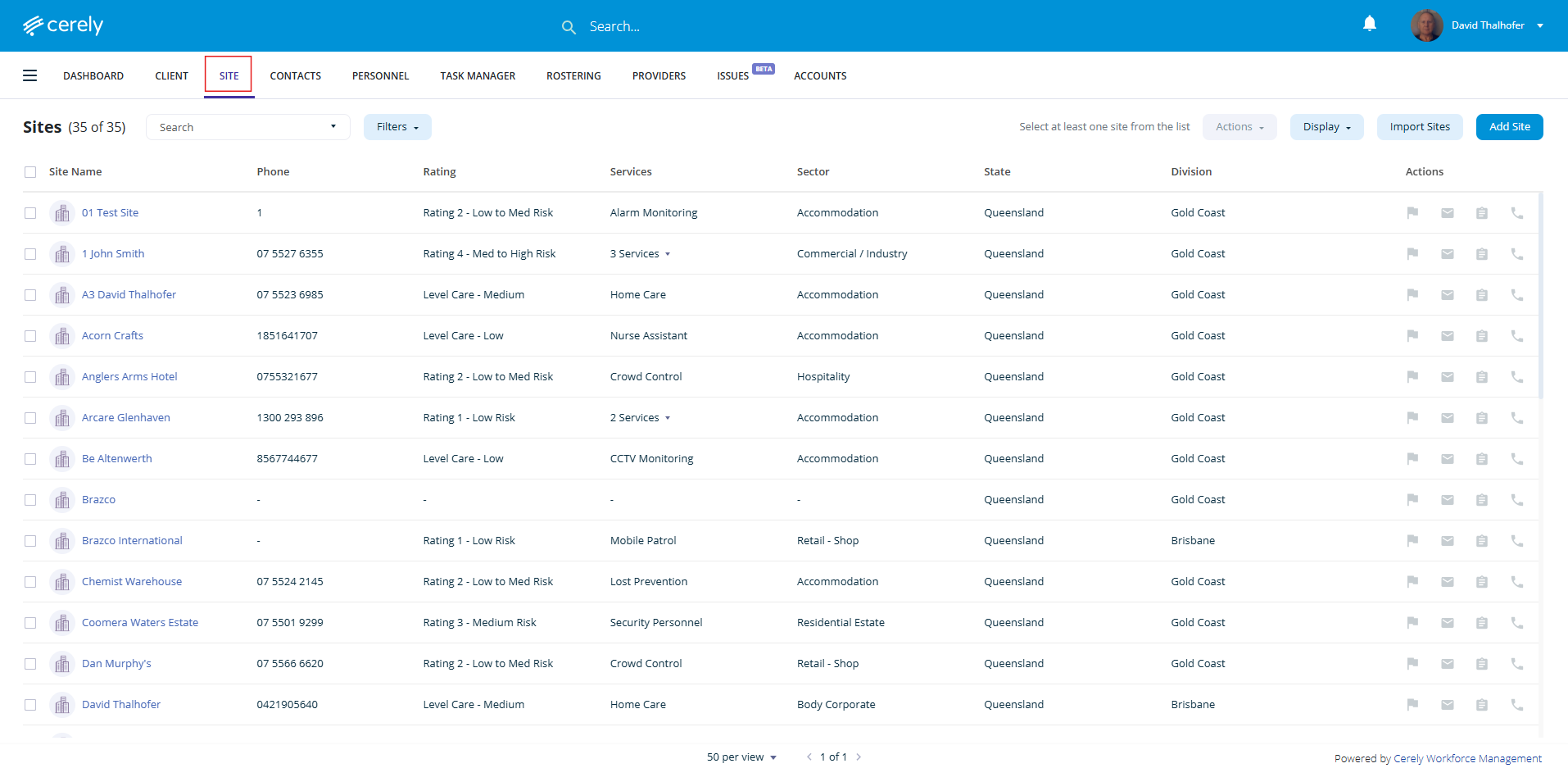
1. From the main menu on the Cerely dashboard, click on the Site tab
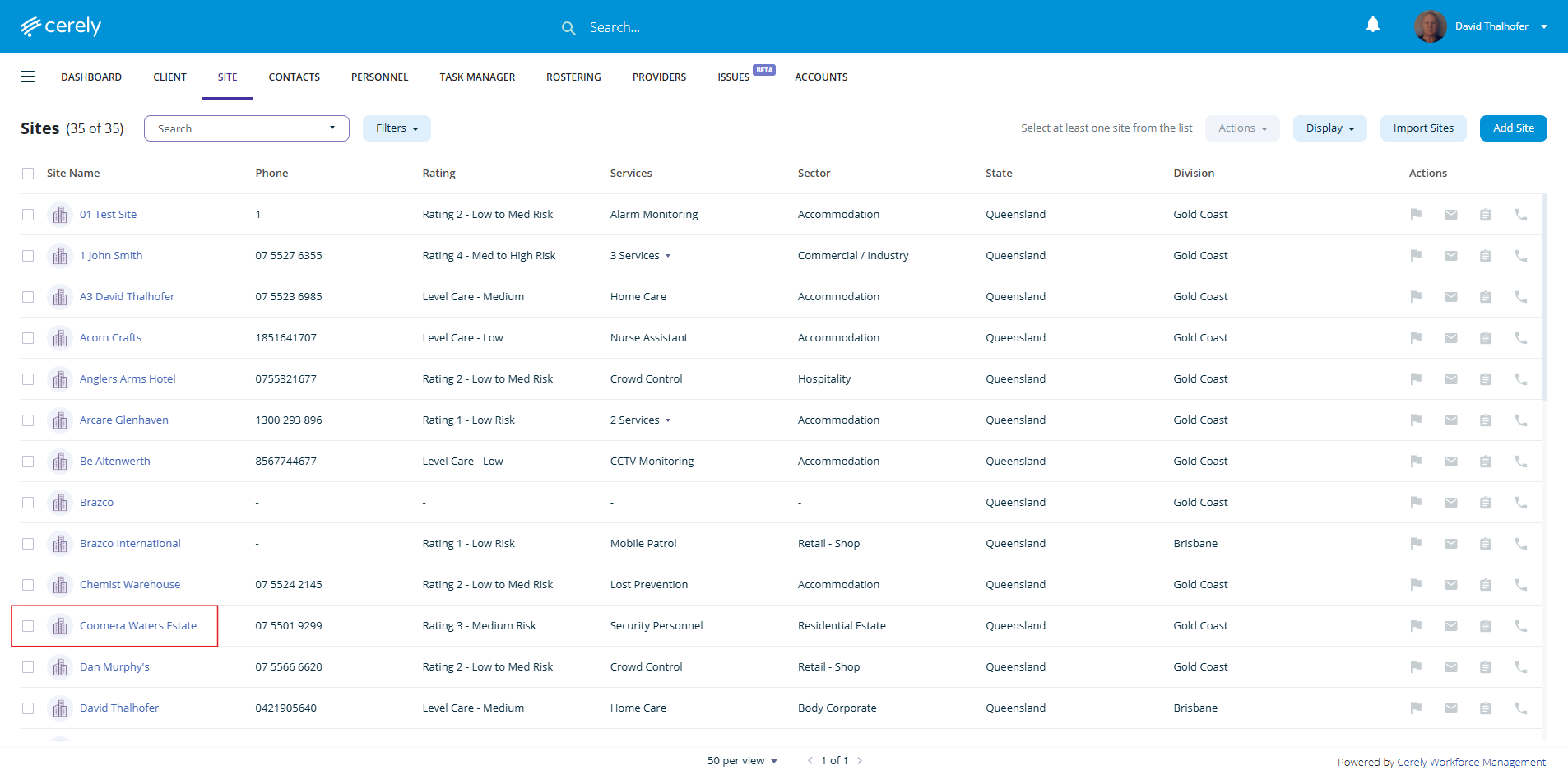
2. Click on the Site you wish to assign the report template to
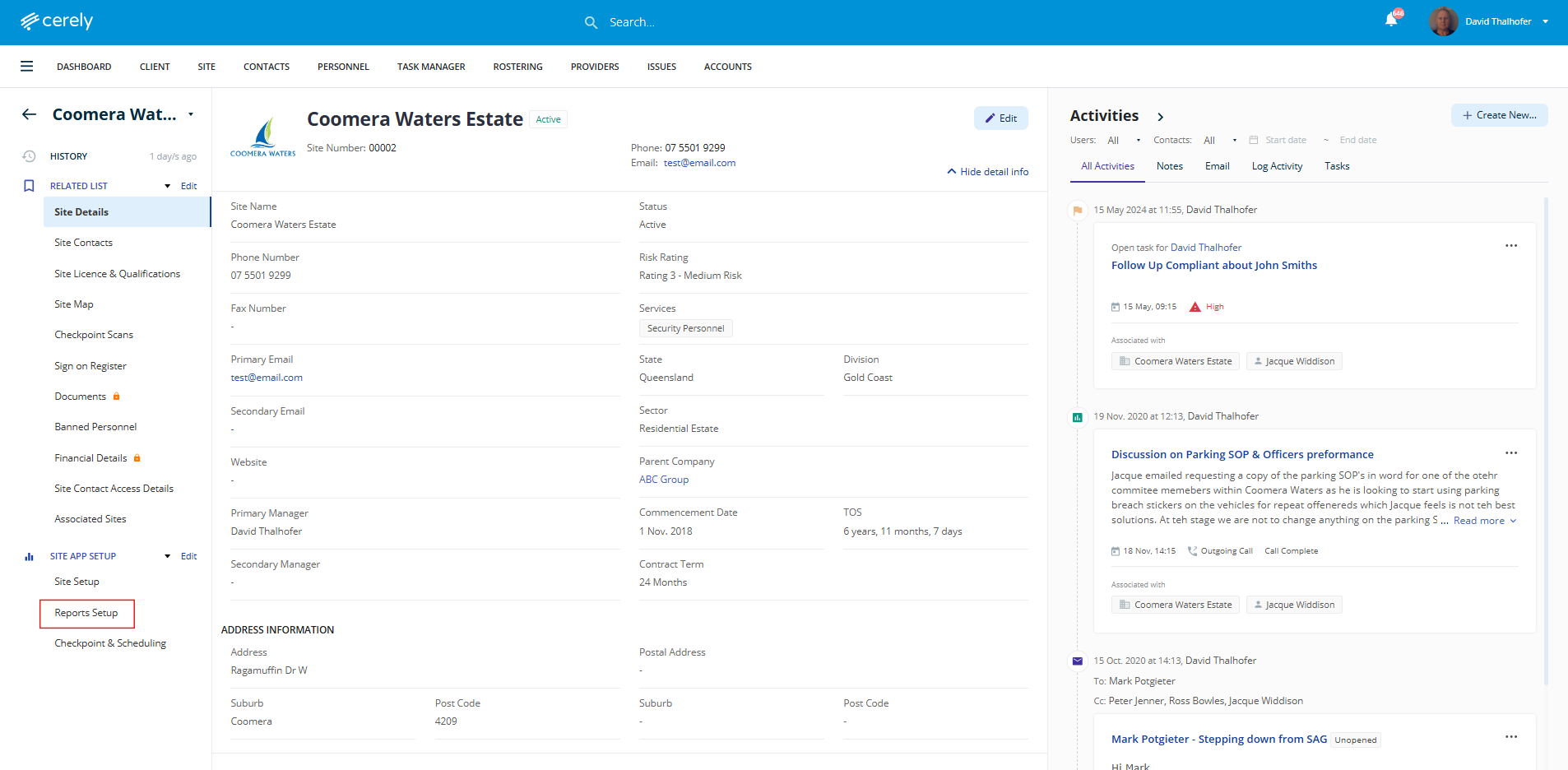
3. From the left-hand menu, under Site App Setup click on Reports Setup
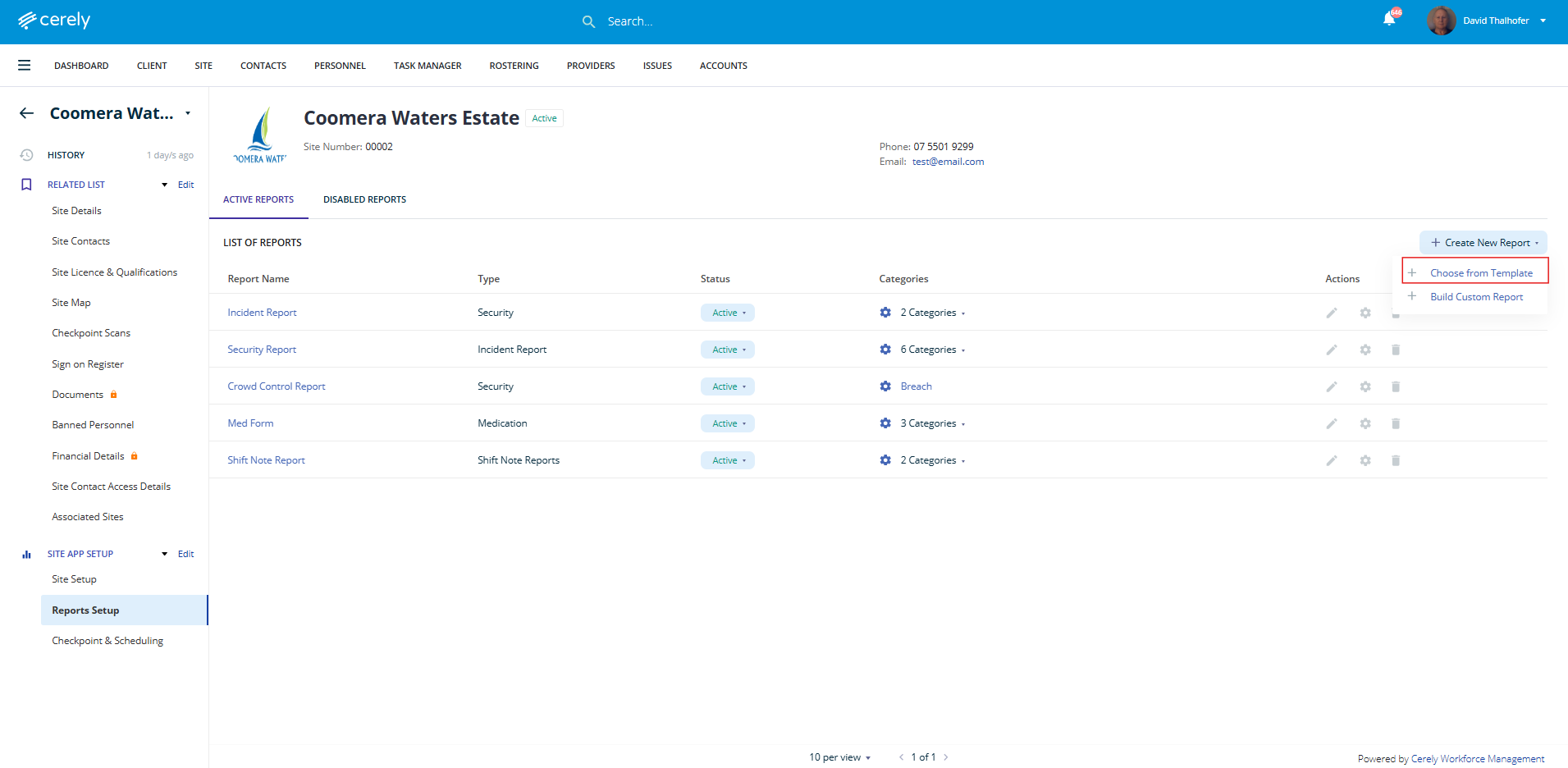
4. Click on the + Create New Report button on right hand side and from the dropdown menu click on + Choose from Template
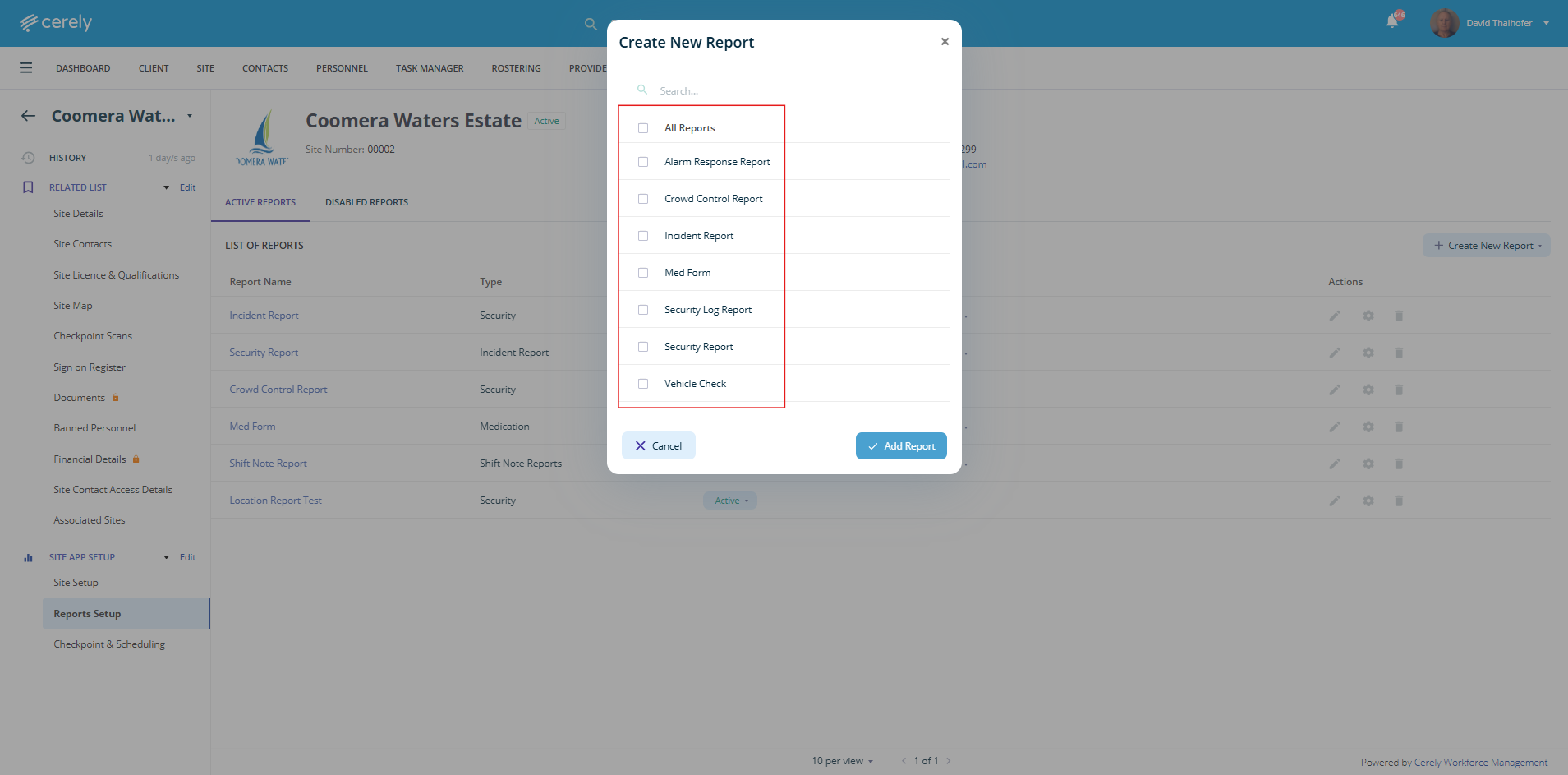
5. In the pop-up screen, choose the select box beside each report template you would like to assign to this site or choose All Reports for them all to be available
6. Once selected click the Add Report button
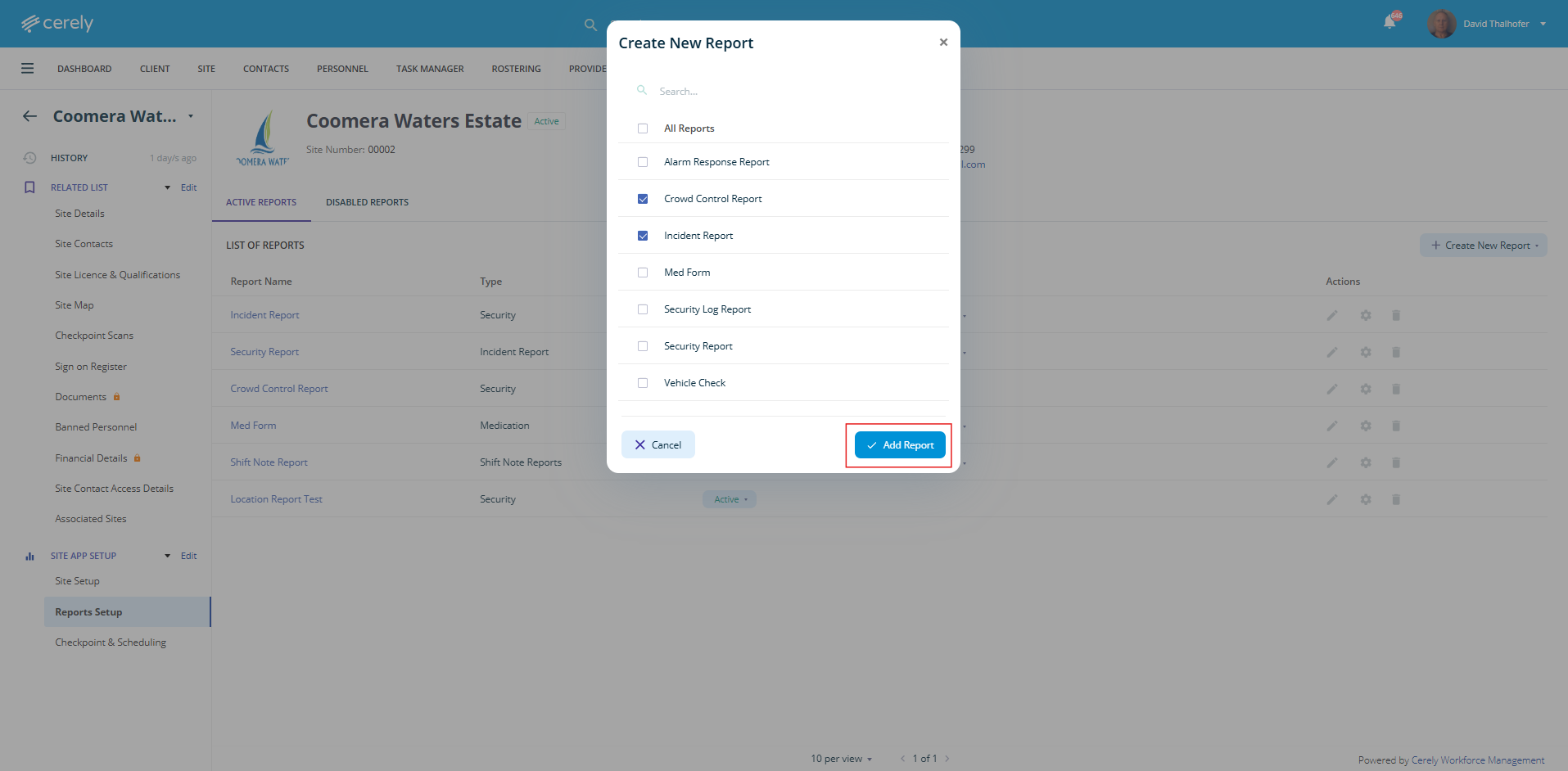
These reports are now live and available for employees to complete during their shifts at this site via the Cerely mobile app.