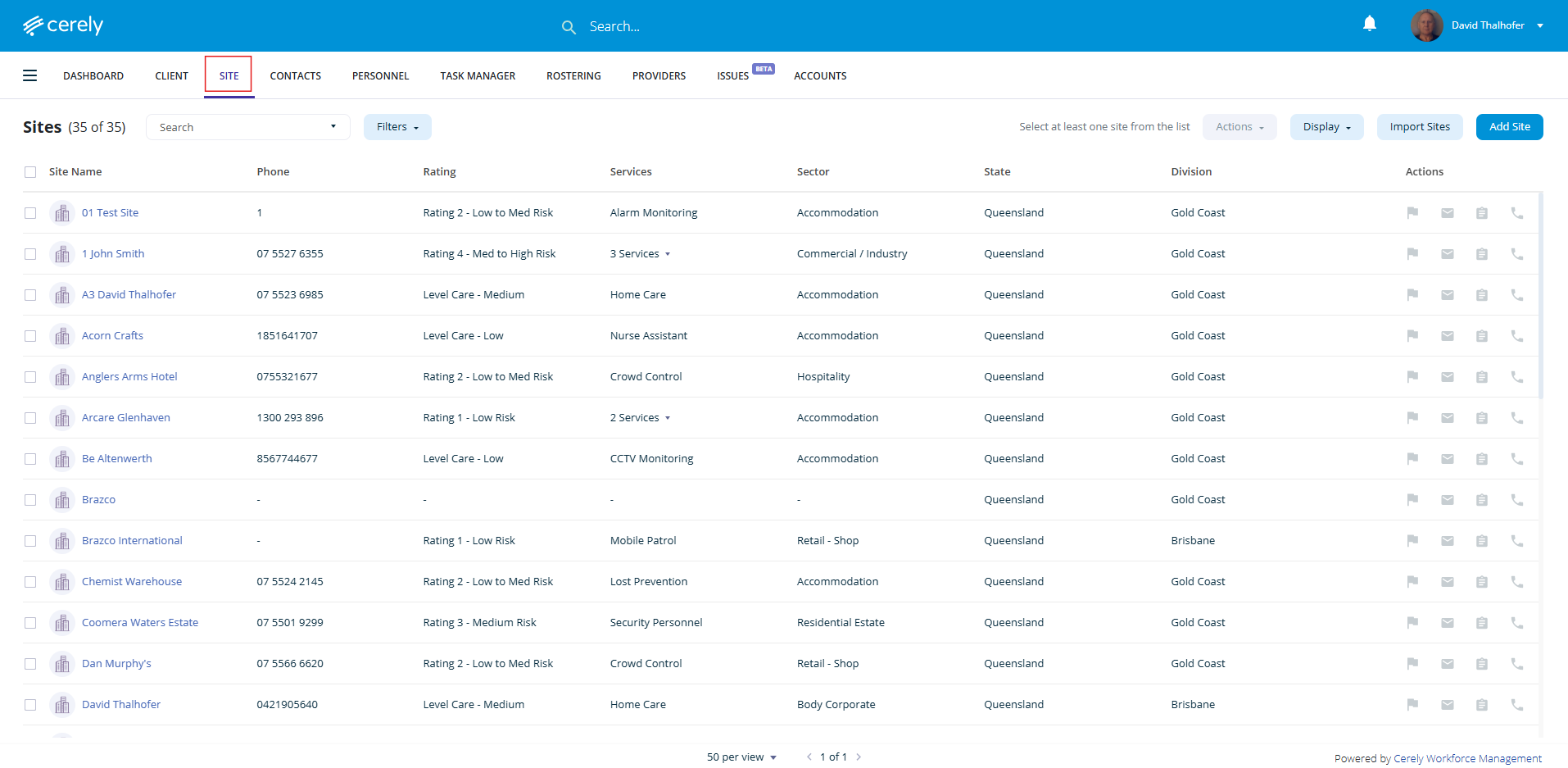
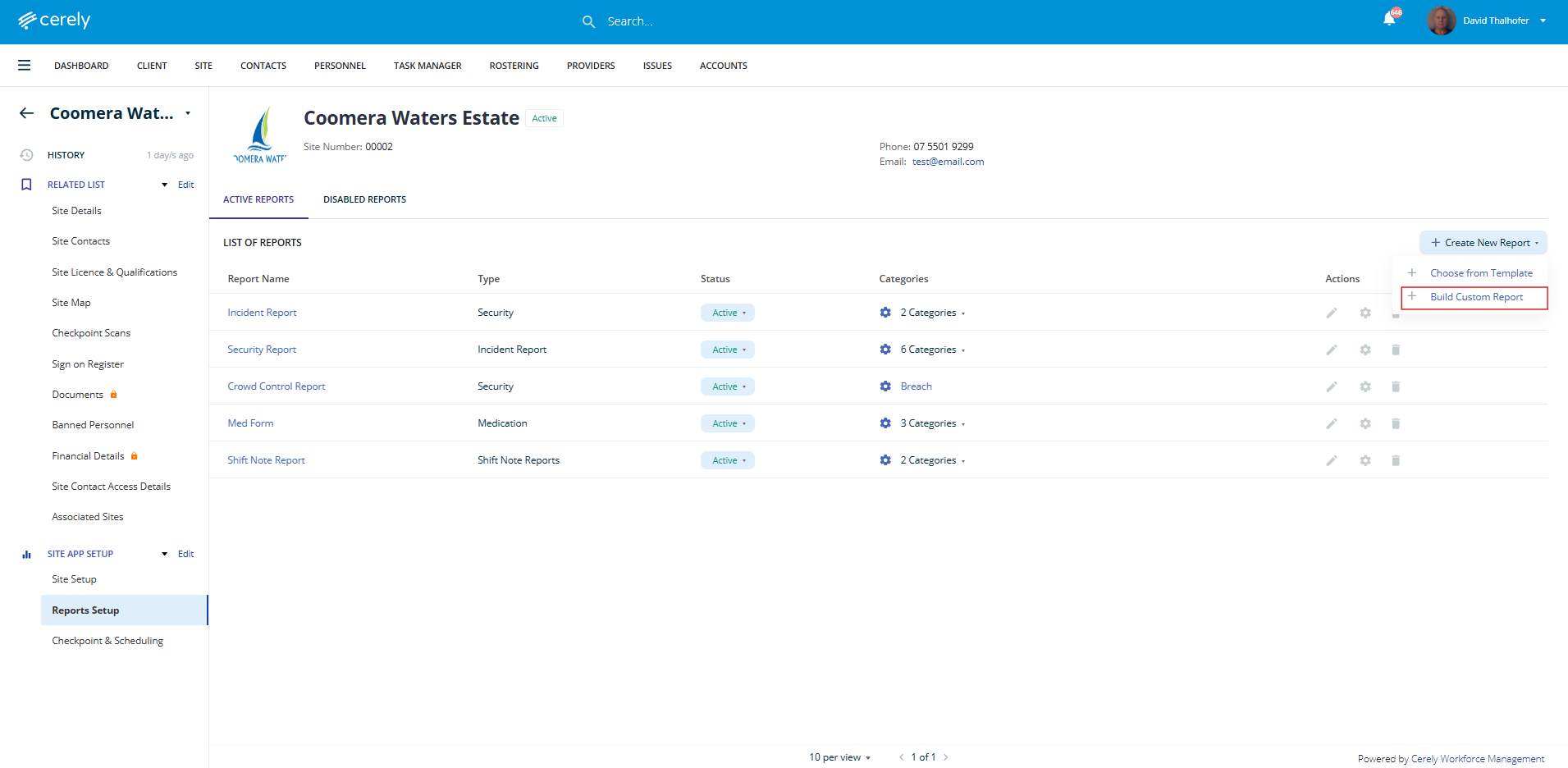
1. From the home screen in Cerely, click on the Sites tab from the Cerely top main menu
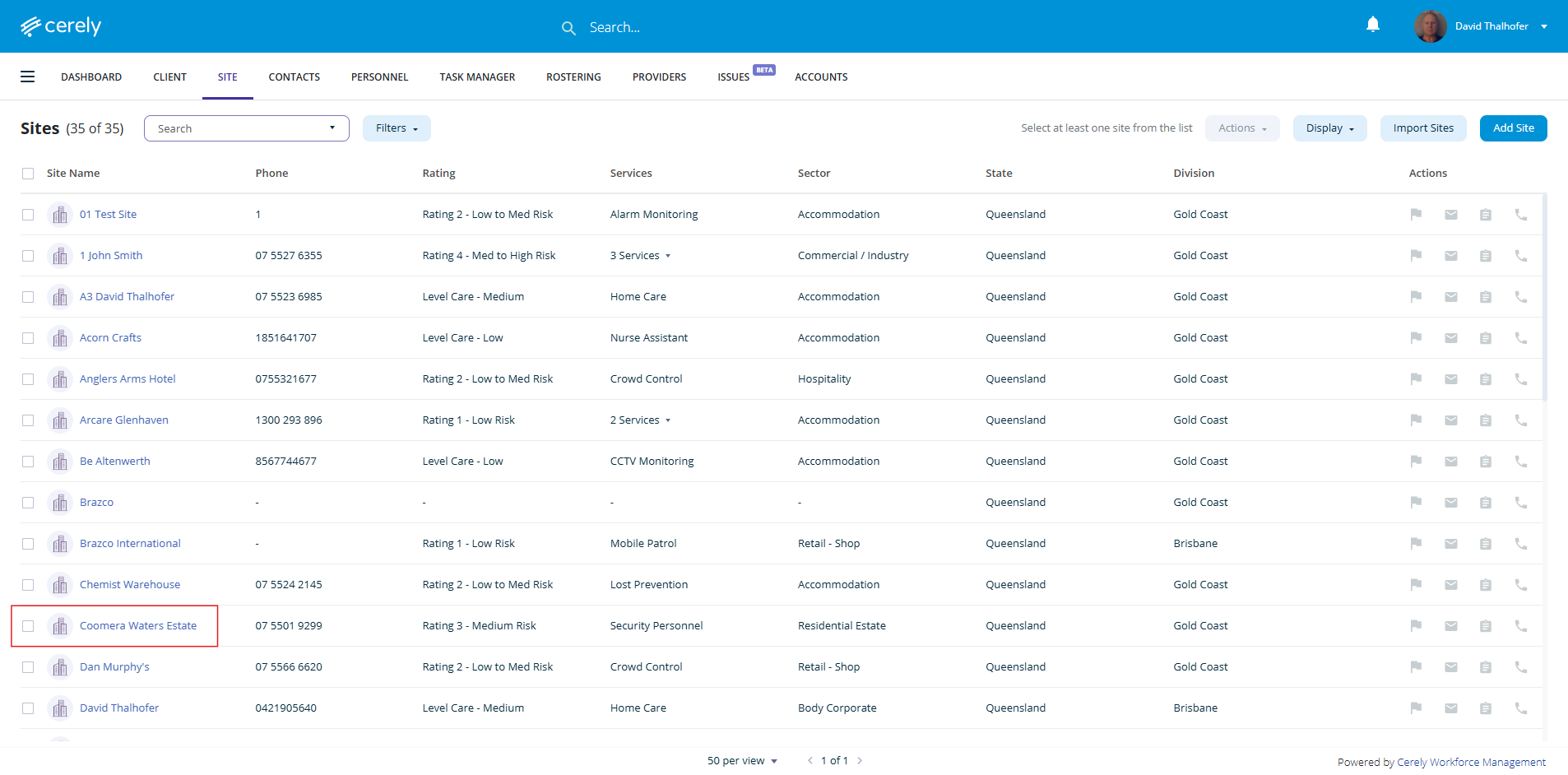
2. Select the Site you wish to build a custom report for
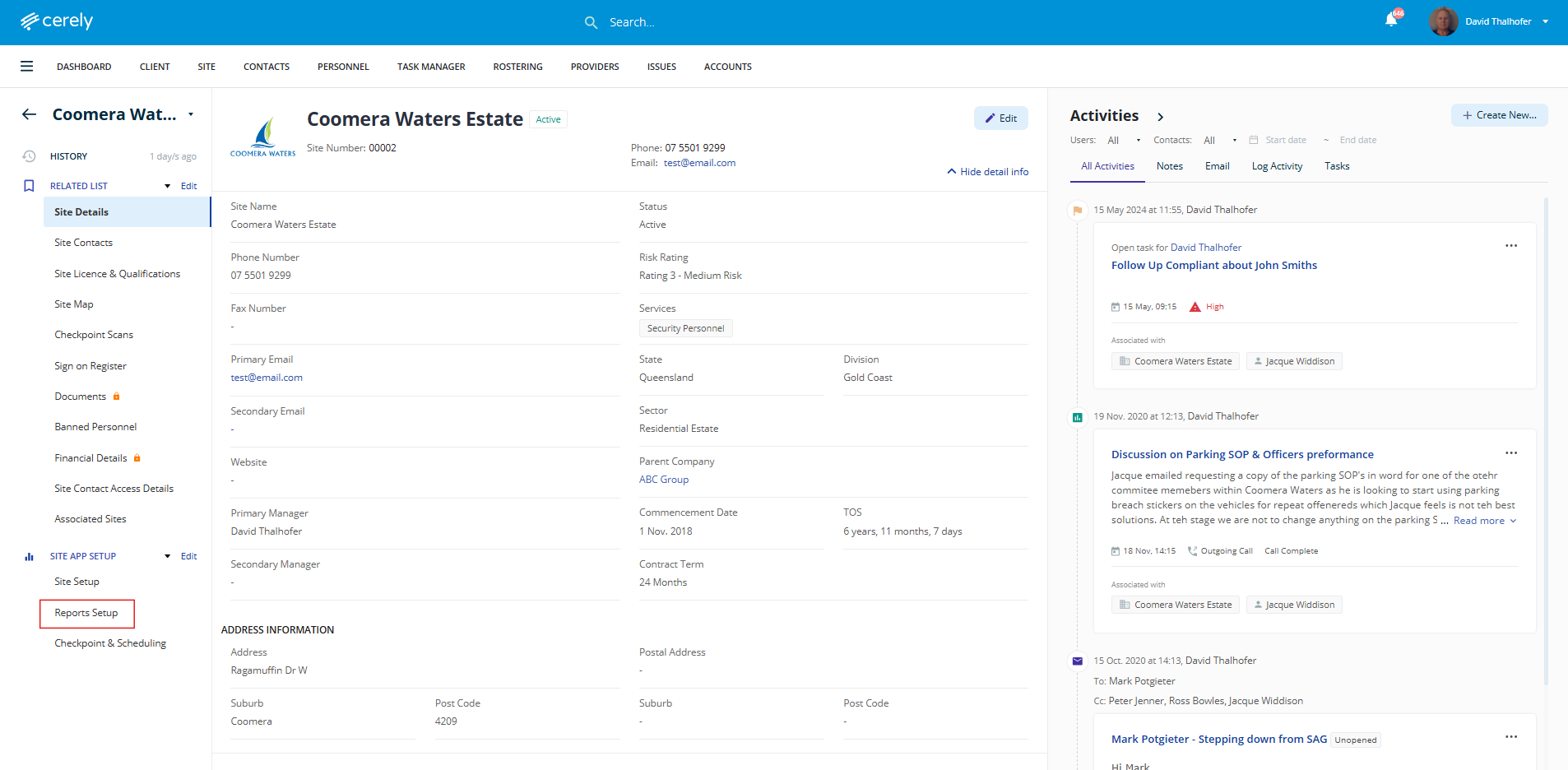
3. From the left-hand menu, select Reports Setup
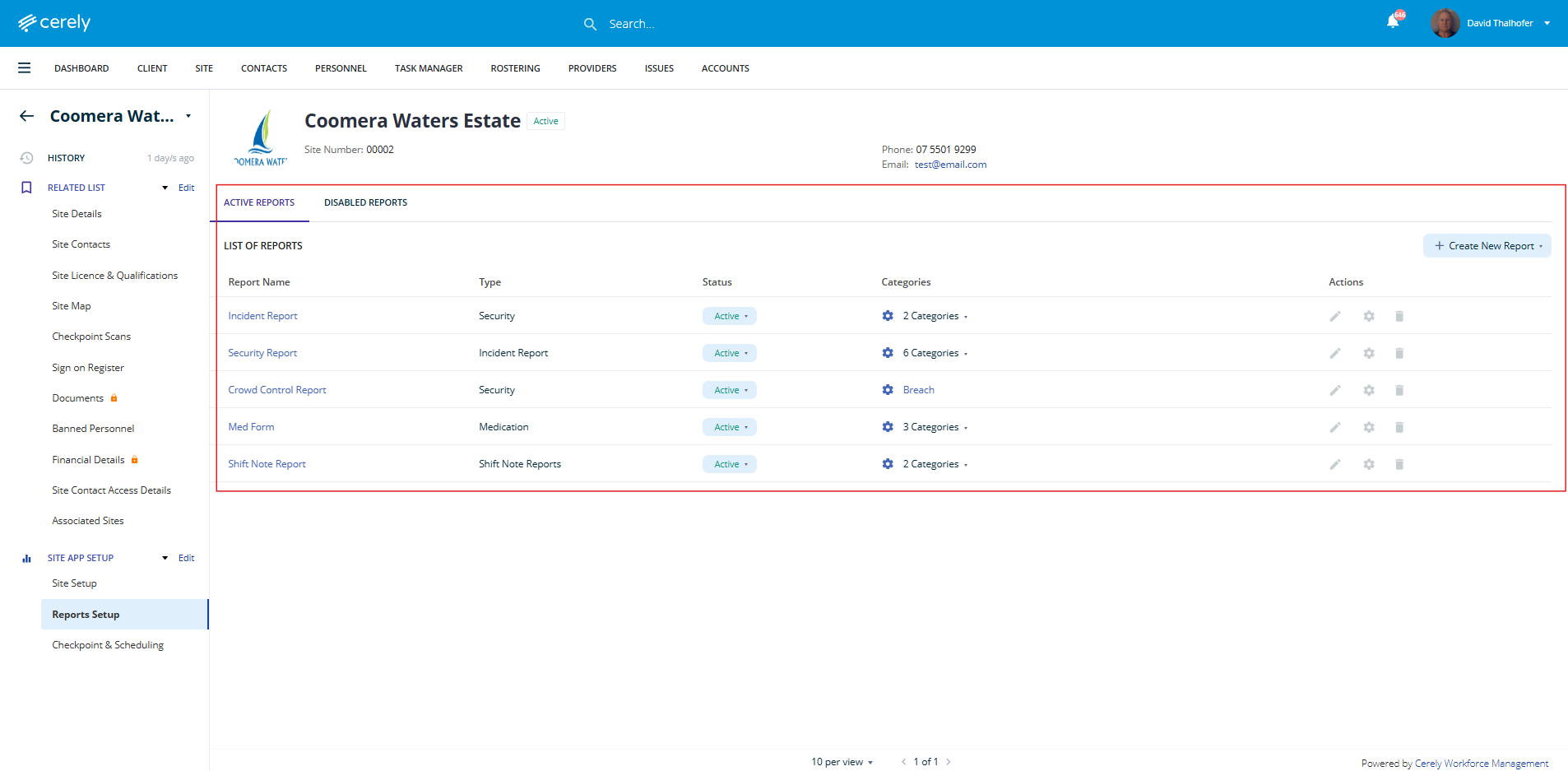
4. Click on the + Create New Report button on the right hand side and from the drop down menu select +Build Custom Report
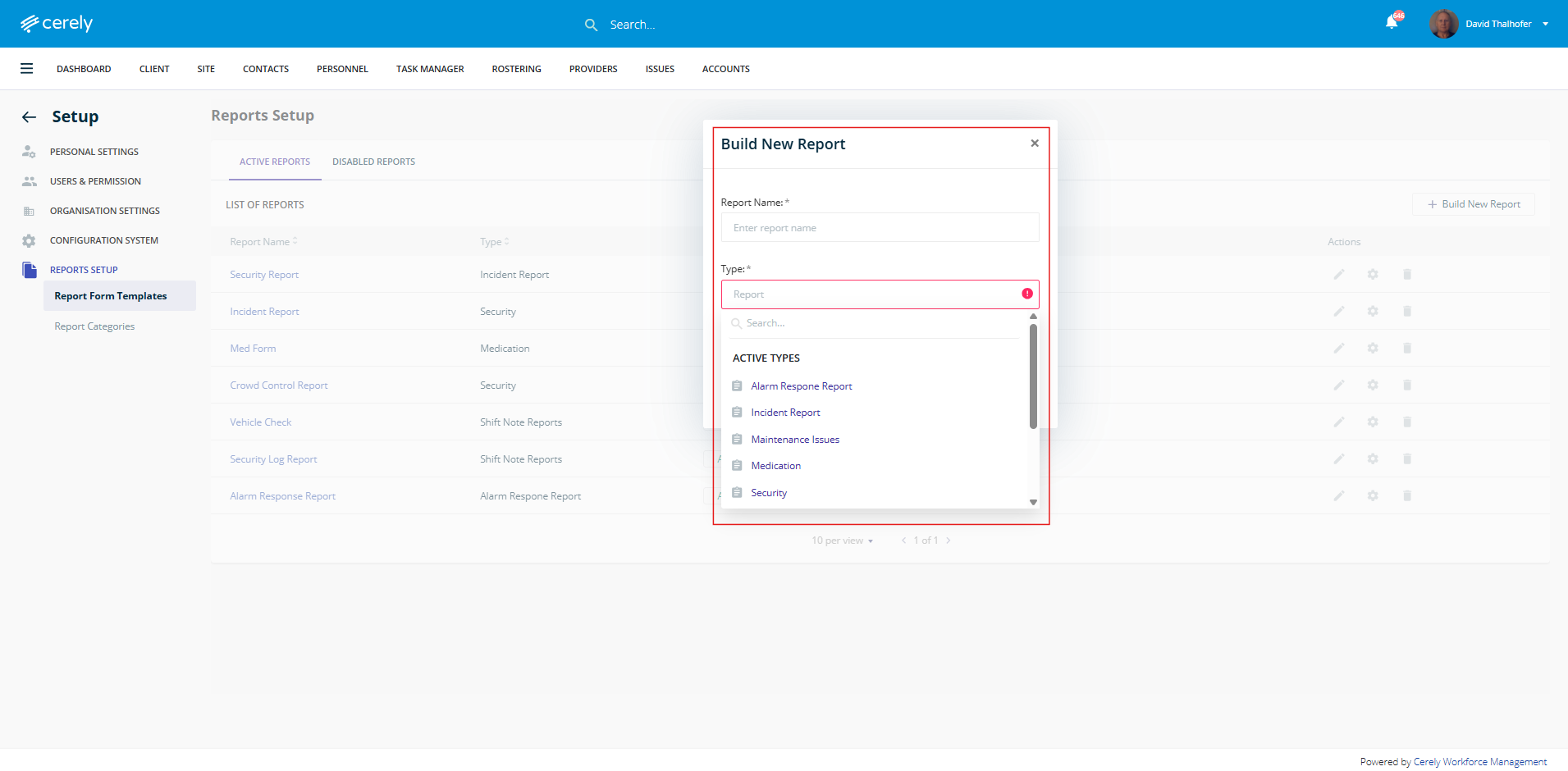
5. In the pop-up box, Enter a Report Name and select a Type of Report from the dropdown menu or create a new report type category from this screen
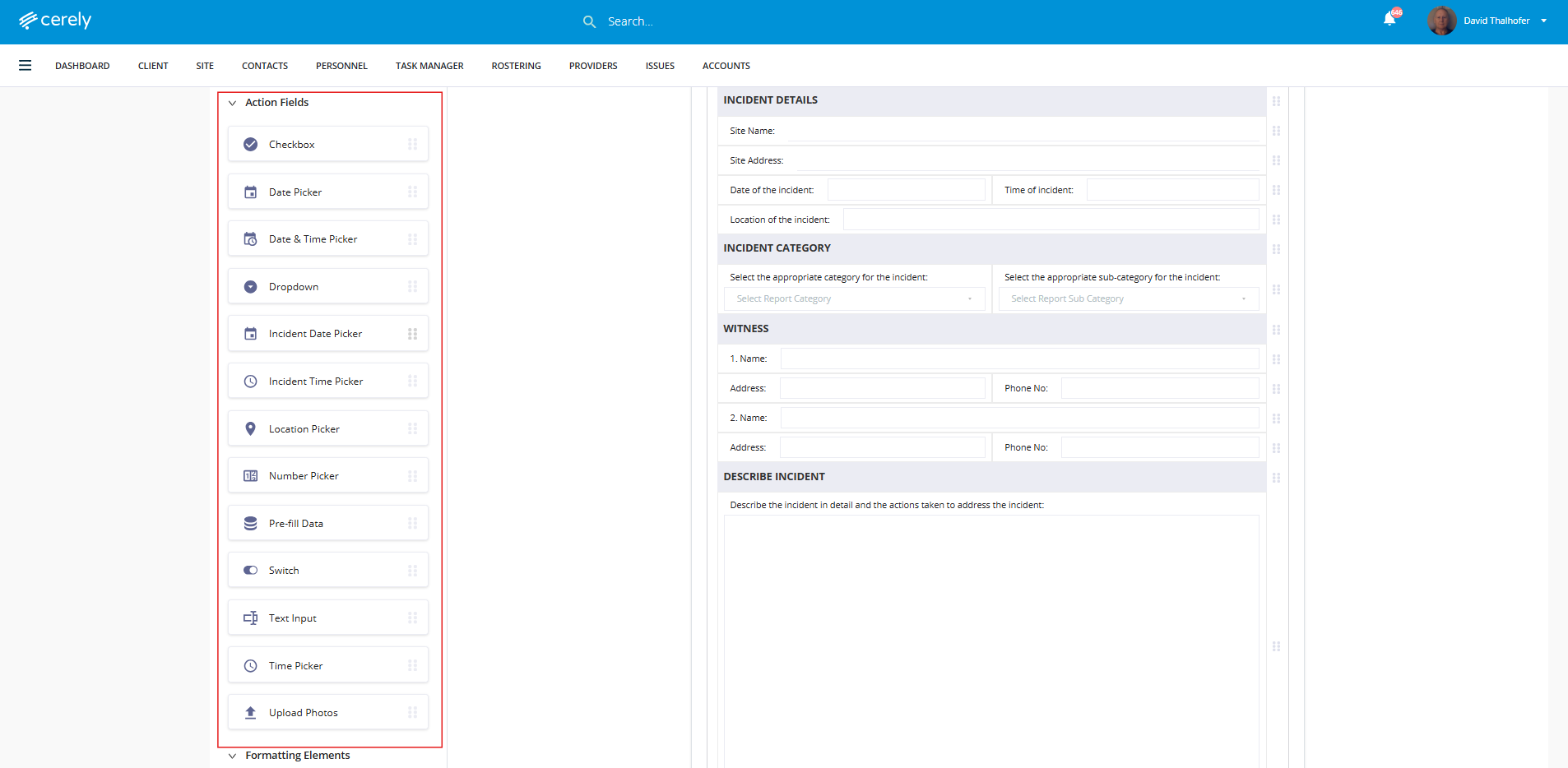
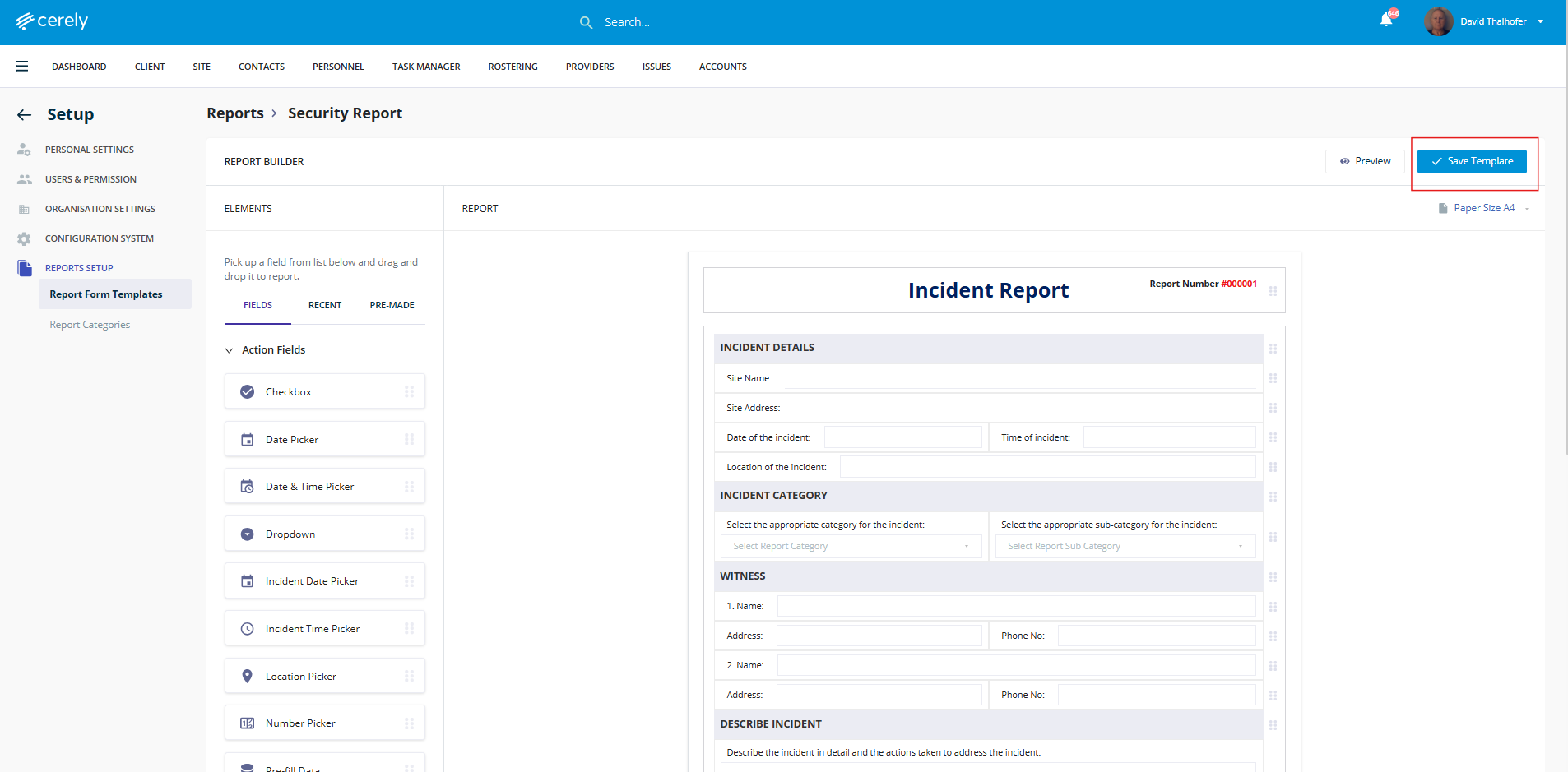
6. Drag and drop the fields you want included in your custom report
7. Click the Preview button to review the layout and structure of the custom report template
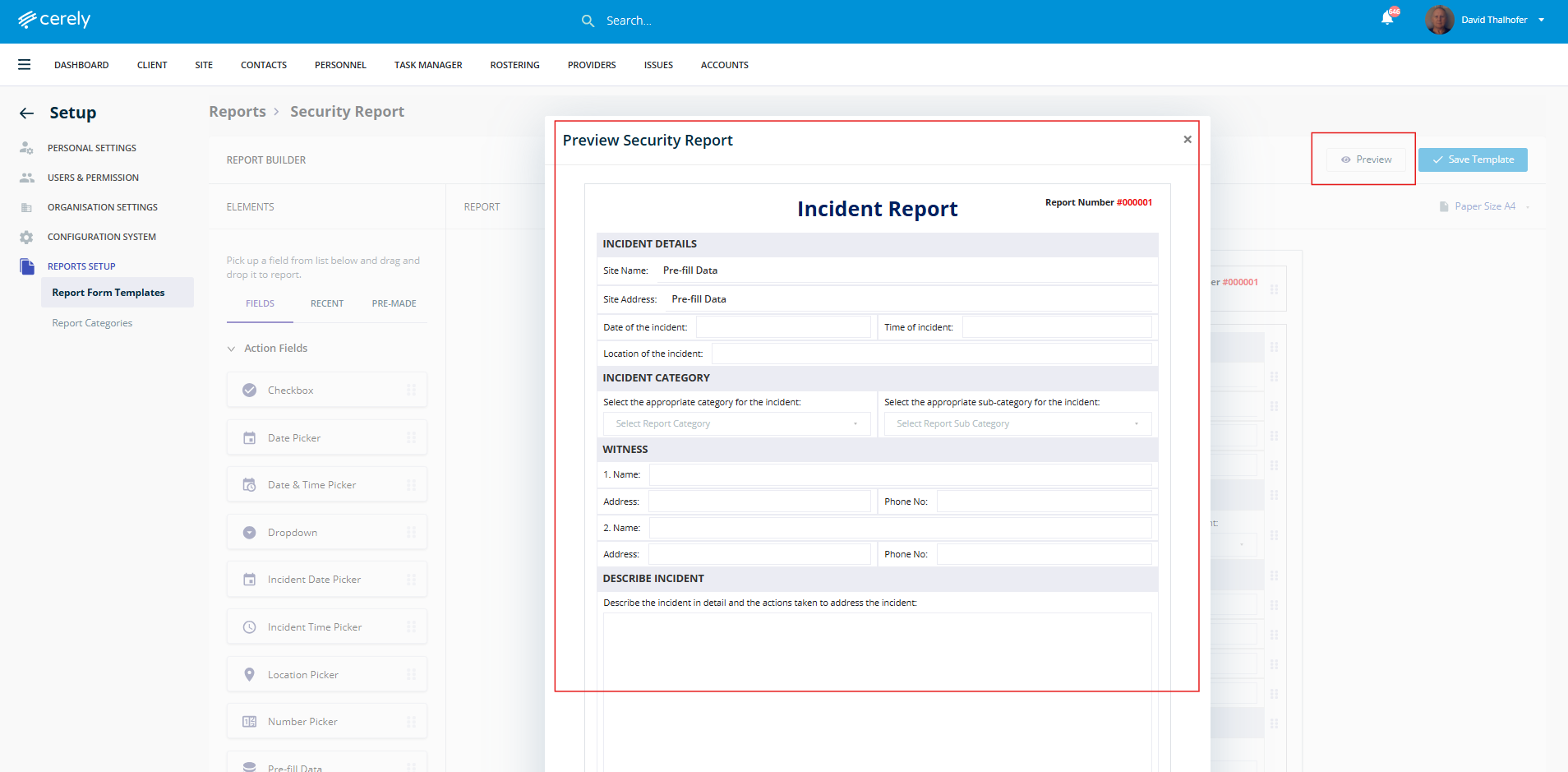
8. When satisfied with the report, click the Save Template button on the right hand side
9. The custom report is now saved to the site and available for use at this site only