
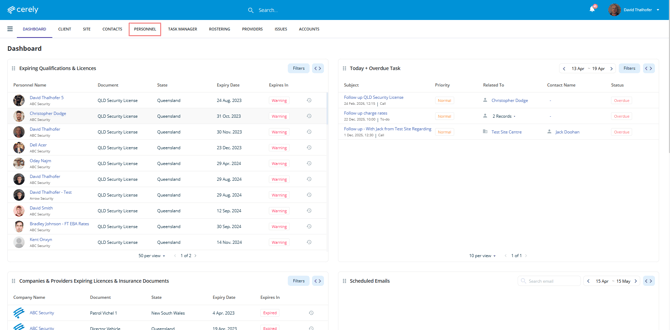
1. From the main menu in Cerely, select Personnel
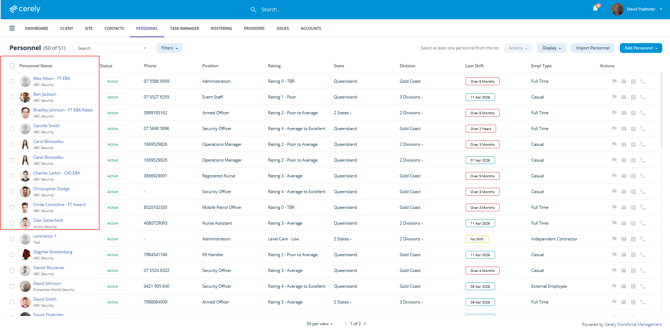
2. Locate and select the employee whose induction you want to edit
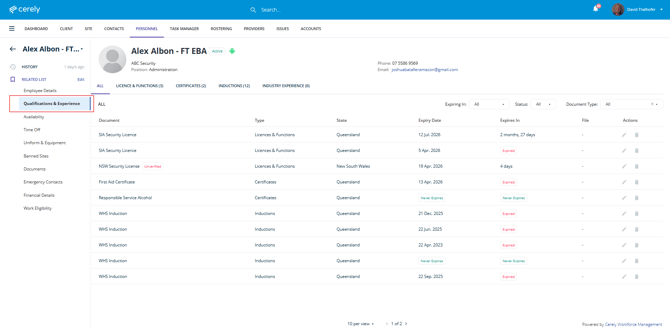
3. From the left-hand side menu within the employee profile, select Qualifications & Experience
4. 4. At the top of the screen, select Inductions from the menu
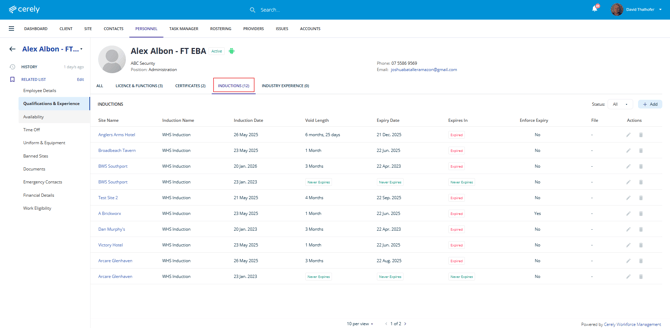
5. Find the induction you want to edit in the list
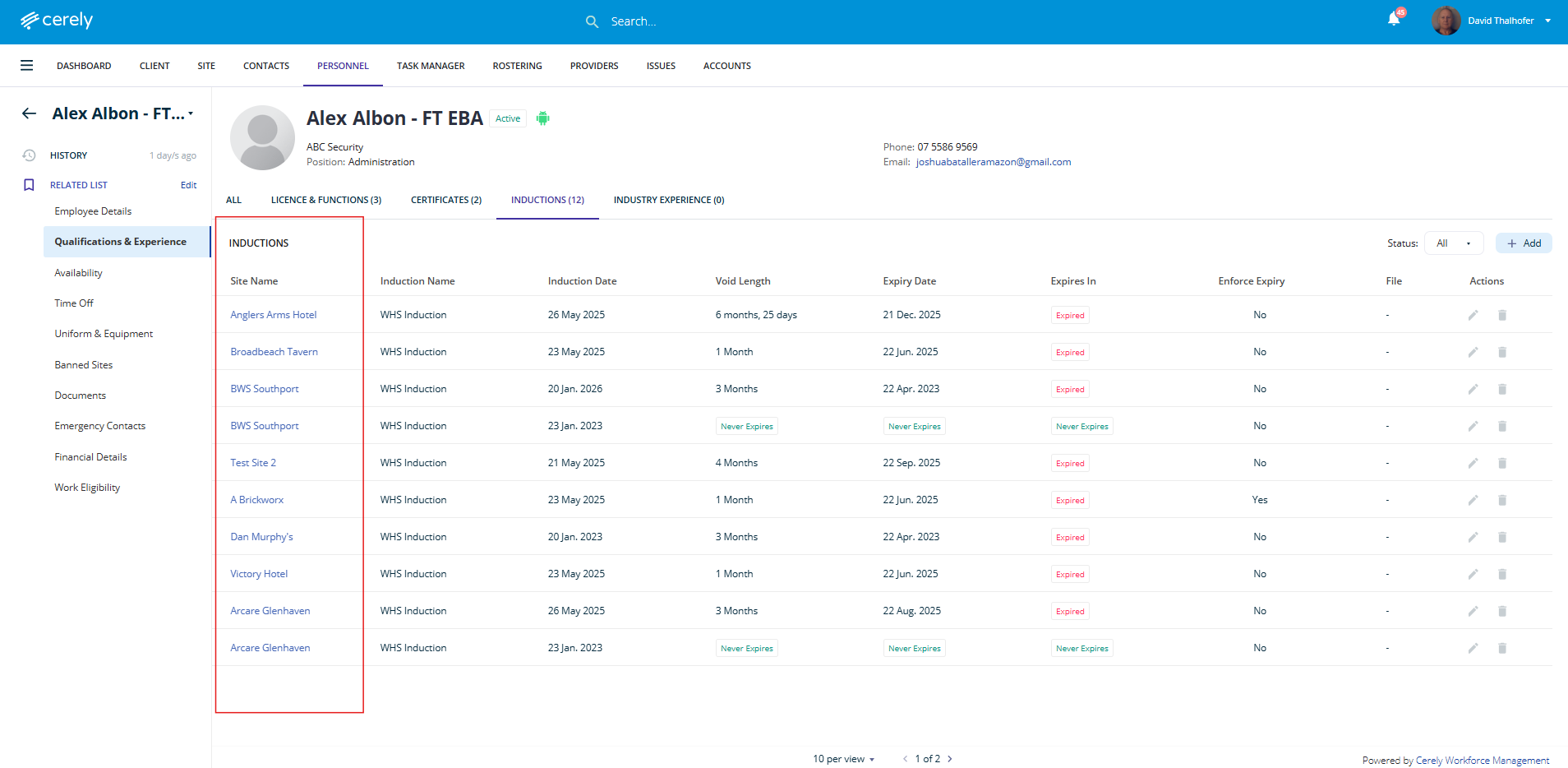
6. Click the Edit icon next to the induction
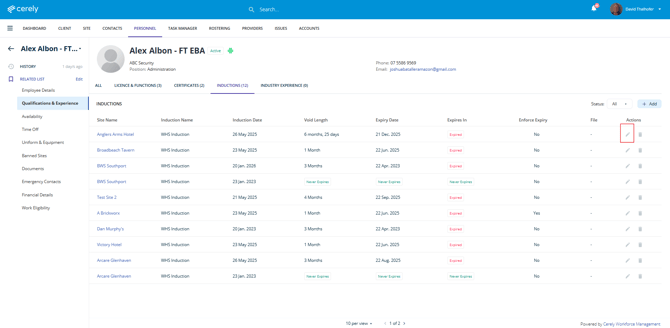
6. Update the inductions details required
| Field | Description |
|---|---|
| Client | Update the client associated with the induction |
| Site Name | Update the site the induction applies to |
| Induction Name | Select or update the induction type |
| Induction Date | Update the date the induction was completed |
| Expiry | Select Void or update a Custom Expiry Date |
| Length | Select a predefined duration if applicable |
| Enforce Expiry | Toggle on to prevent rostering if the induction expires |
| Never Expires | Toggle on if the induction does not expire |
| Upload Induction | Upload or replace supporting documentation |
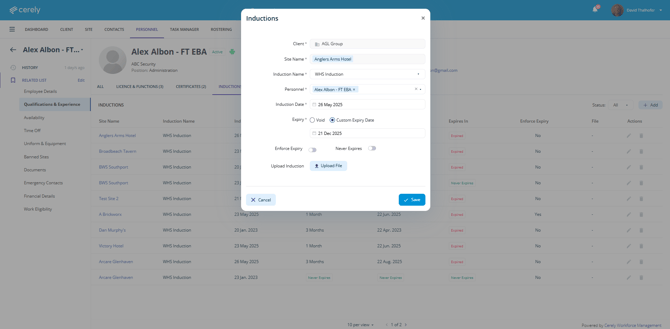
7. Select Save to apply the updates
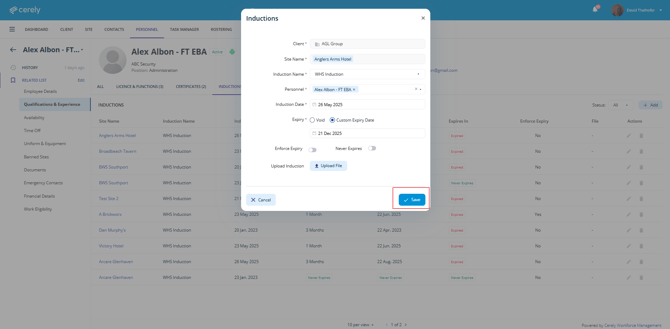
The induction has now been updated and will reflect the latest information in the employee’s Qualifications & Experience section.
Important
If Enforce Expiry is enabled, any updates to the expiry date will immediately impact the employee’s ability to be rostered to the associated site.