
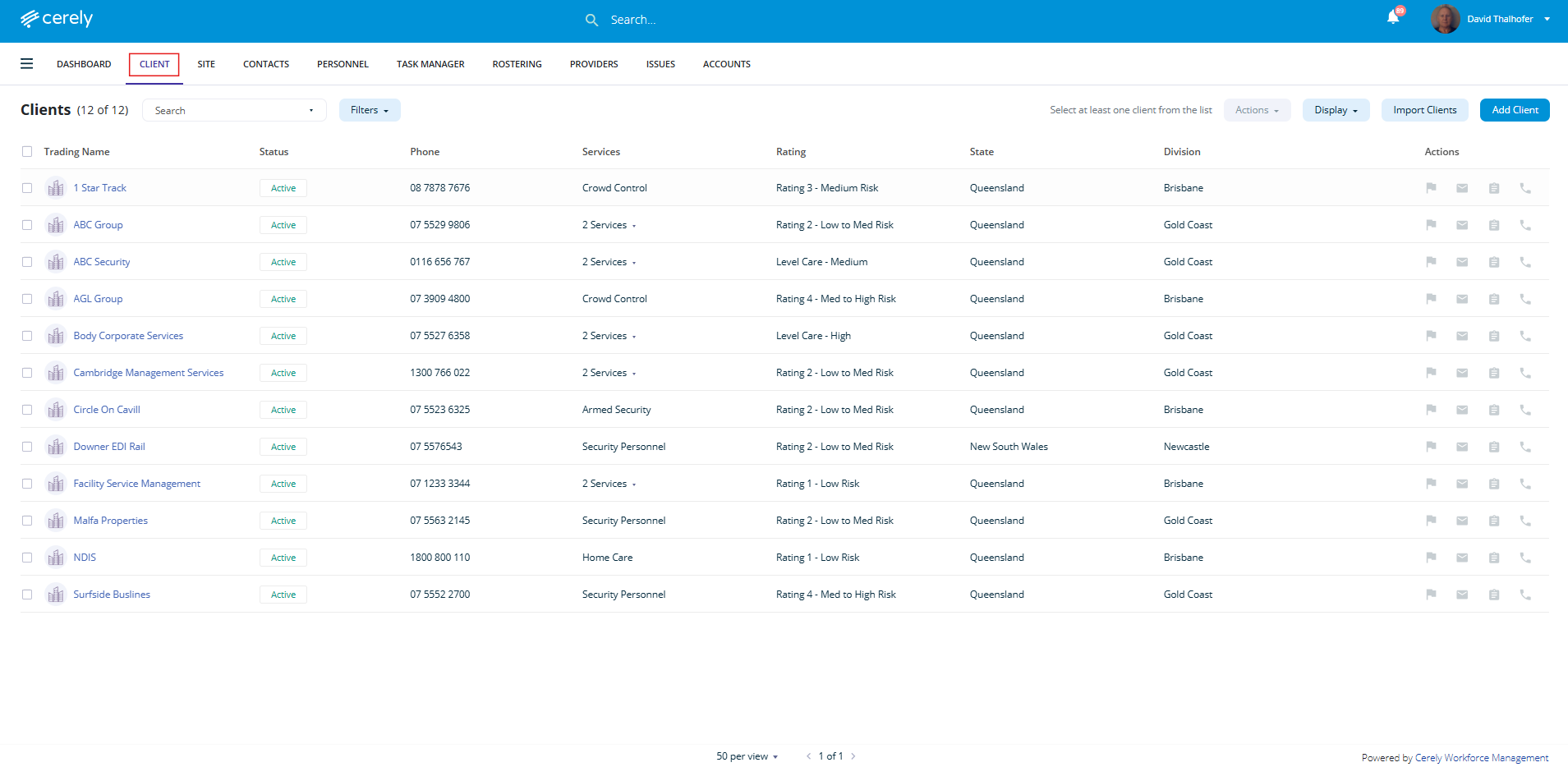
1. From the main menu on the Cerely dashboard, click on the Client tab
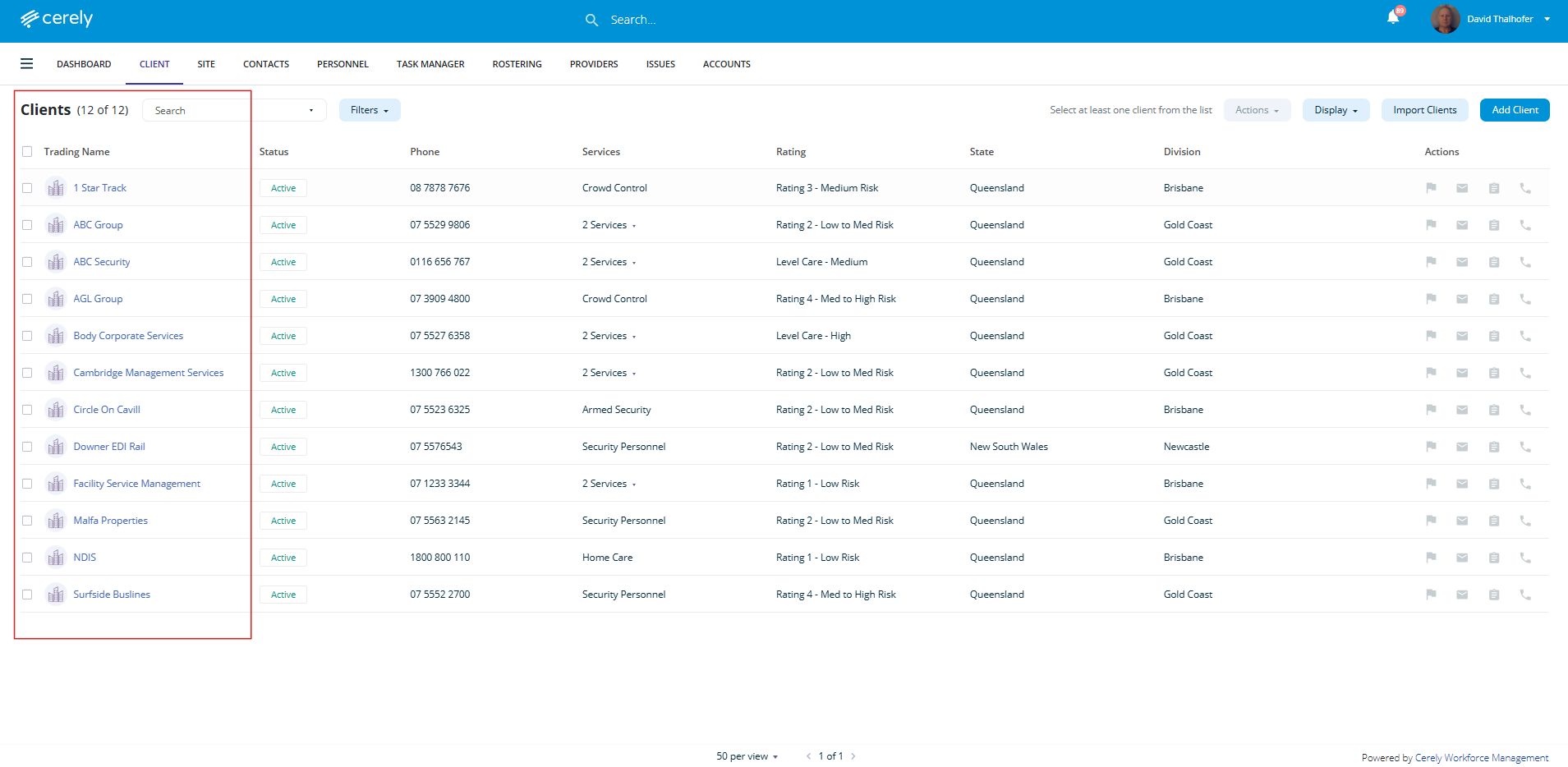
2. Select the client from the list you wish to edit contacts, click on the client and this will open the profile
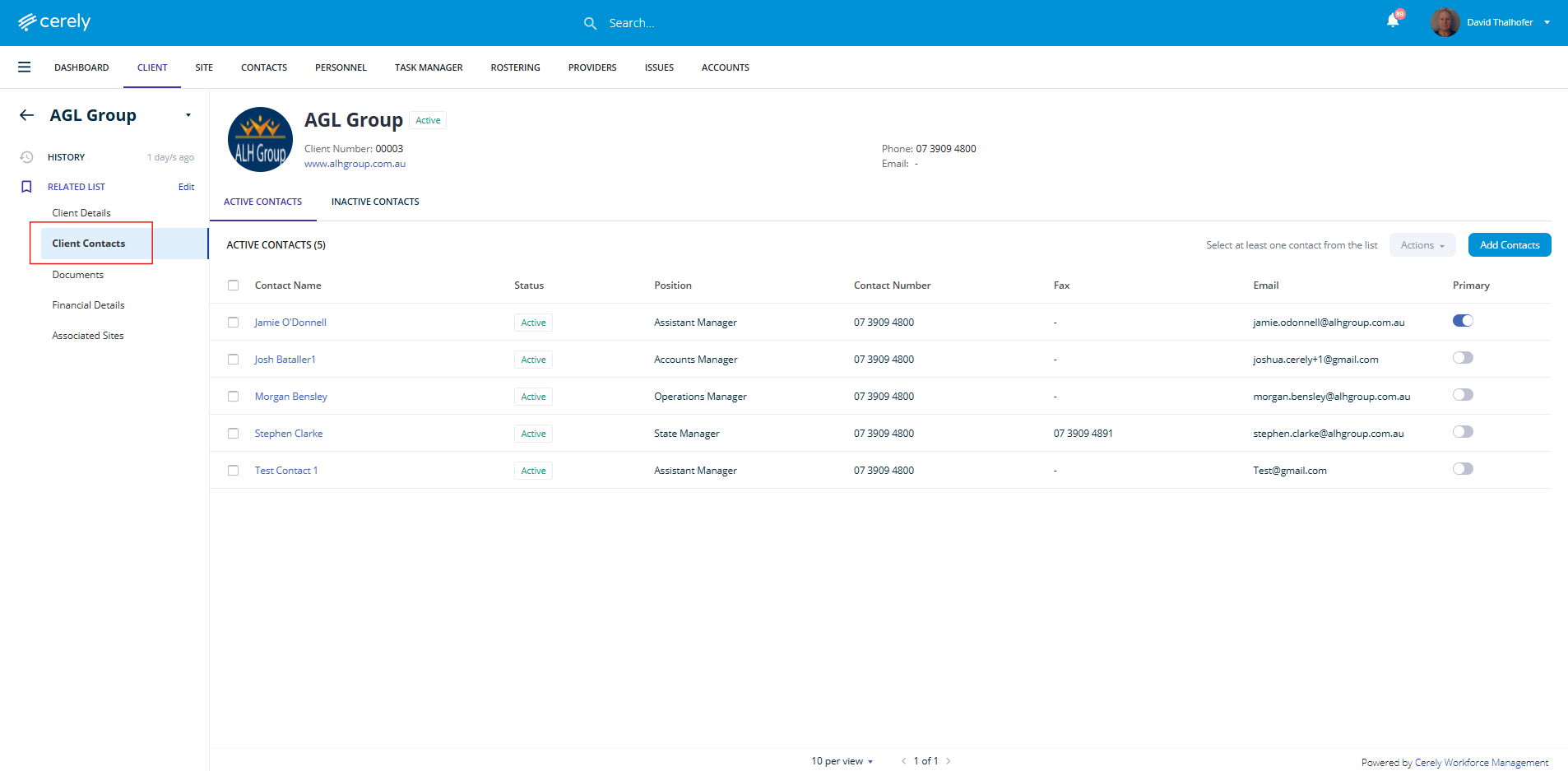
3. From the left-hand menu bar, click on client contacts
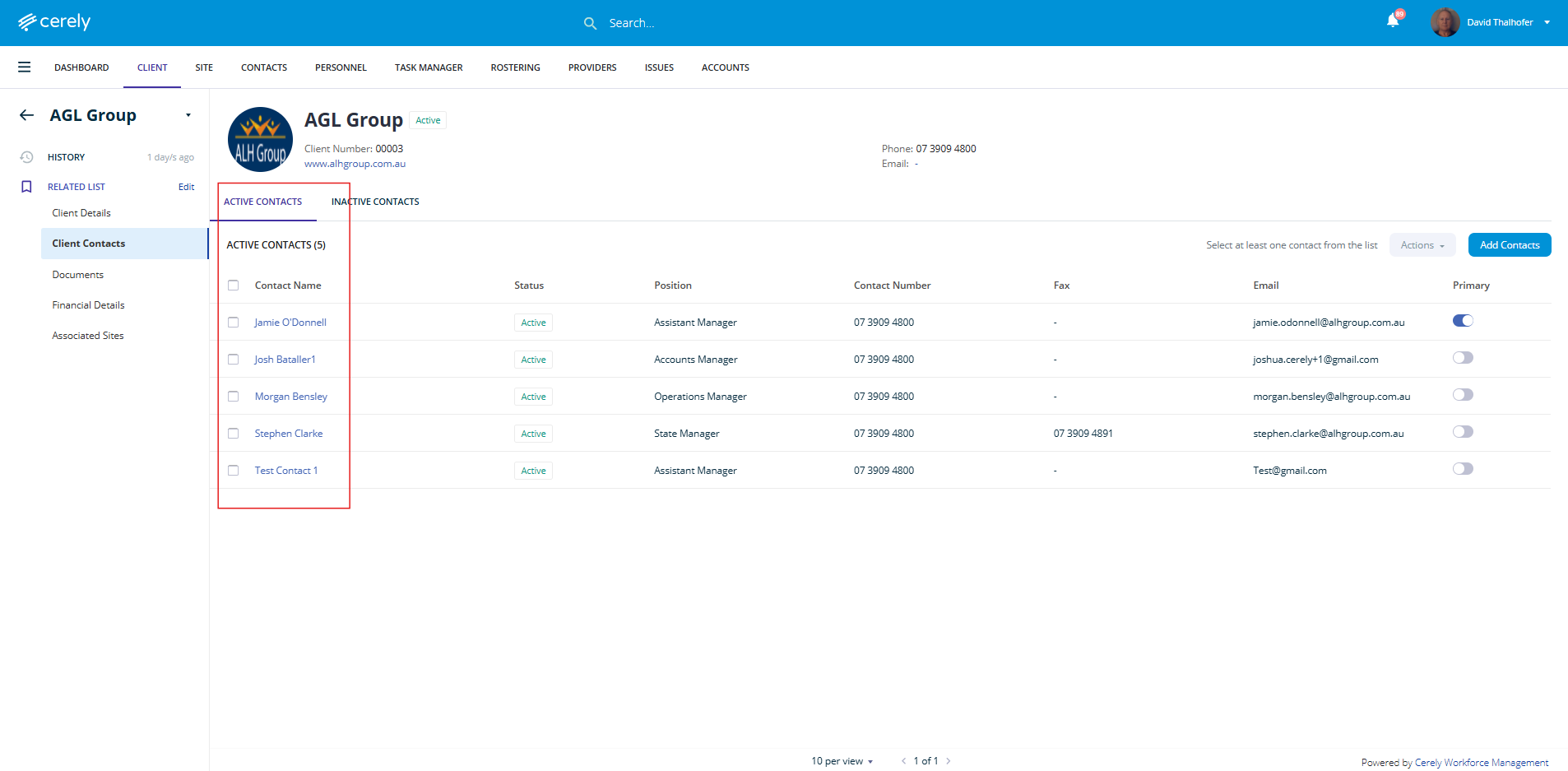
4. Select the contact you want to edit in the list and click on their name to open the contacts profile
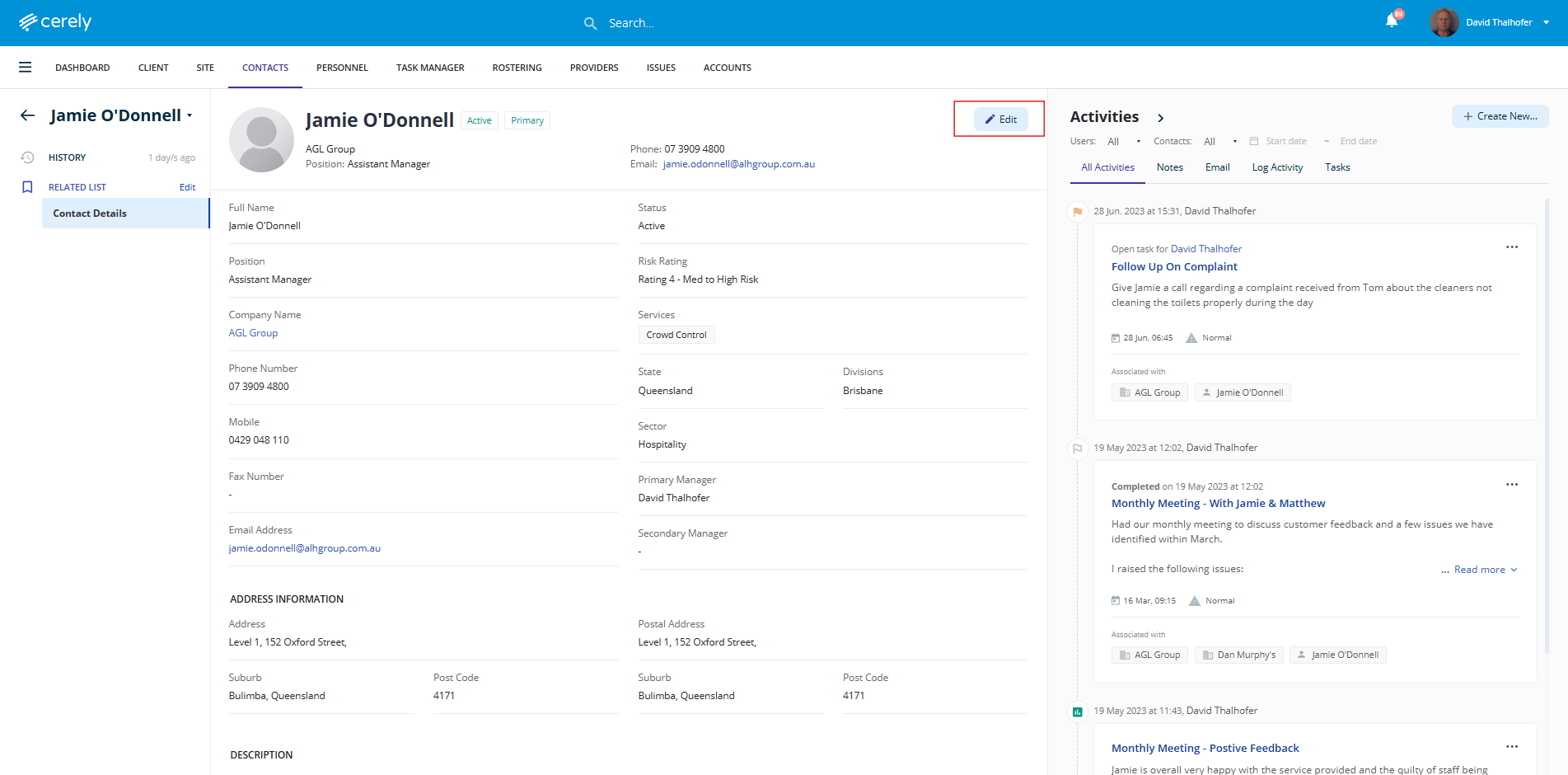
5. Click on the the edit icon to Edit the contact’s information. The contact profile screen will appear, allowing you to update any of the fields as required
6. Once you’ve made the necessary changes, click on the Save Changes button to apply them
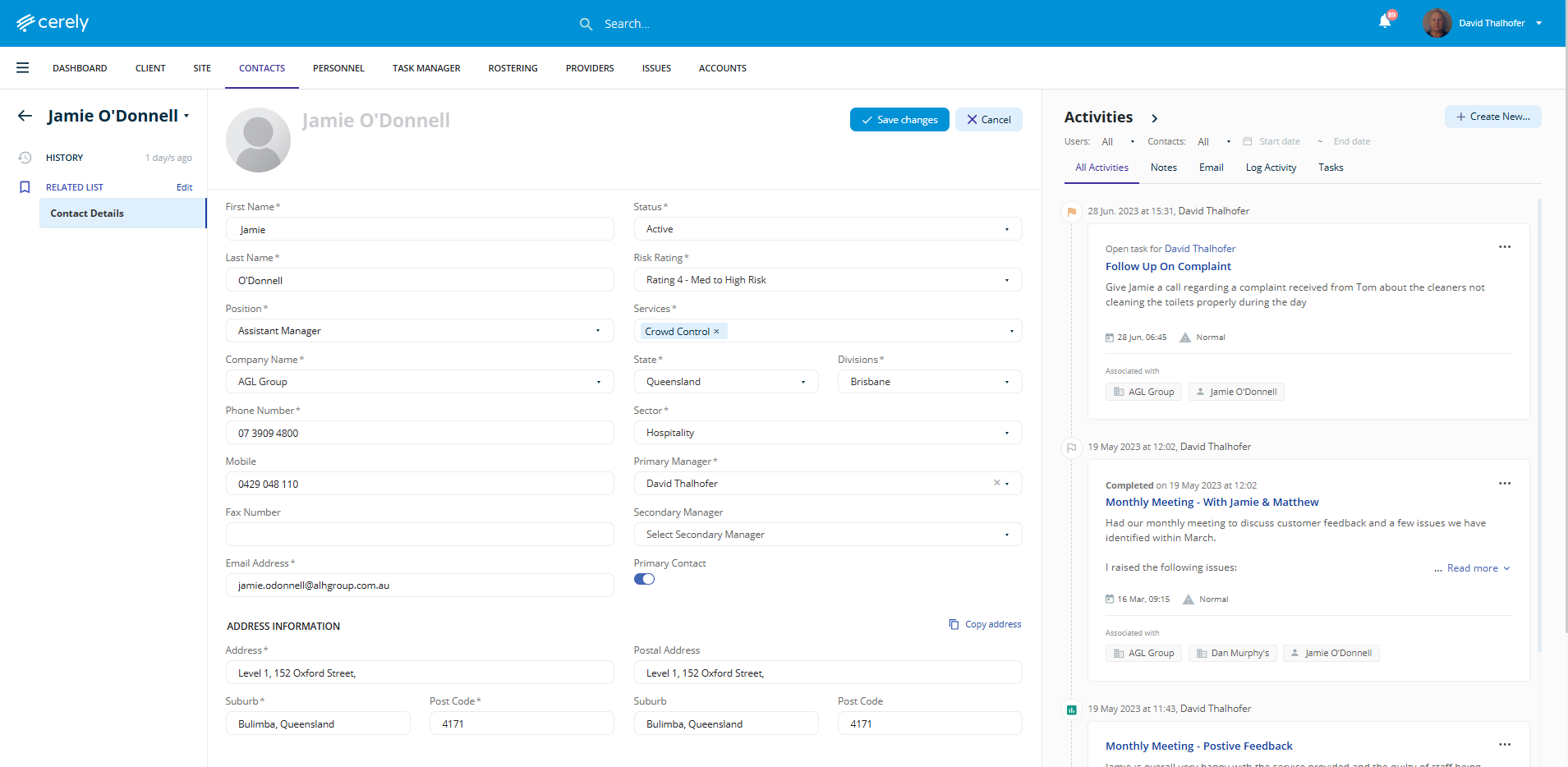
The updated contact information will now be saved and reflected throughout the platform.