
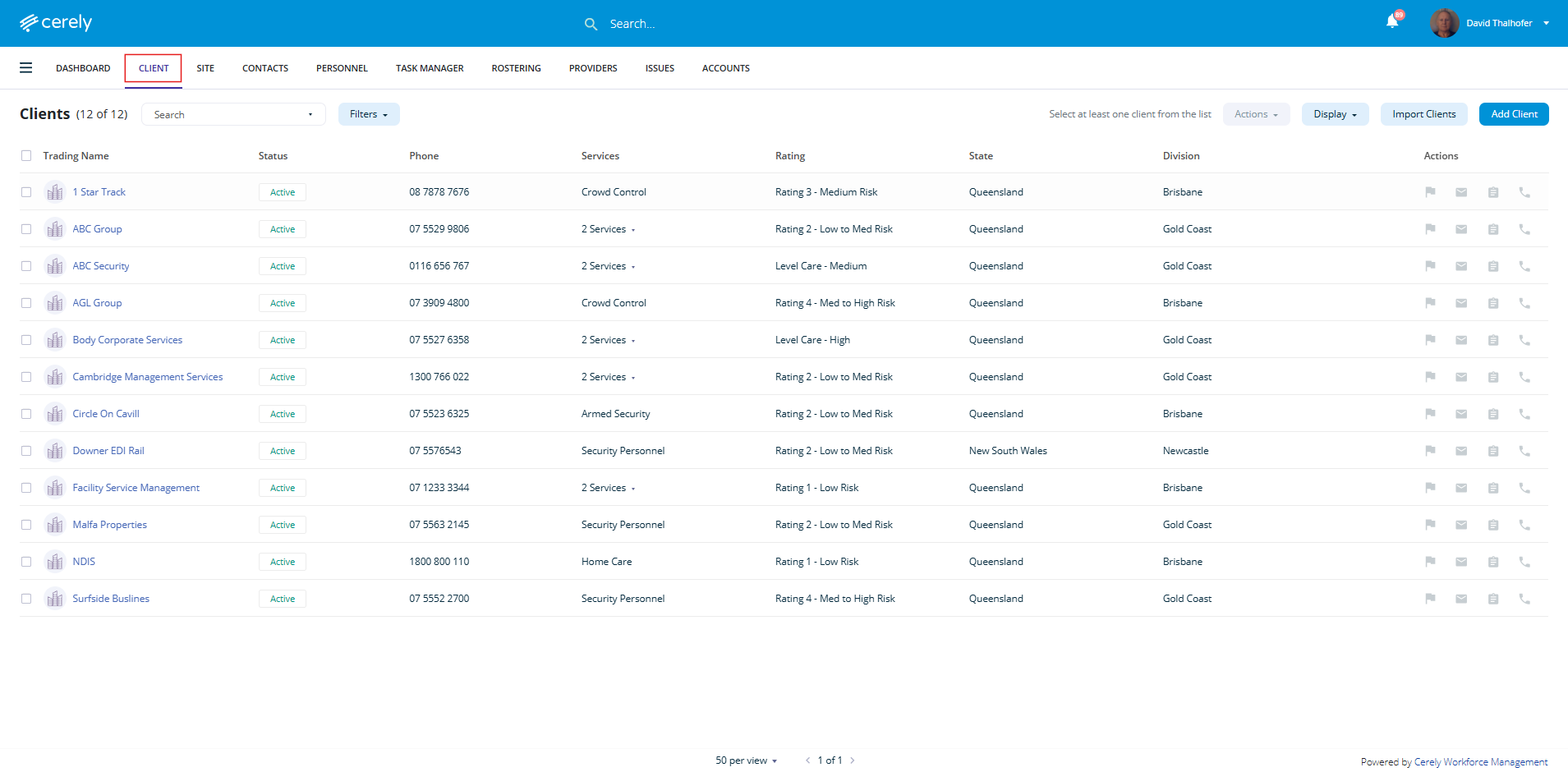
1. From the main menu on the Cerely dashboard, click on the Client tab
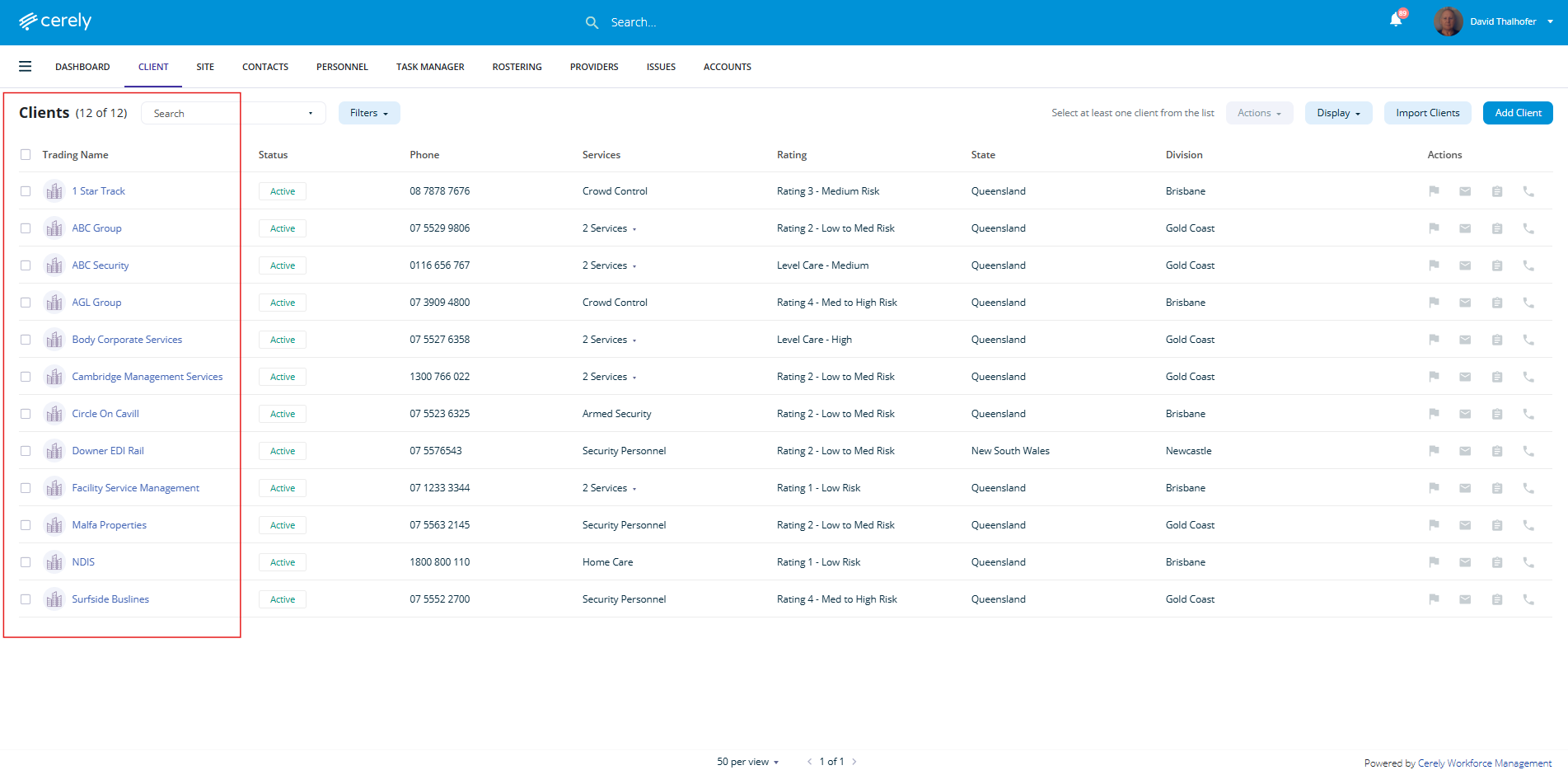
2. From the client list, click on the client name you want to edit, this will open the client profile
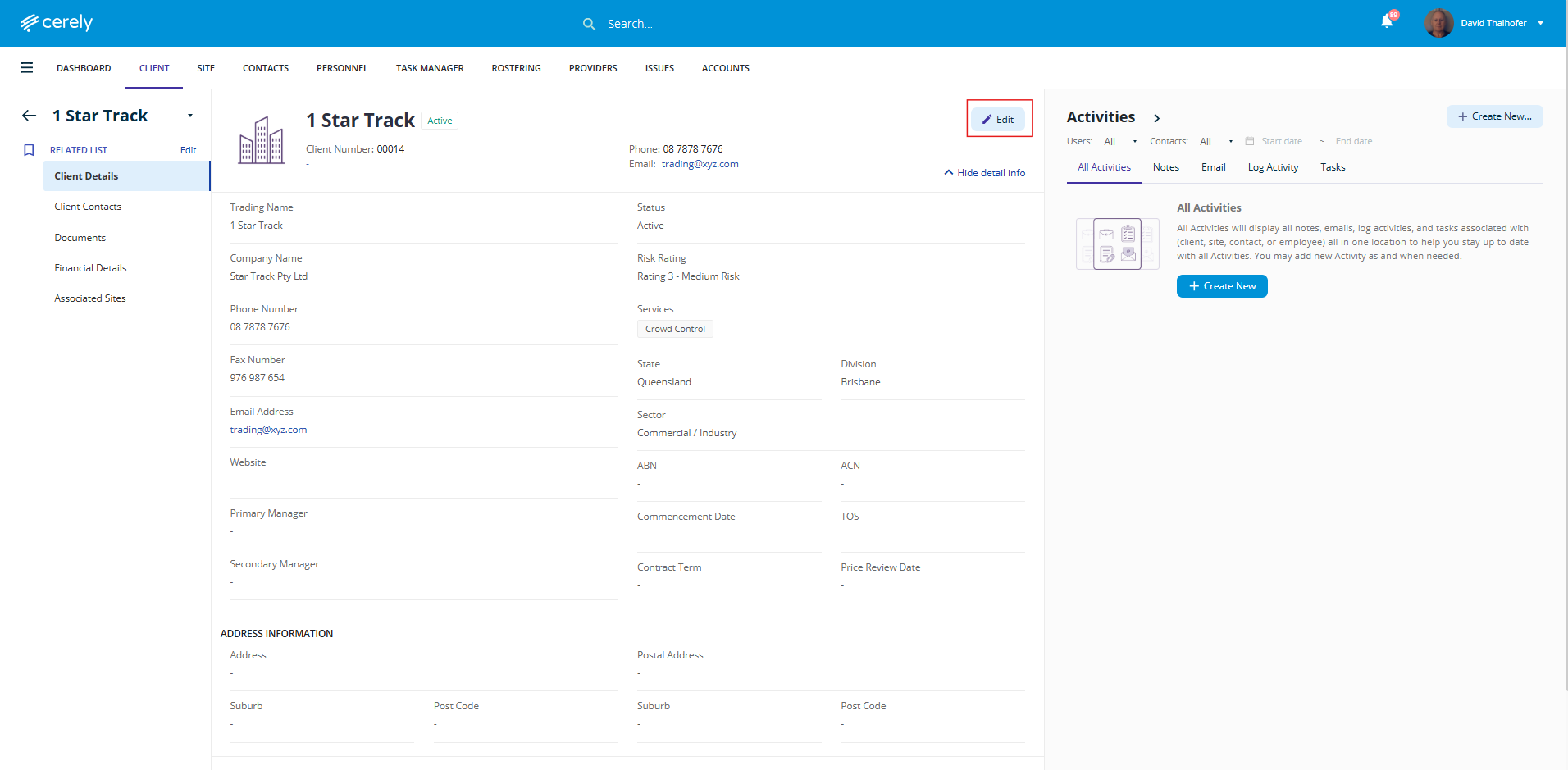
3. In the top right-hand corner of the client profile, click Edit to enable edit mode
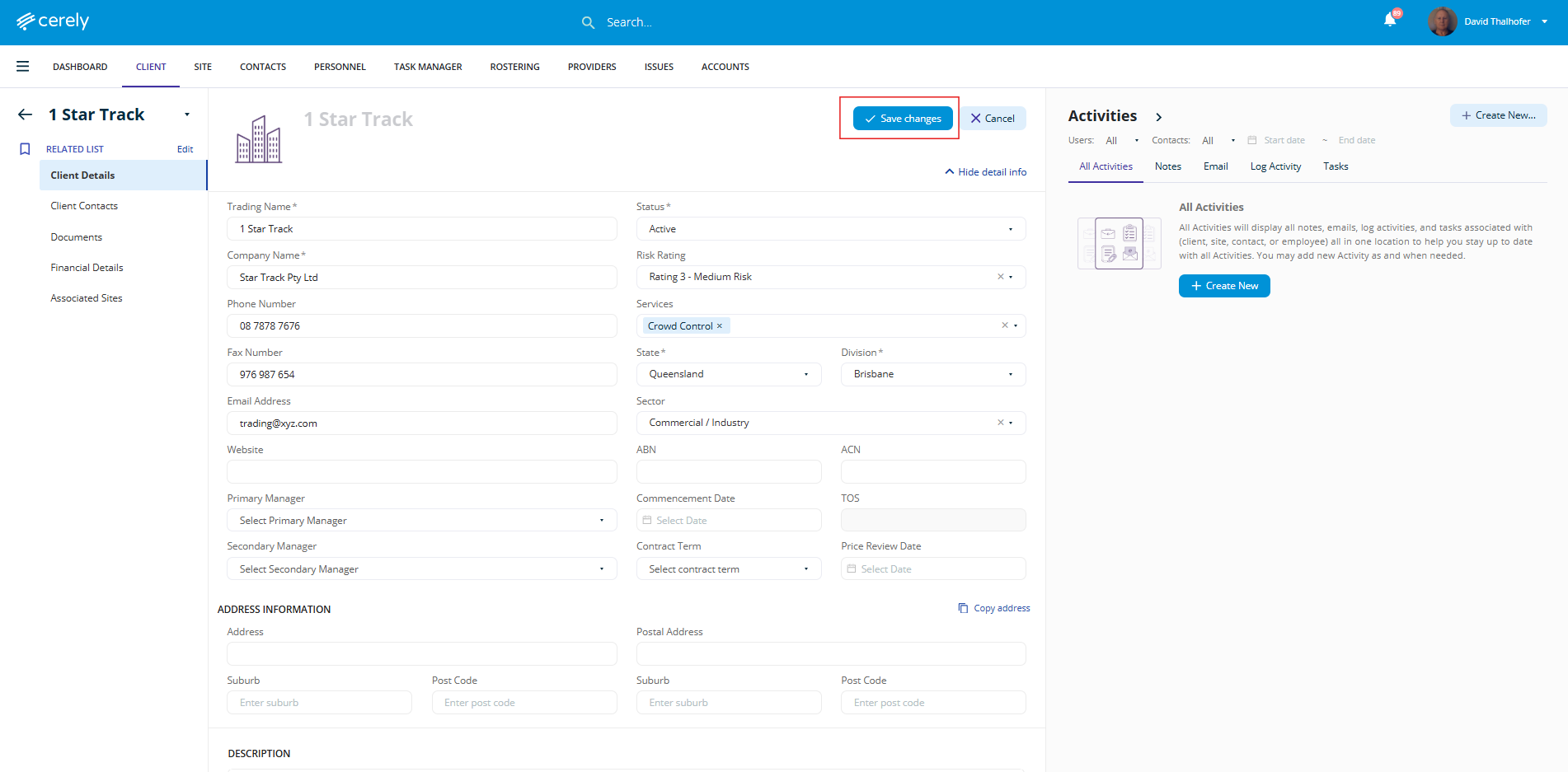
4. Make updates to any relevant fields such as contact information, ABN/ACN, service dates, account managers, or address details etc...
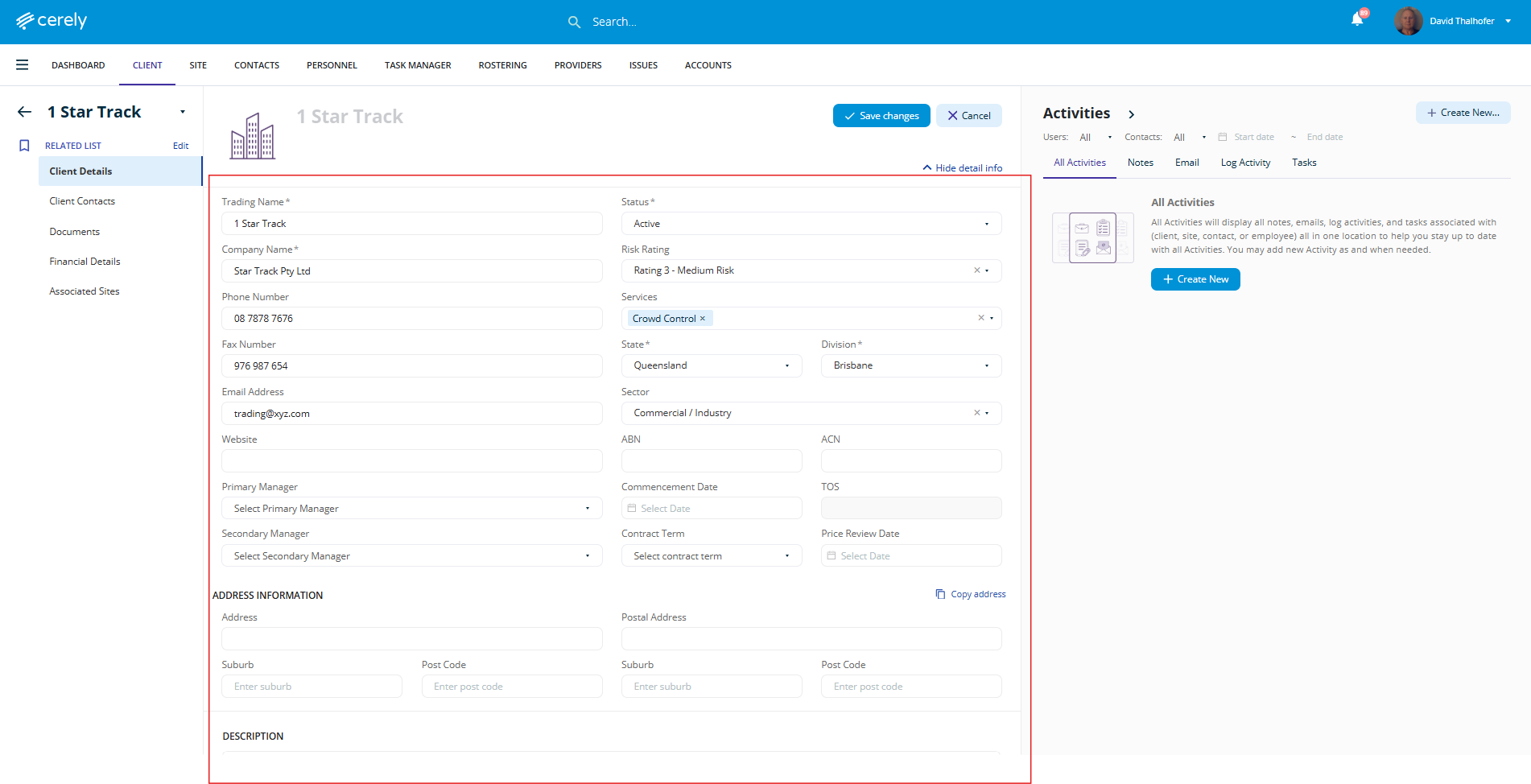
5. Once all updates are complete, click Save Changes to update the client’s record in the system
Your client’s details are now updated and available across billing, rostering, and reporting modules in Cerely.