
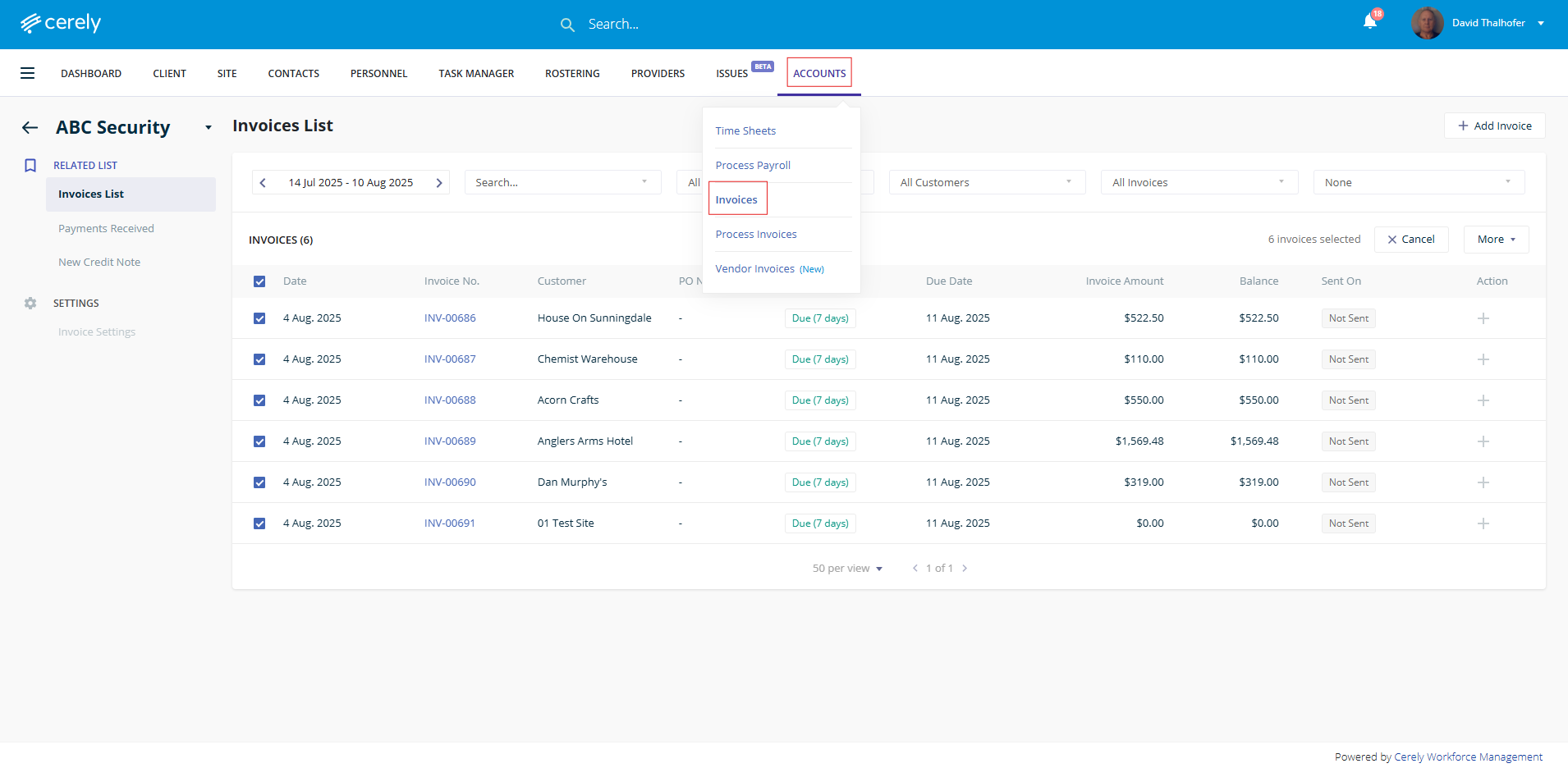
1. From the home screen in Cerely, click on the Accounts tab from the Cerely top main menu and then click on Invoices from the drop down menu
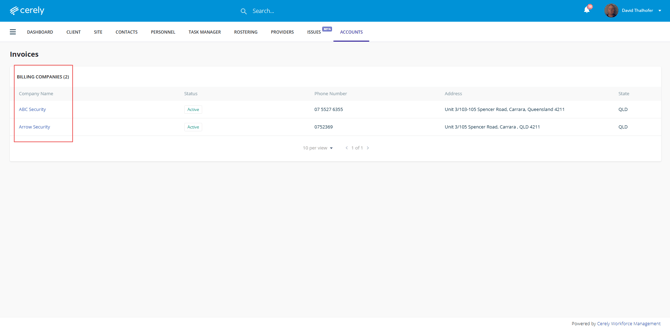
2. If you manage multiple entities, select the Billing Company, otherwise if you only have one entity Cerely will automatically take you to the invoice list
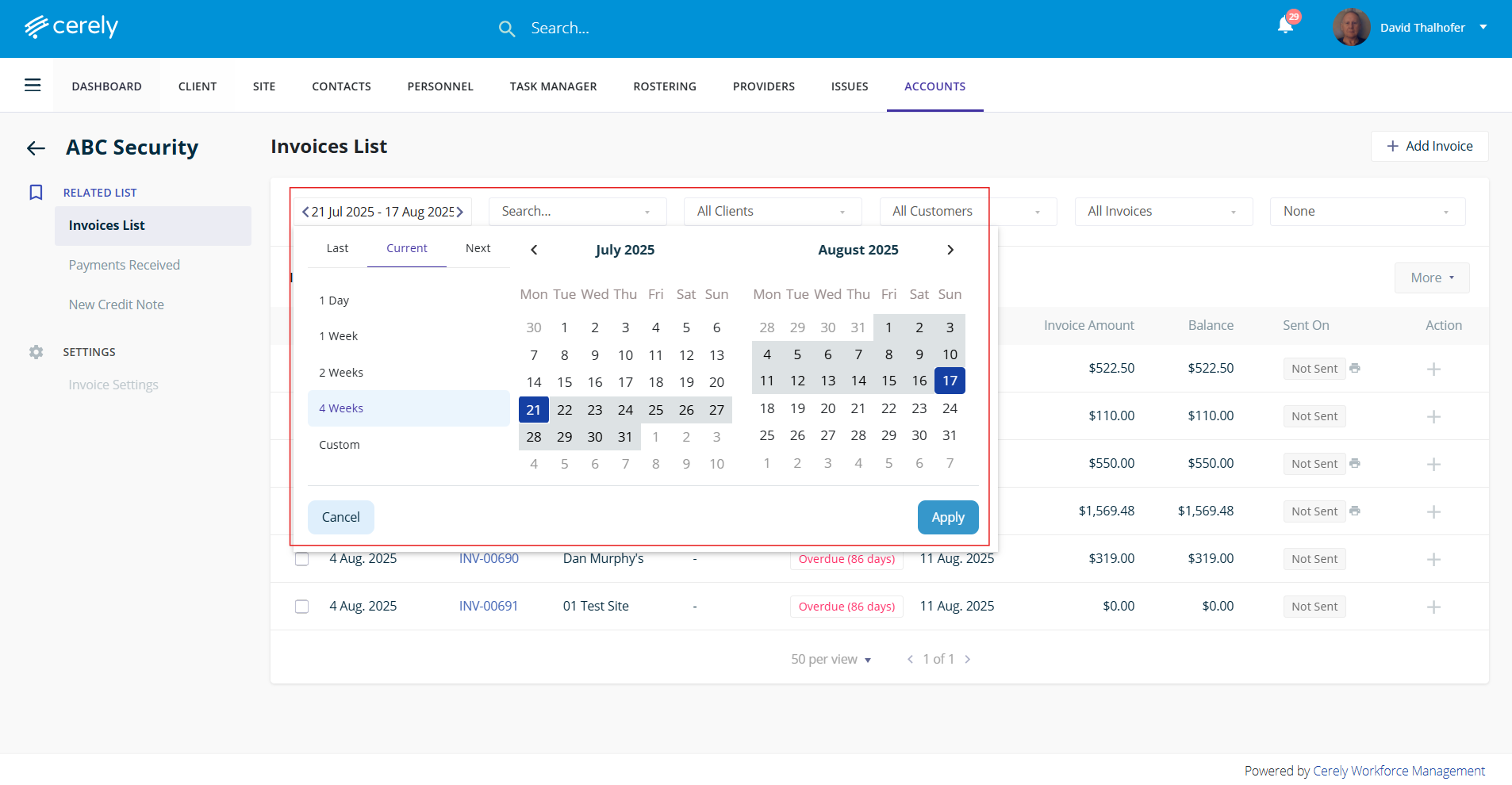
3. When exporting invoices from Cerely, it’s important to select the correct date range to ensure you’re only exporting the invoices required.
- At the top of the Invoices List screen, click on the date range filter
- Choose a preset range (e.g. 1 day, 1 Week, 2 Weeks, 4 Weeks) or select Custom to manually select a specific date range
- Use the calendar to select the start and end dates
- Click Apply to filter the invoices within your selected date range
Only invoices generated during the selected period will now be visible and available for export
4. Cerely will now populate the invoice list, you can Multi-select or individually select the invoices you would like to import into MYOB
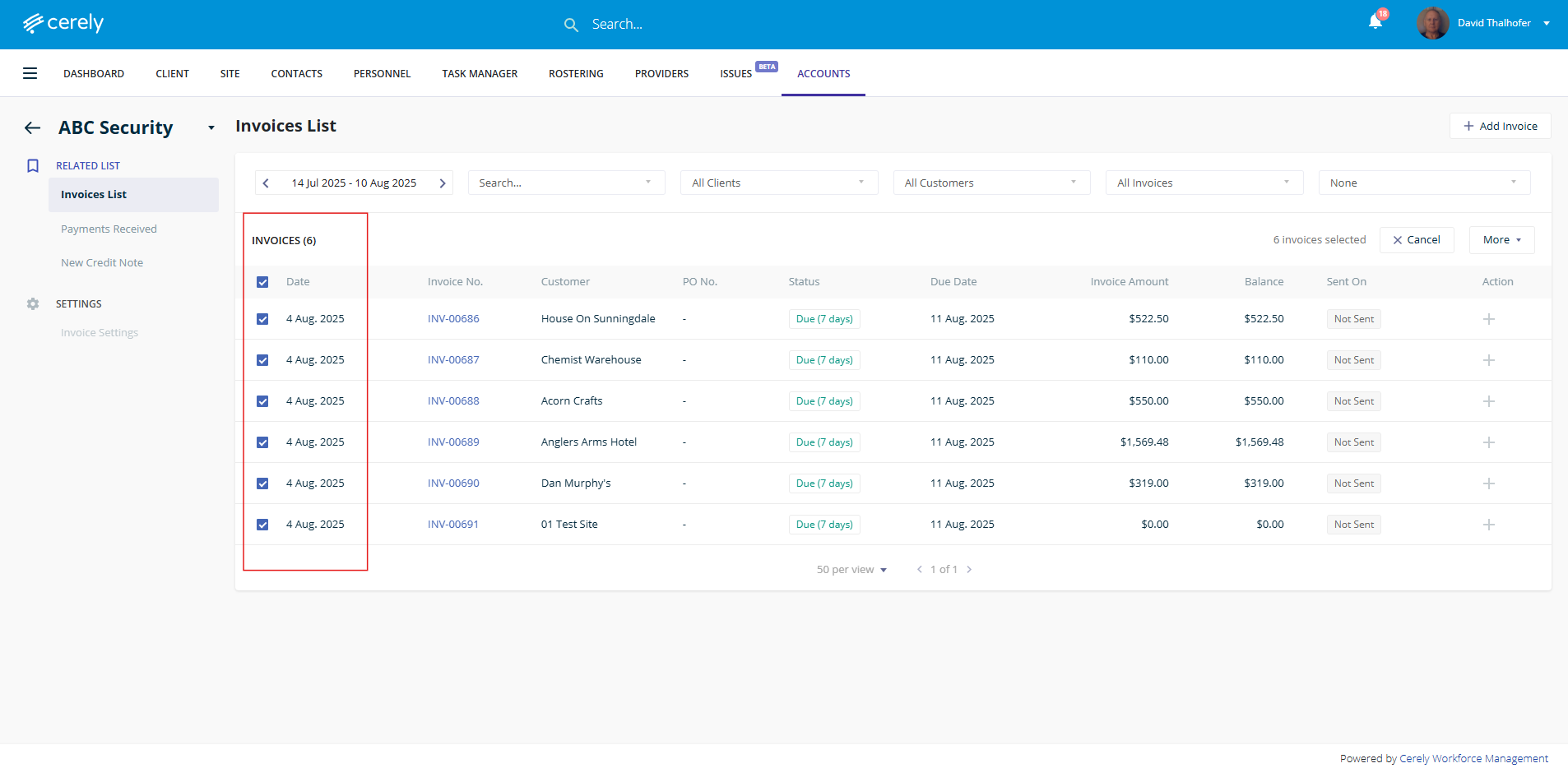
Note - Exporting Invoices with Page Views
-
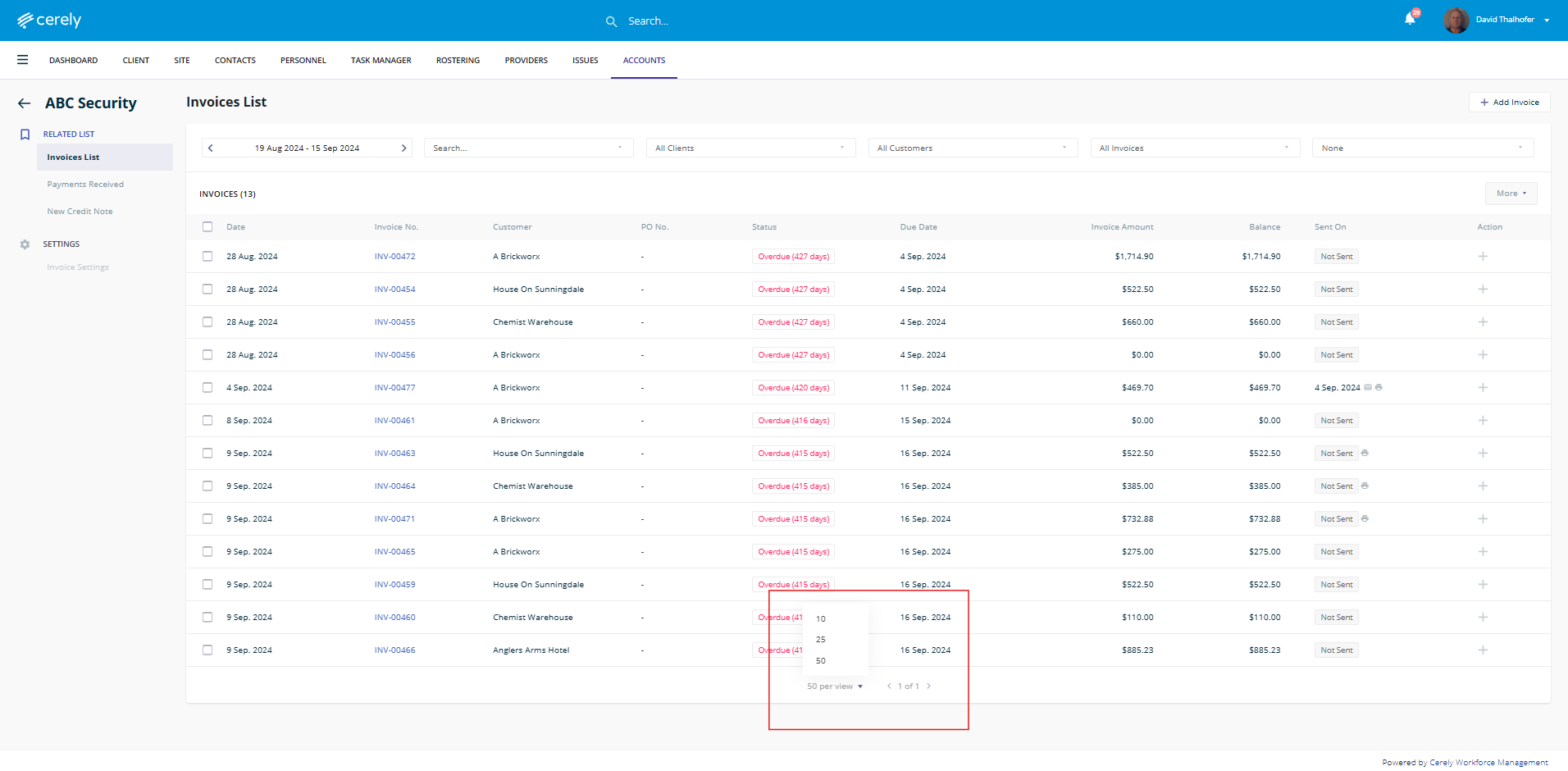
Cerely displays invoices in sets of 10, 25, or 50 per page, depending on the selected view in the bottom of the screen
-
You will need to multi-select invoices per page view
-
To export all invoices across multiple pages, repeat the export process for each page view separately
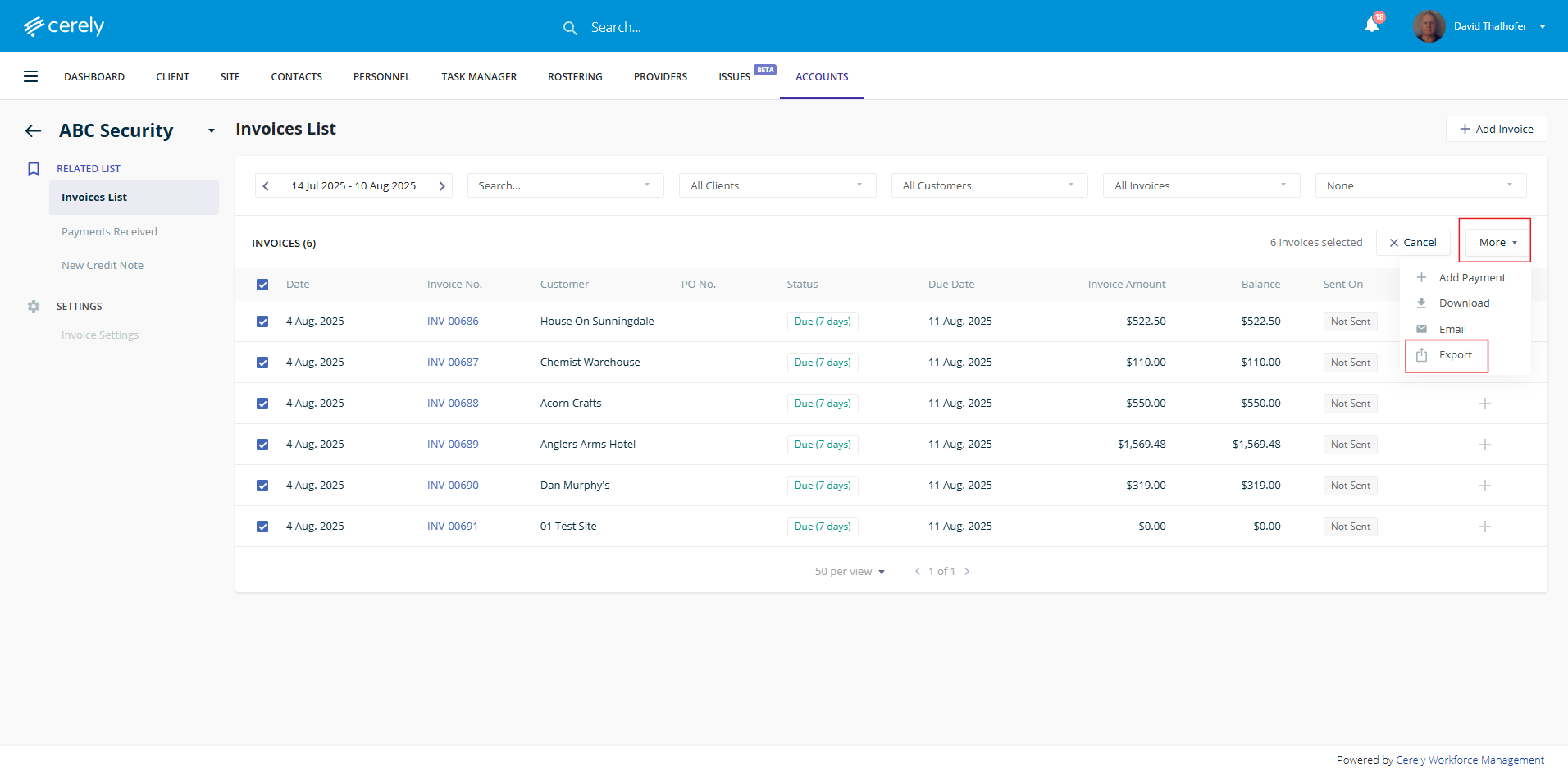
5. Click on the More button on the right-hand side, then click on Export from the dropdown list
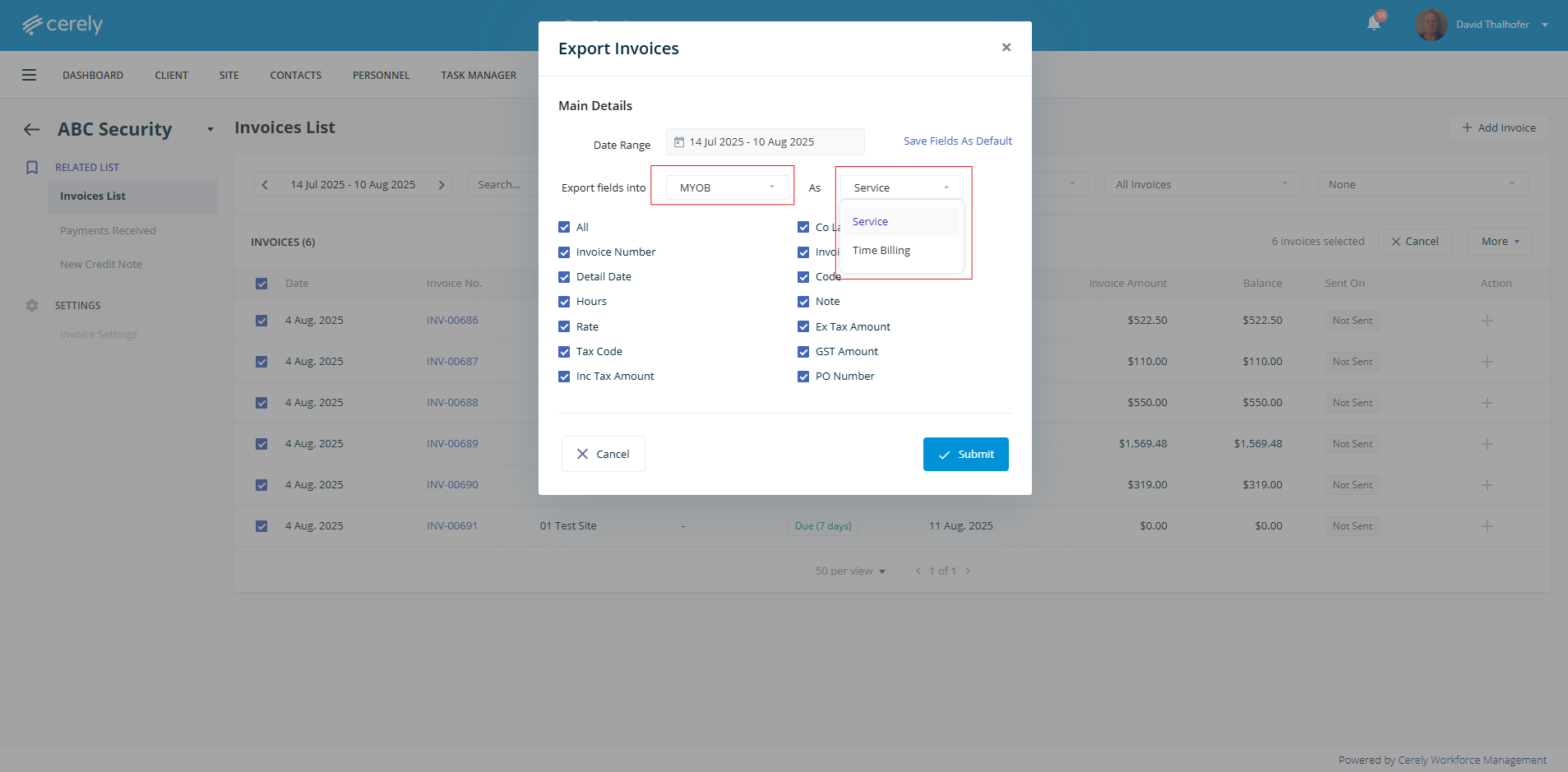
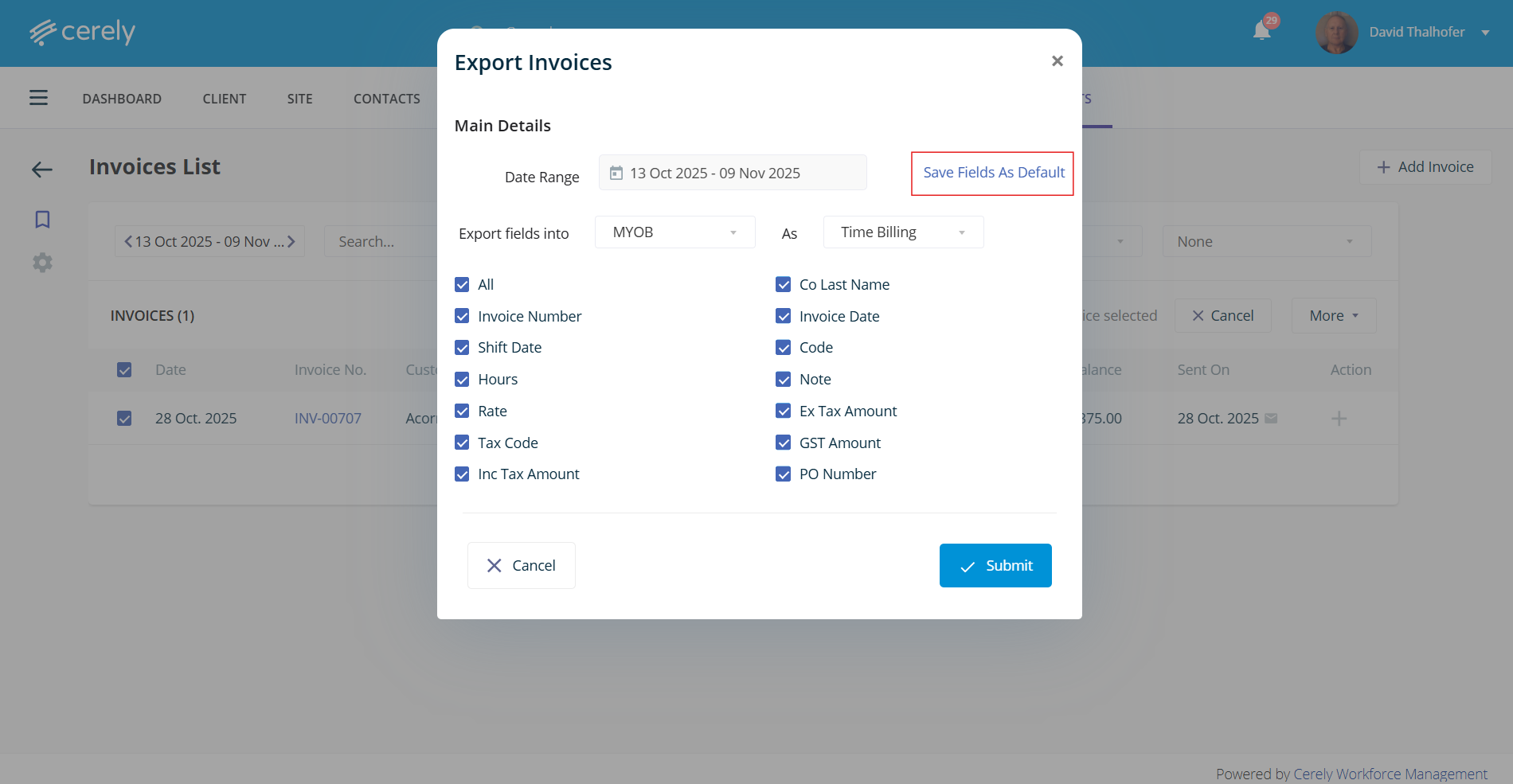
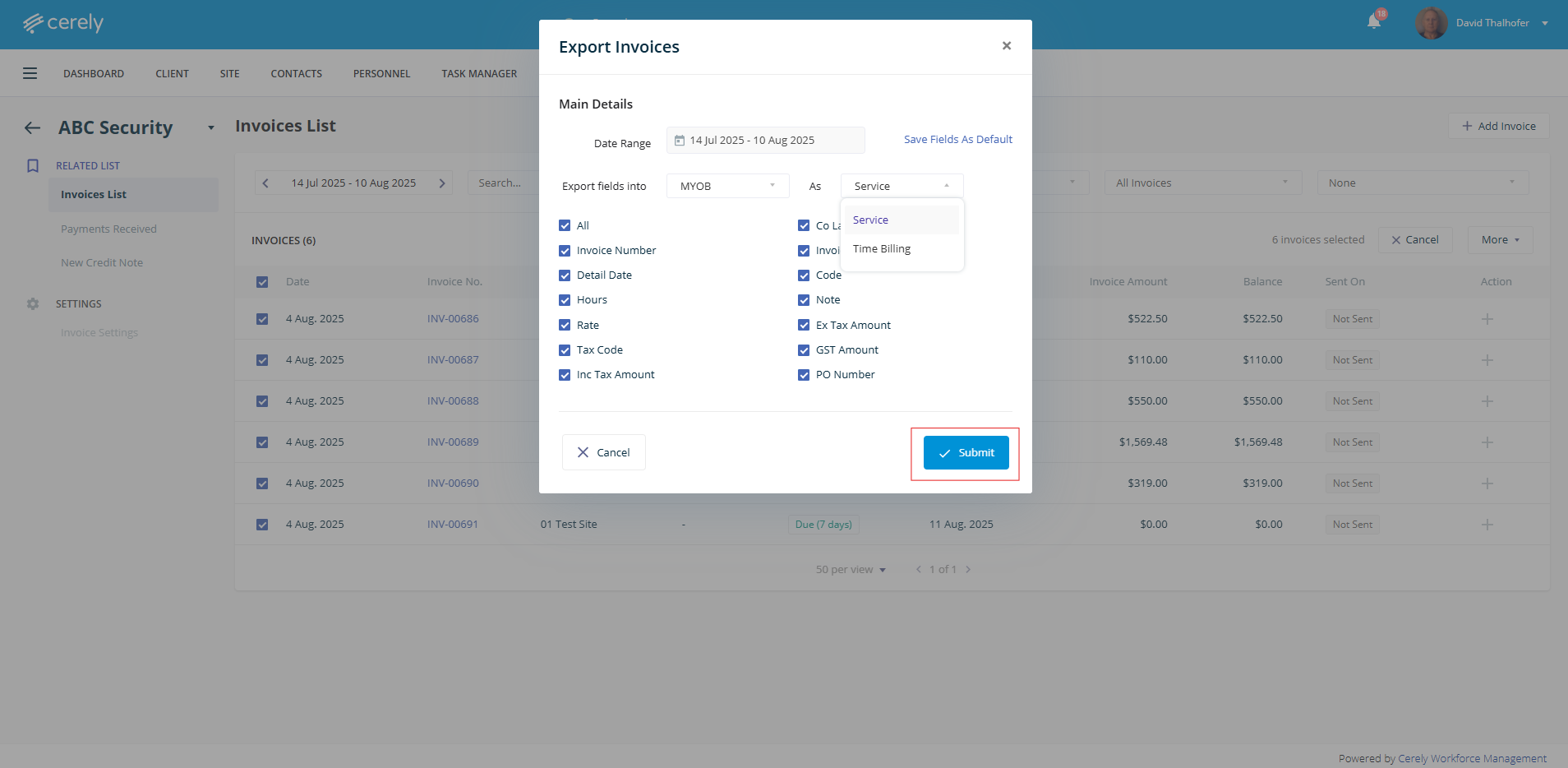
6. In the export invoices popup screen, choose MYOB as your Export field and As select Time Billing:
7. Click the All field to multi select exporting all the data fields.
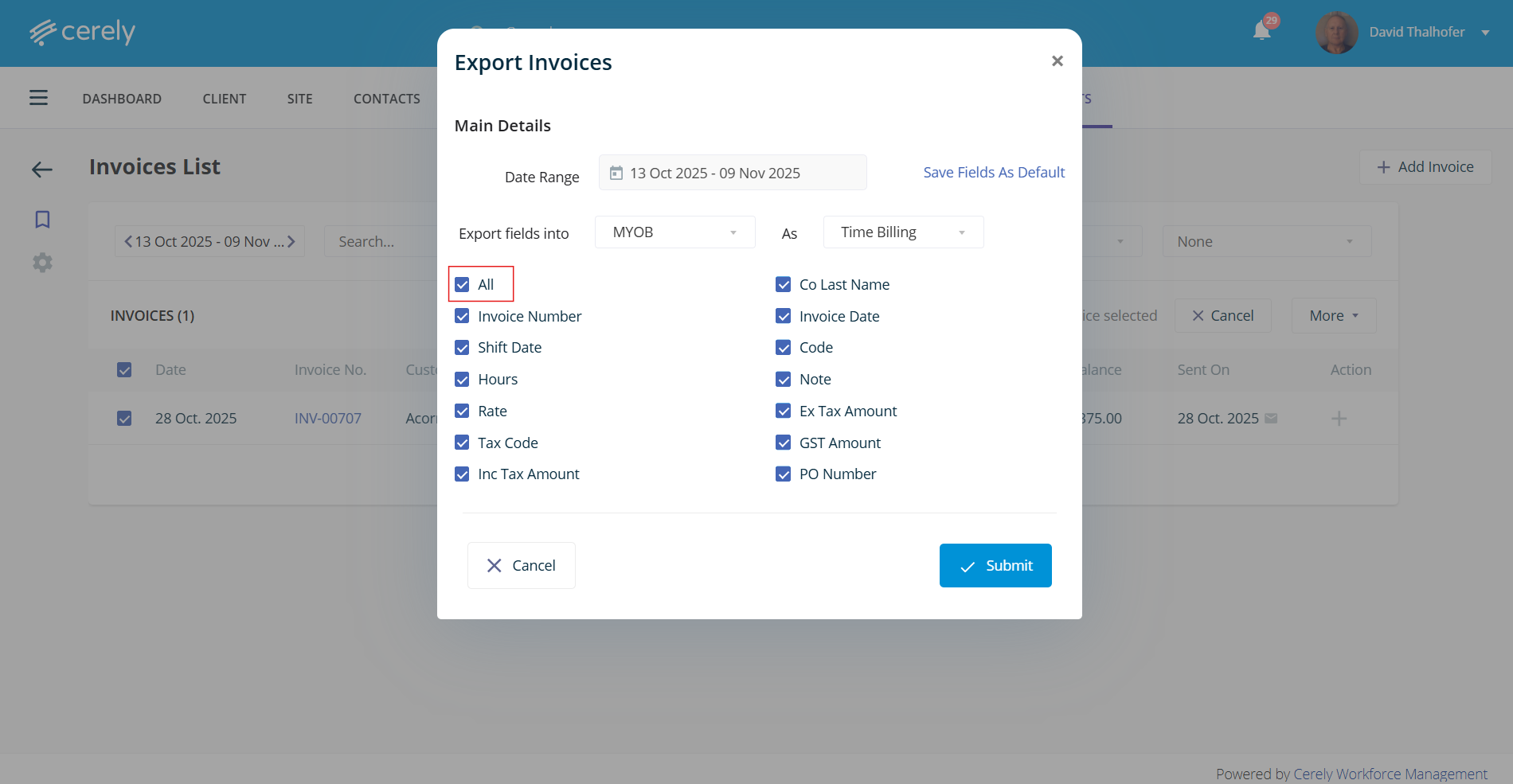
8. Click on Save Fields As Default button so they will always select the field choices in the same way every time thereafter
9. Click on the Submit button
10. Once the export is complete, the file will be available in your Downloads folder. Save the file to your computer so it is ready to be imported into your MYOB accounting system.
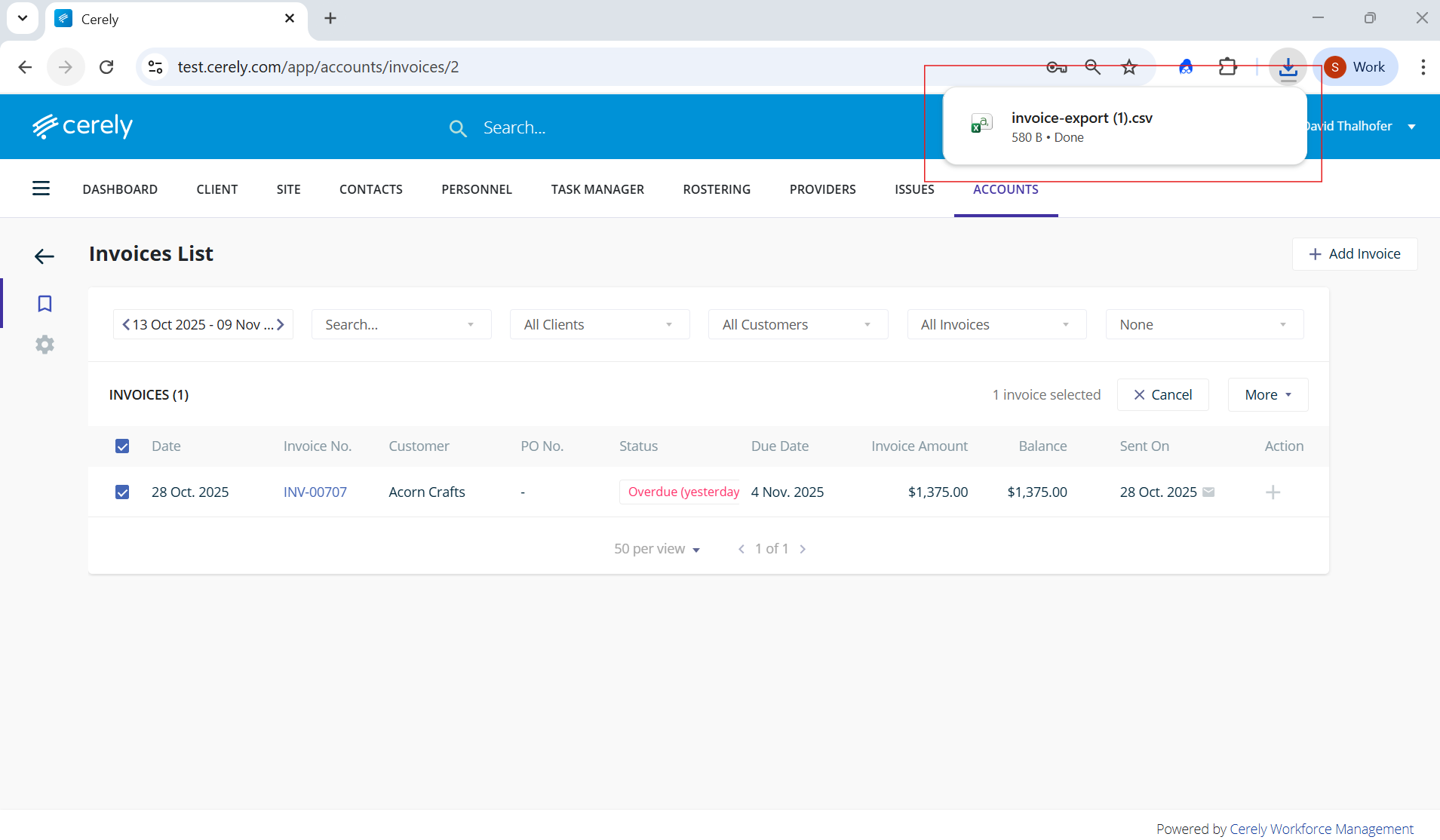
Your invoices are now ready for import into MYOB.