
1. Log in to your Xero account
Access your Xero account using your login credentials
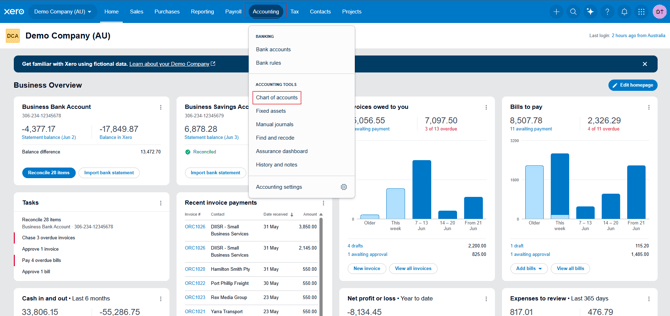
2. Open the Chart of Accounts
From the main menu, navigate to: Accounting > Chart of Accounts
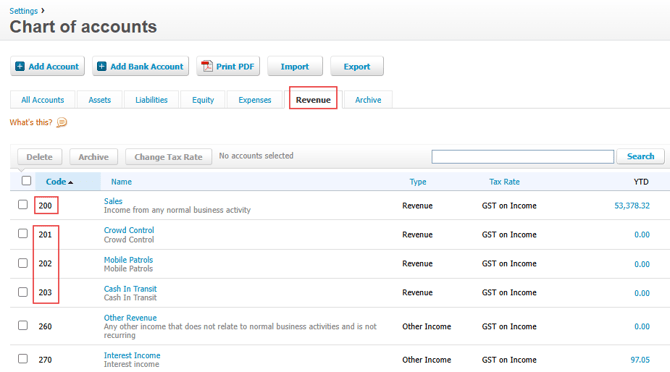
3. Locate the relevant account
Find the appropriate Sales or Revenue account that you want to use for invoicing
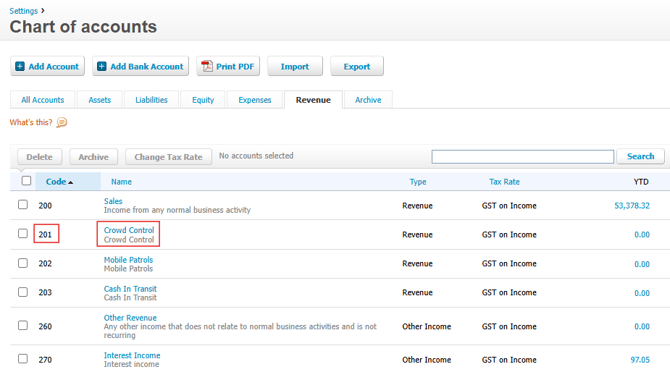
4. Identify the account code
Each account will have a unique account code displayed next to the account name
5. Enter the account code into Cerely
When creating or editing Charge Rates within Cerely, enter the relevant Xero account code into the Code field.
Depending on how your business structure is configured, charge rates may be managed in one of two locations:
- Site Financial Details – For independent Sites where charge rates are maintained directly against the Site. Refer to How to Add a Charge Rate to an Independent Site
- Client Financial Details – For Parent Company structures where charge rates are maintained at the Client level and then associated with one or more Sites. Refer to How to Add Client Charge Rates
Entering the correct Xero account code ensures invoice revenue is allocated to the appropriate account when invoices are exported from Cerely into Xero.
Important:
The Xero account code entered into Cerely must exactly match an active account code within your Xero Chart of Accounts.
If the account code entered in Cerely does not exist in Xero, or has been entered incorrectly, the invoice import from Cerely into Xero will fail and generate an import error.
Before importing invoices into Xero, we recommend confirming that:
- The account code exists in Xero
- The account code is active
- The account code has been entered correctly in Cerely
- The account code is associated with the correct revenue or sales account
This will help ensure invoices are imported successfully and revenue is allocated to the correct account within Xero.