
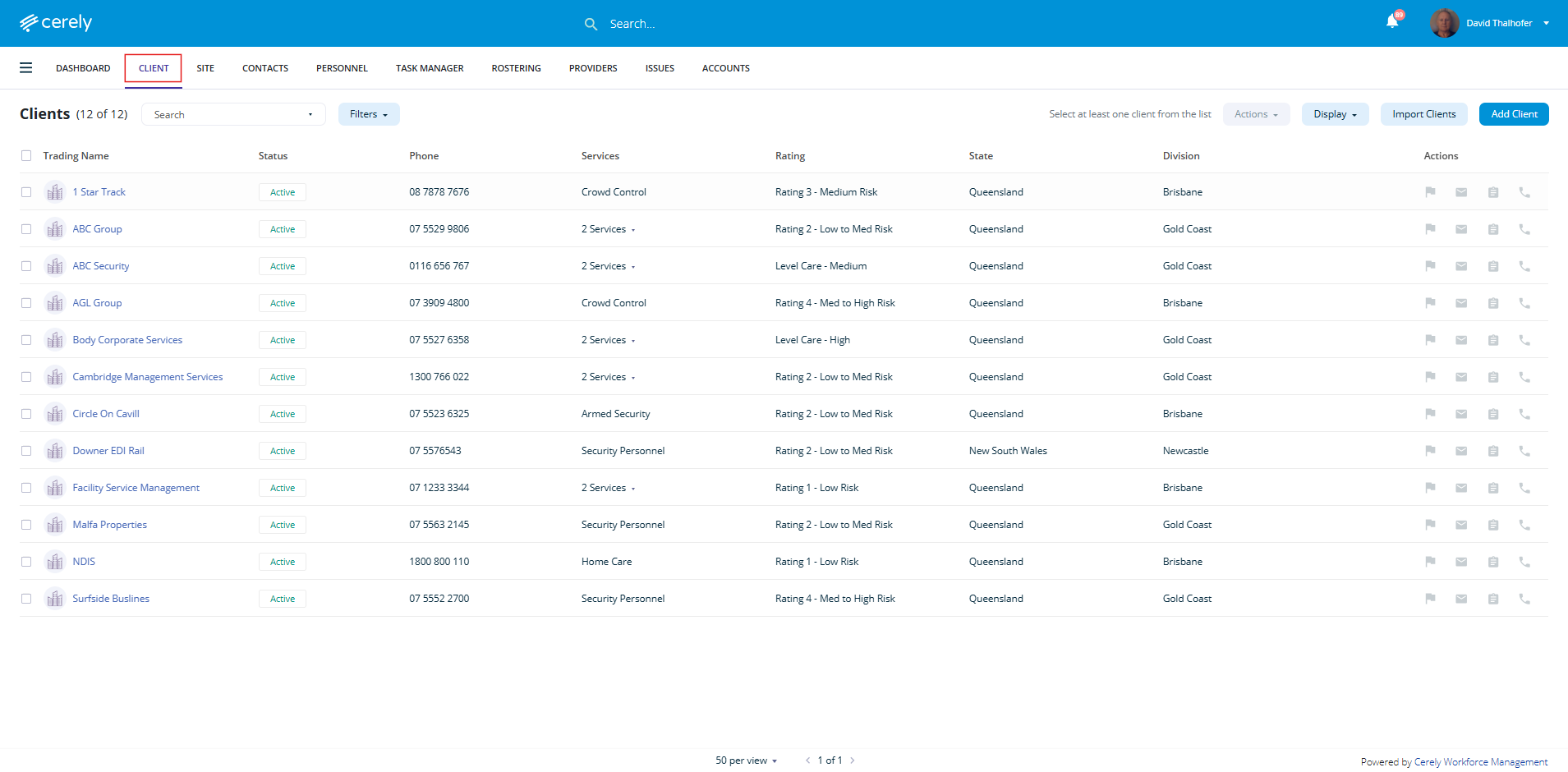
1. From the main menu on the Cerely dashboard, click on the Client tab
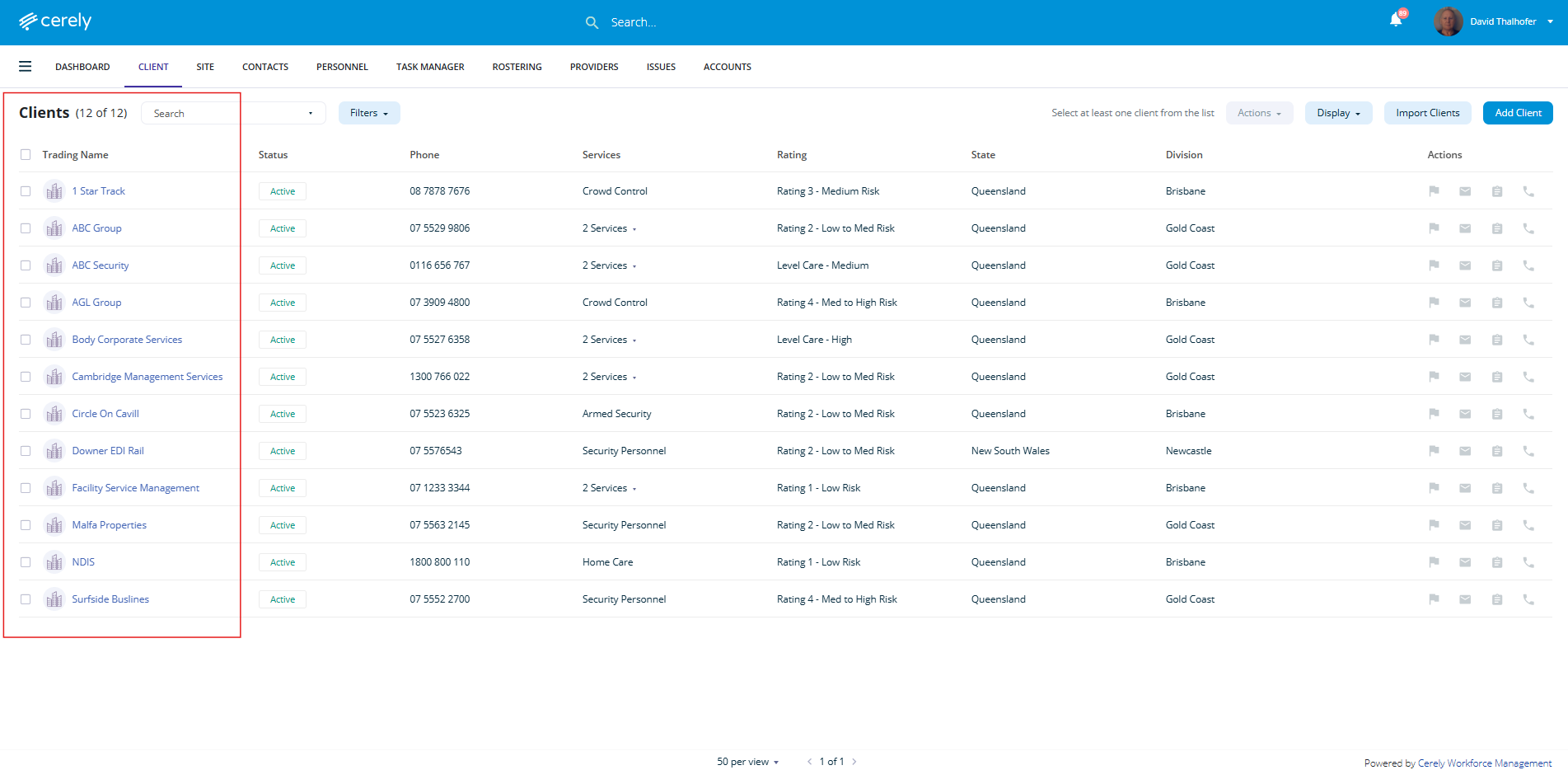
2. Select the client from the list you want to make inactive, click on the client and this will open the profile
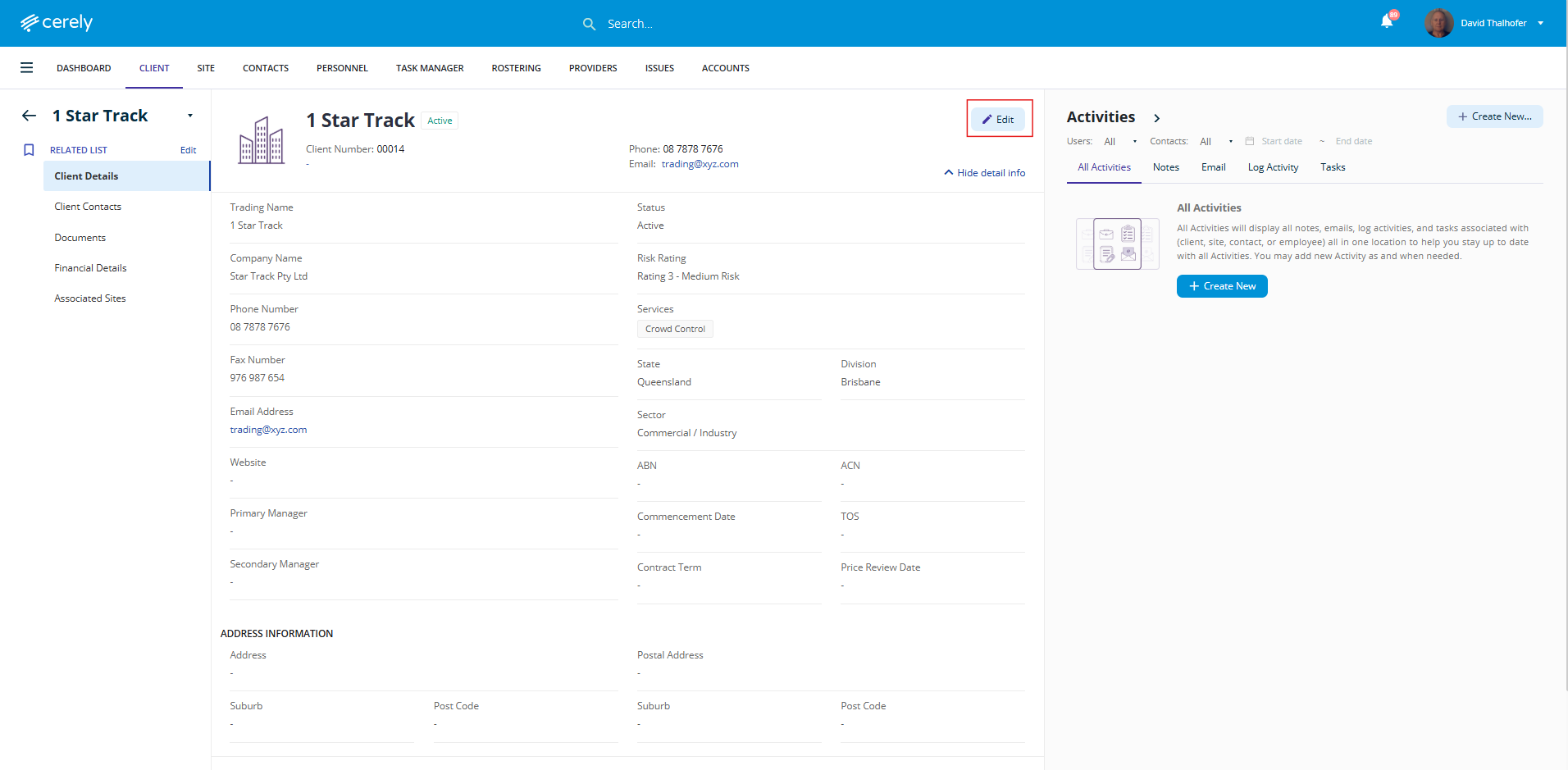
3. In the top right-hand corner of the client profile, click on the Edit icon to enable edit mode
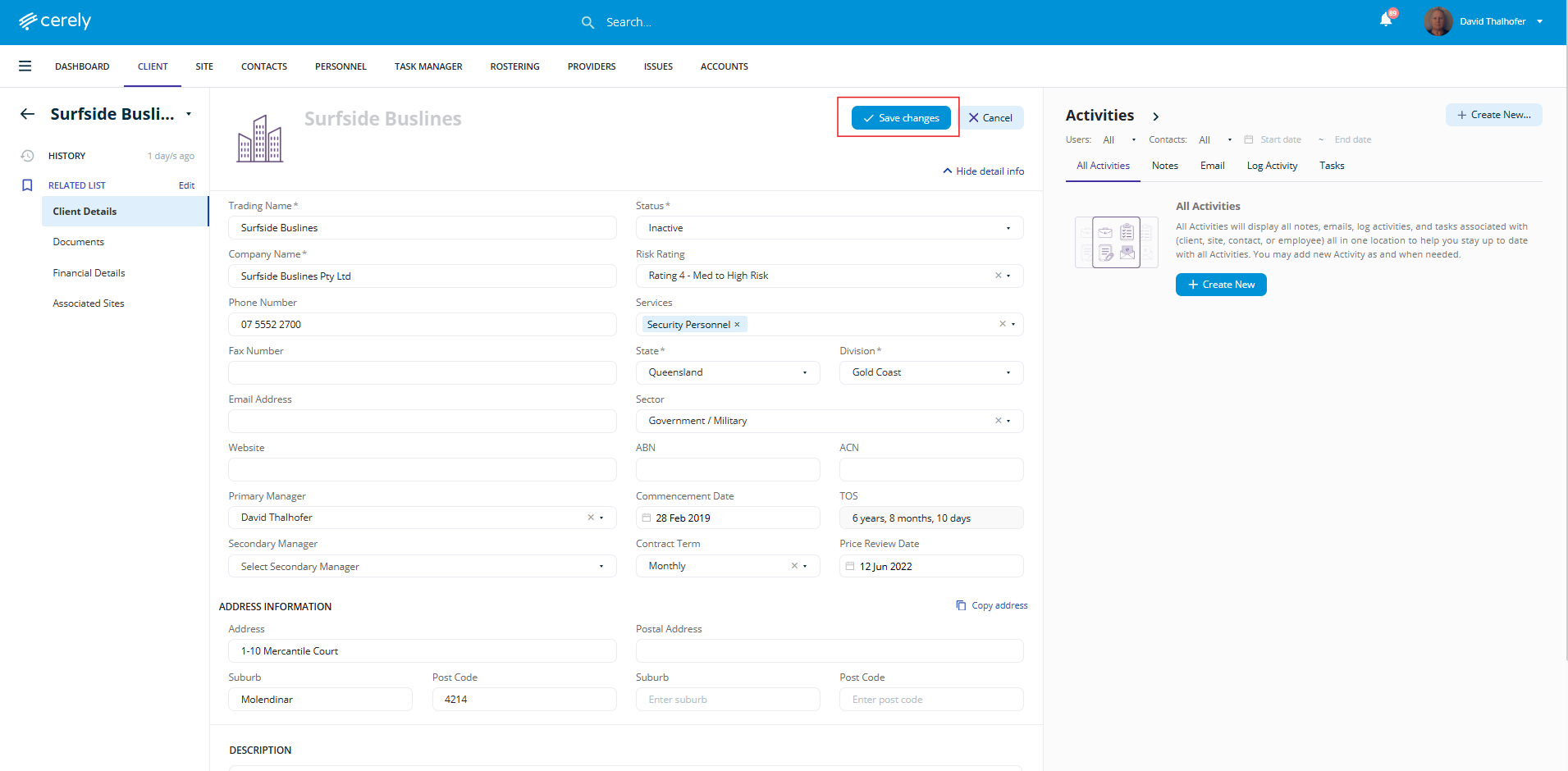
4. In the Status field click on the field and a dropdown menu will appear, change the selection from Active to Inactive
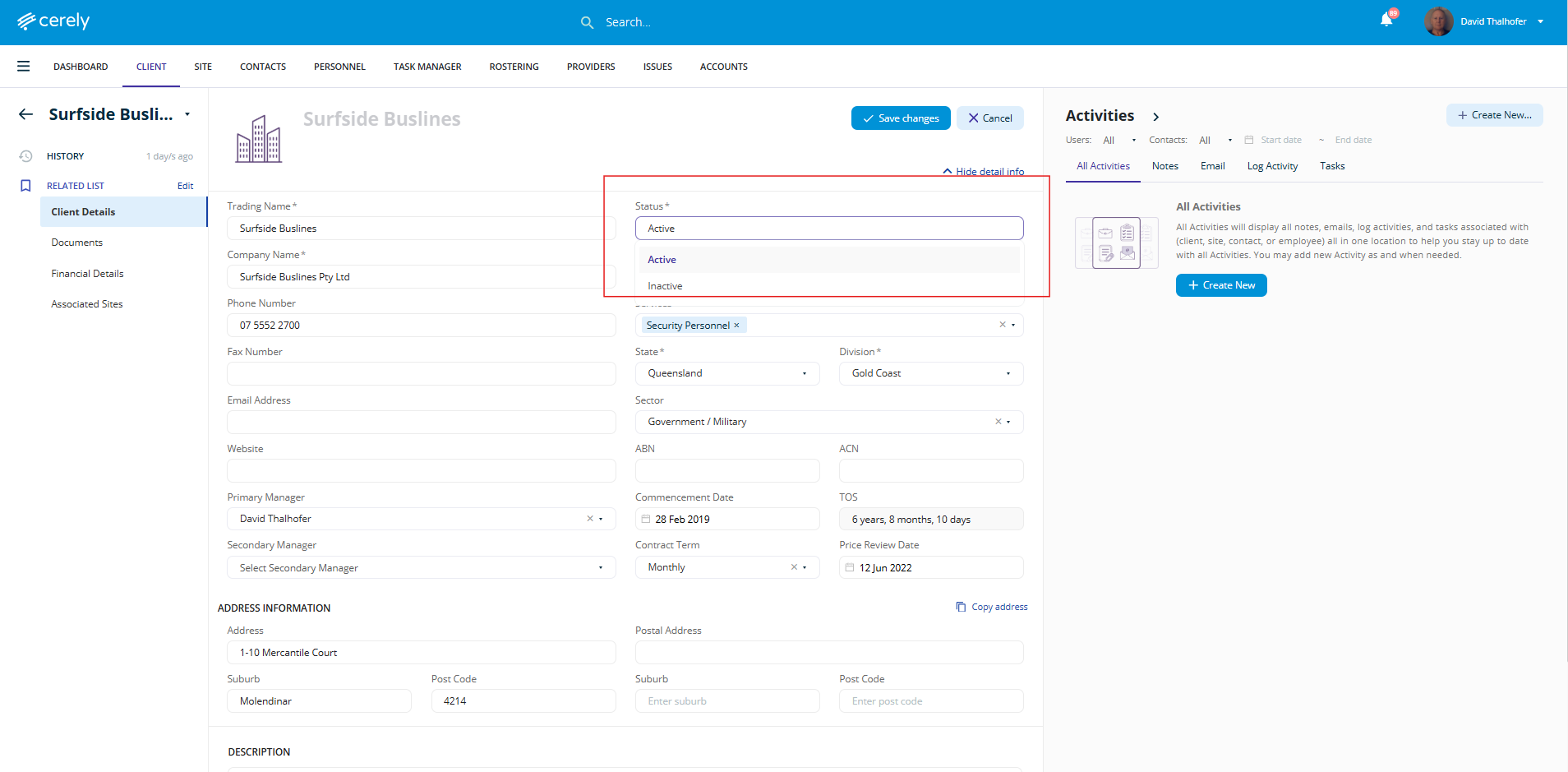
5. Once all updates are complete, click Save Changes to update the client’s record in the system
Important Note: Associated Sites Remain Active
Marking a client as Inactive will not automatically deactivate any sites linked to that client.
Your client is now marked as Inactive. Their details are preserved, but they are removed from active workflows. Sites must be managed separately.