
1. From the main menu on the Cerely dashboard, click on the Client tab
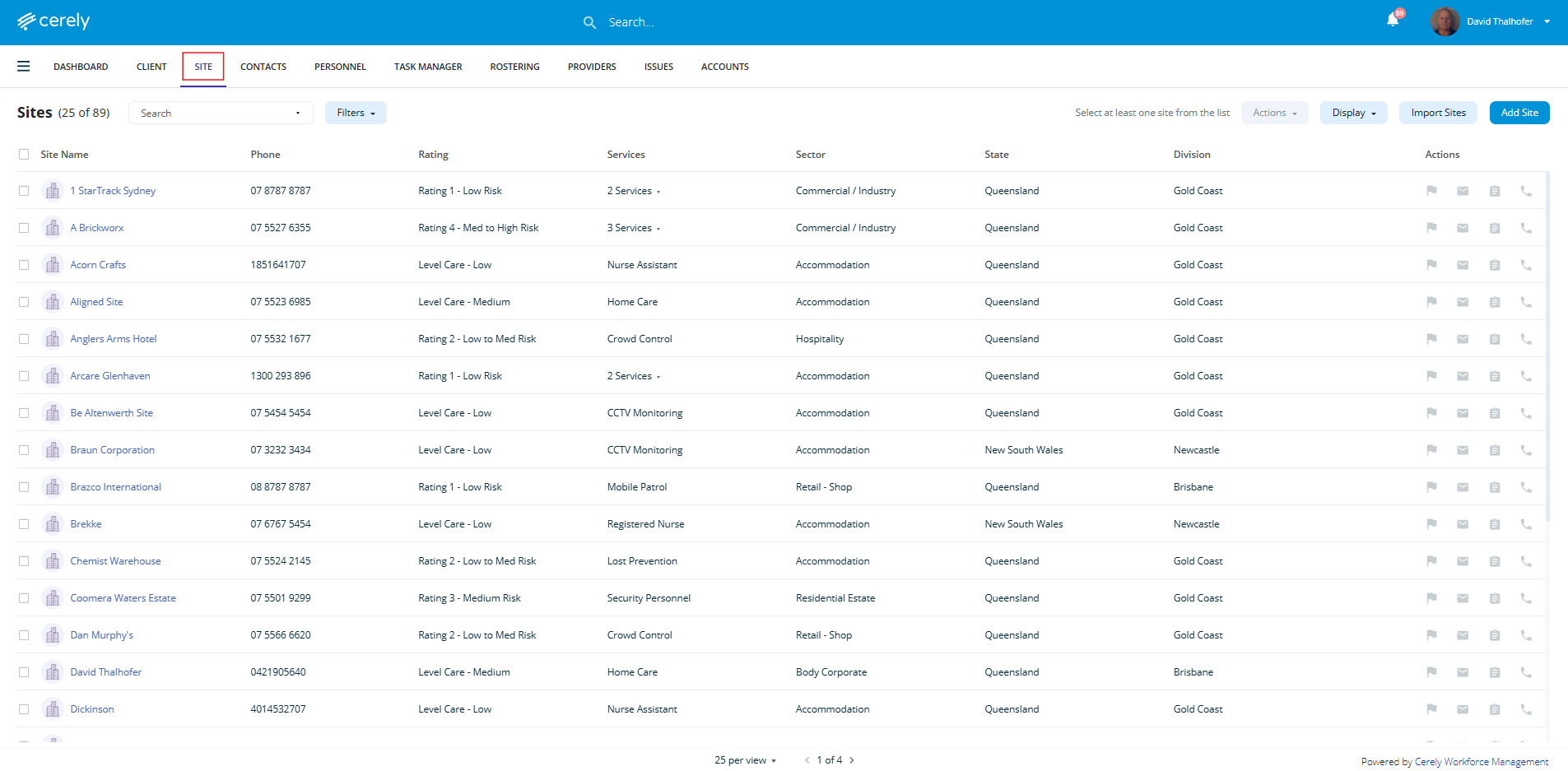
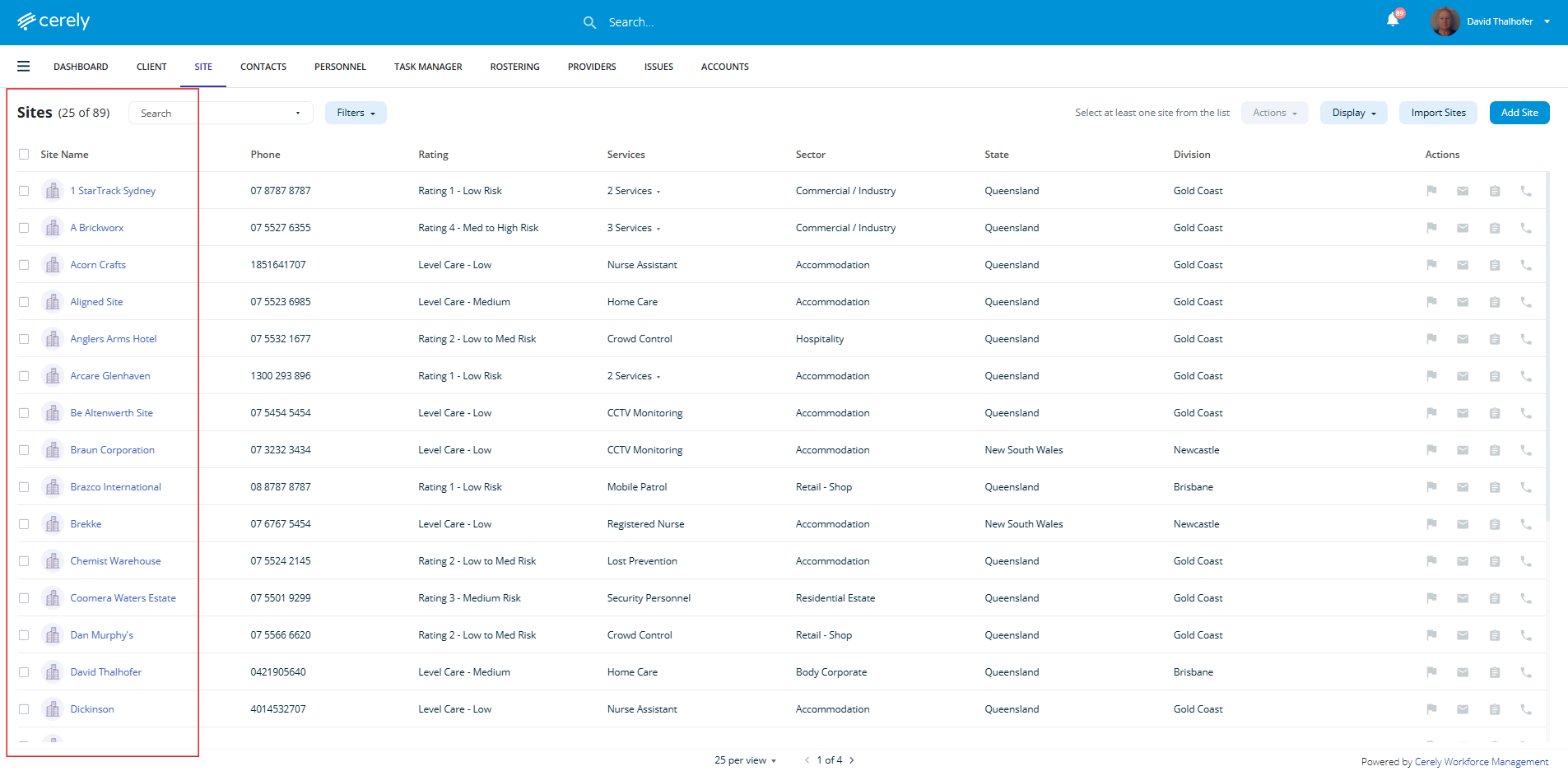
2. Select the site from the list you want to make inactive, click on the site and this will open the profile
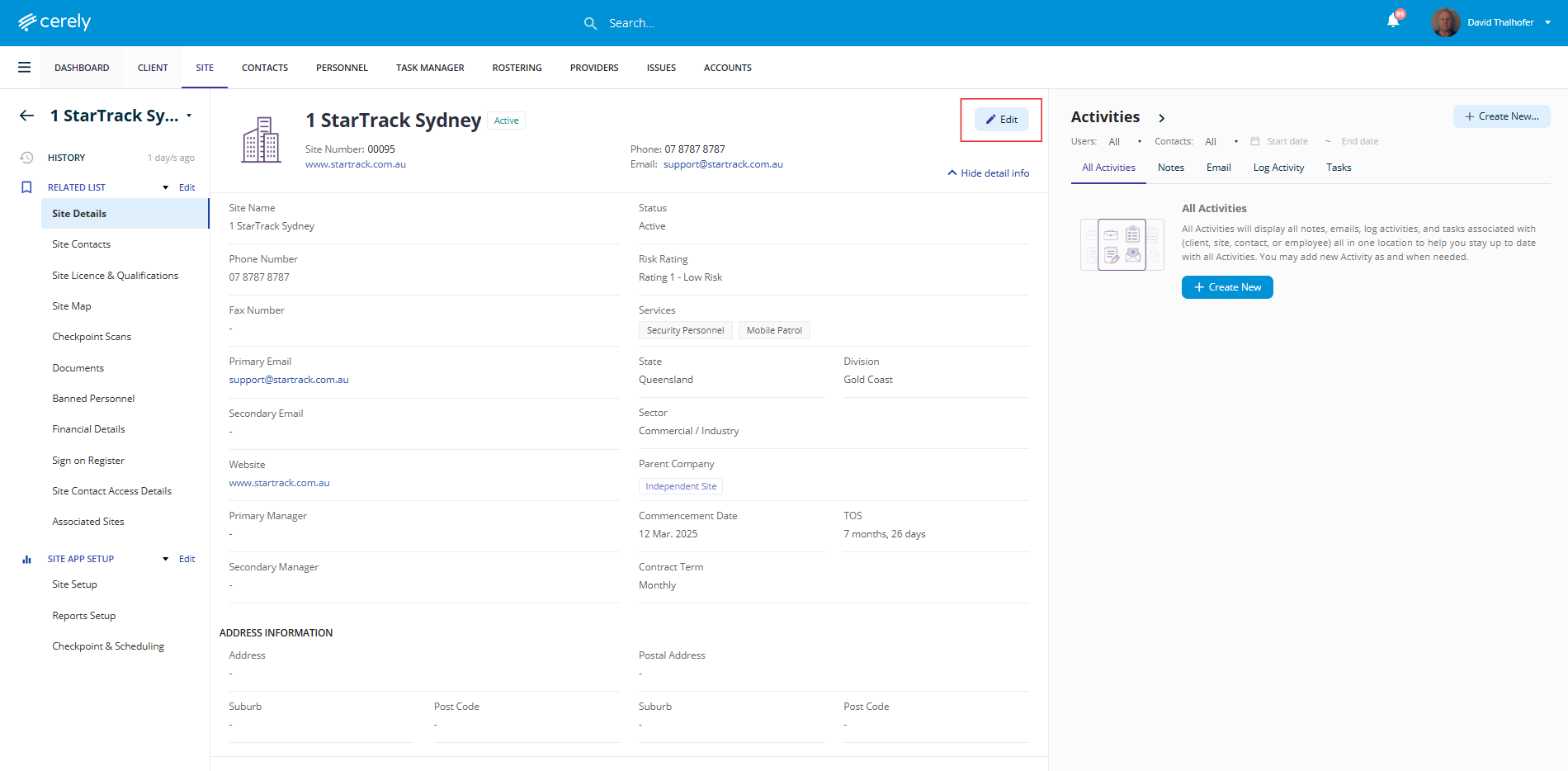
3. In the top right-hand corner of the site, click on the Edit icon to enable edit mode
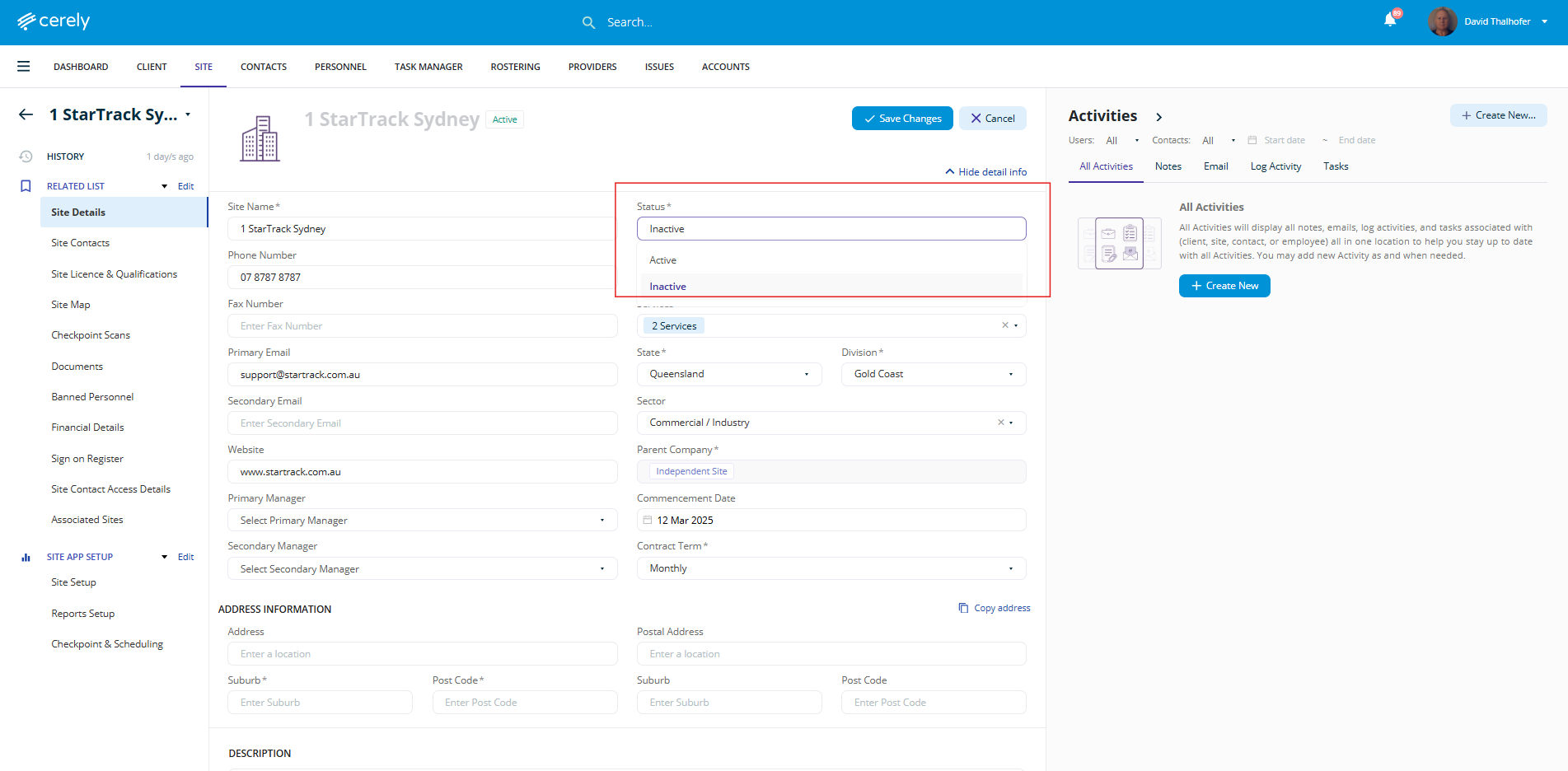
4. In the Status field click on the field and a dropdown menu will appear, change the selection from Active to Inactive
Warning Prompt
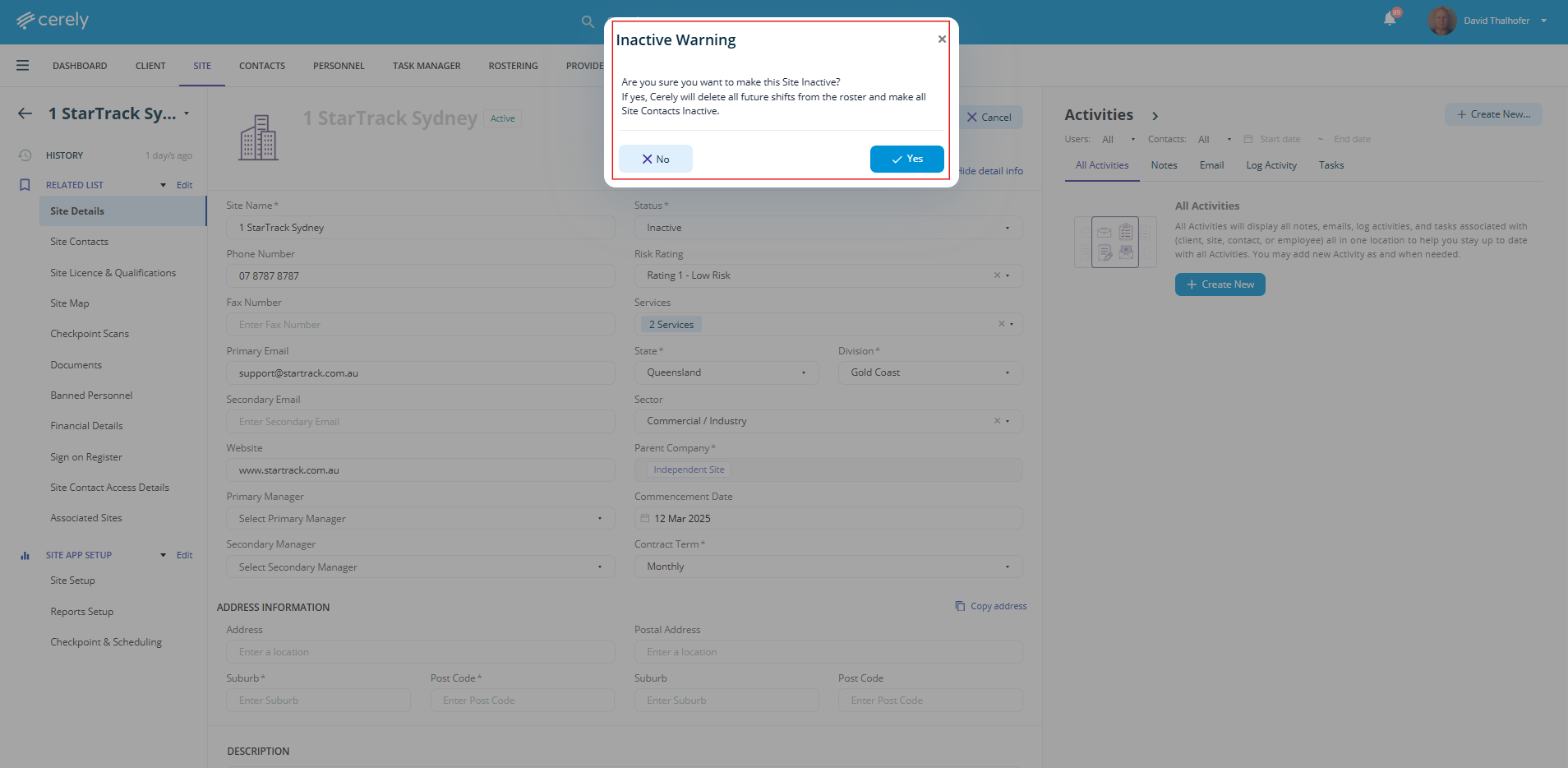
Once you attempt to mark the site as inactive, Cerely will display the following confirmation prompt:
Are you sure you want to make this Site Inactive?
If confirmed:
- All future rostered shifts for the site will be automatically deleted
- All active site contacts will be marked as Inactive
You will need to confirm this action before proceeding.
5. Once confirmed Yes this will update the site's record in the system and make the site inactive
The site is now inactive. It will no longer be visible in the active sites list or available for rostering.