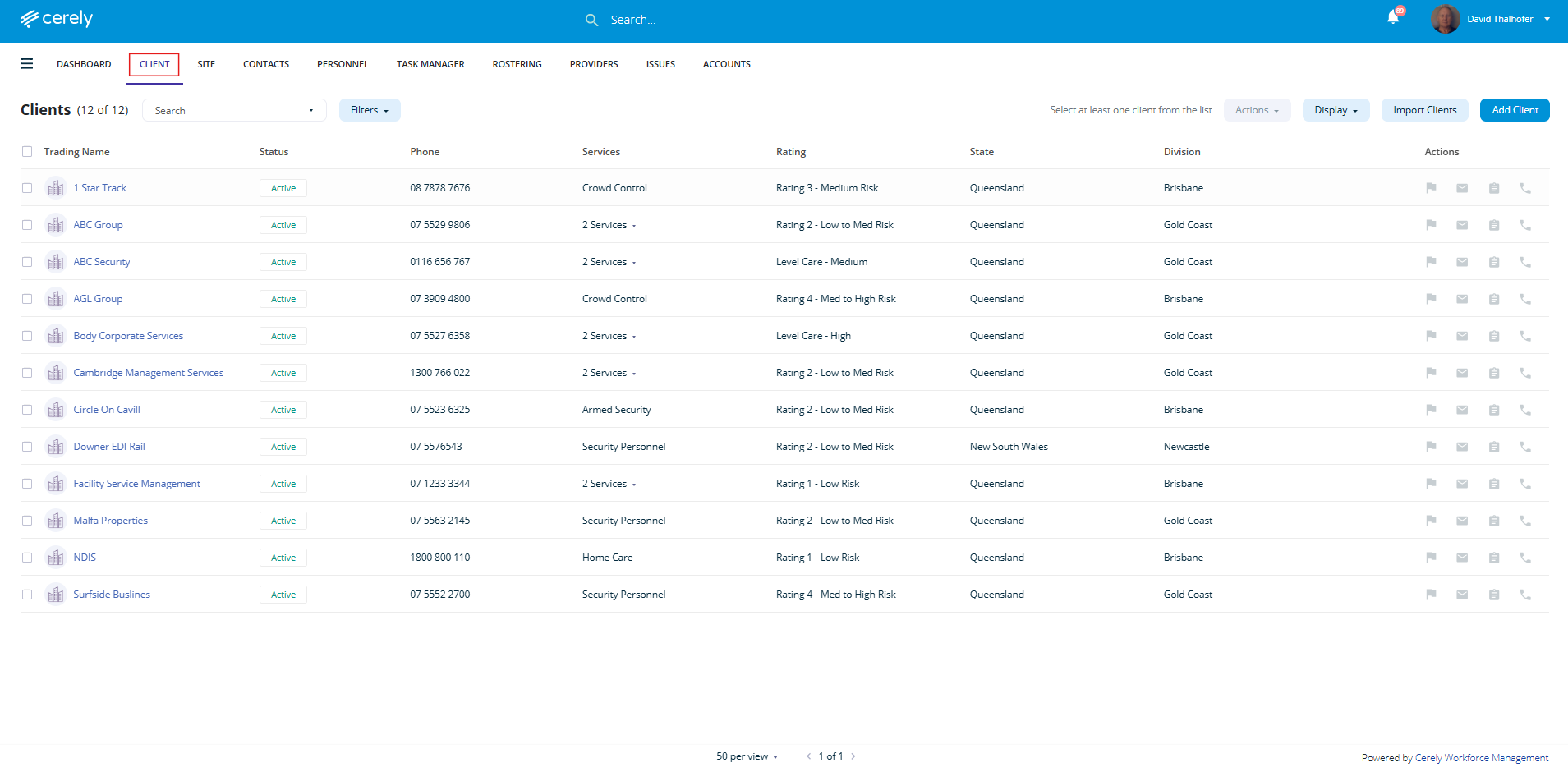
1. From the home screen in Cerely, click on the Client tab from the Cerely top main menu
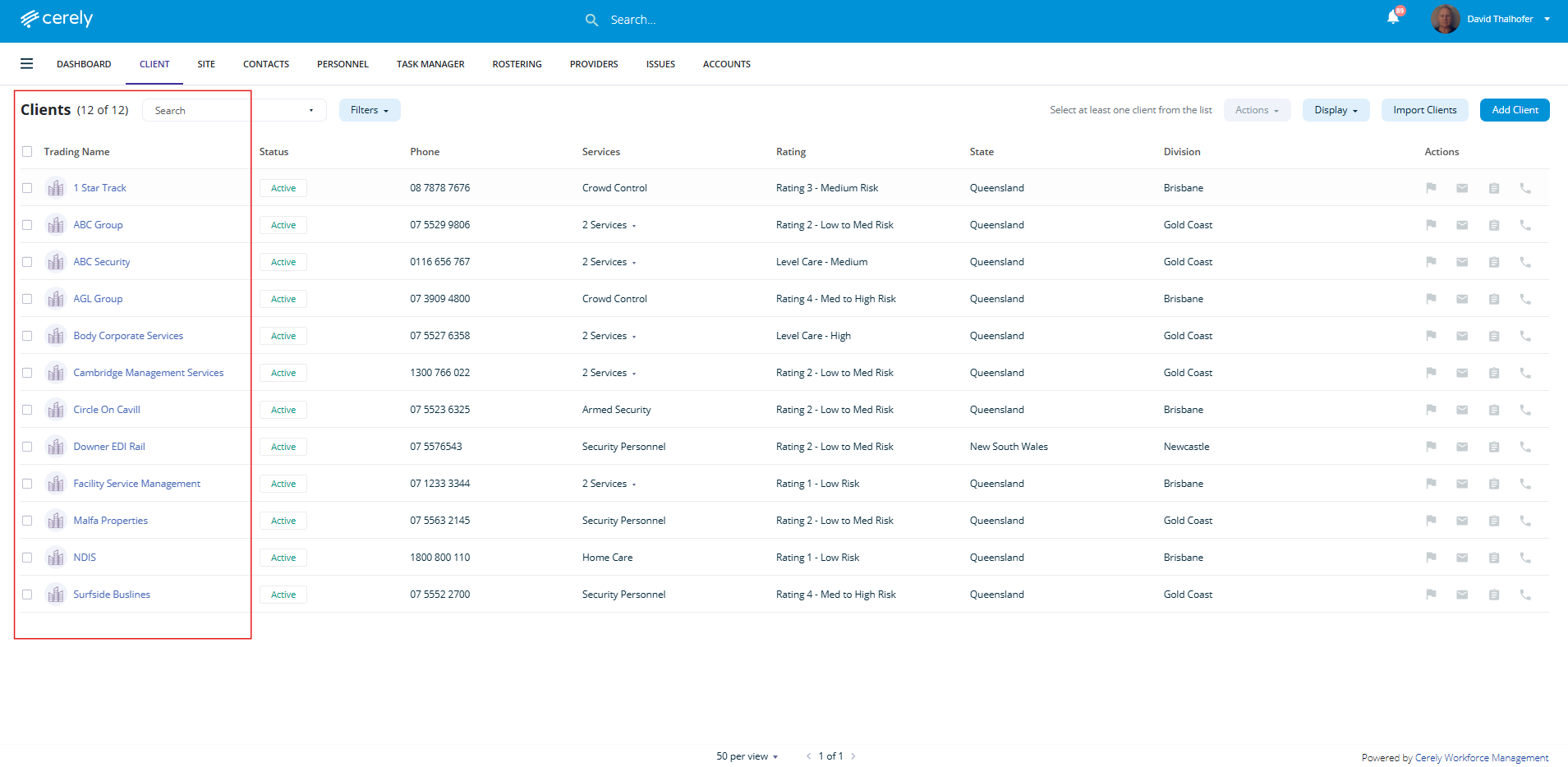
2. Select the client from the list you wish to deactivate client contact records
3. From the left-hand menu bar, select Client Contacts
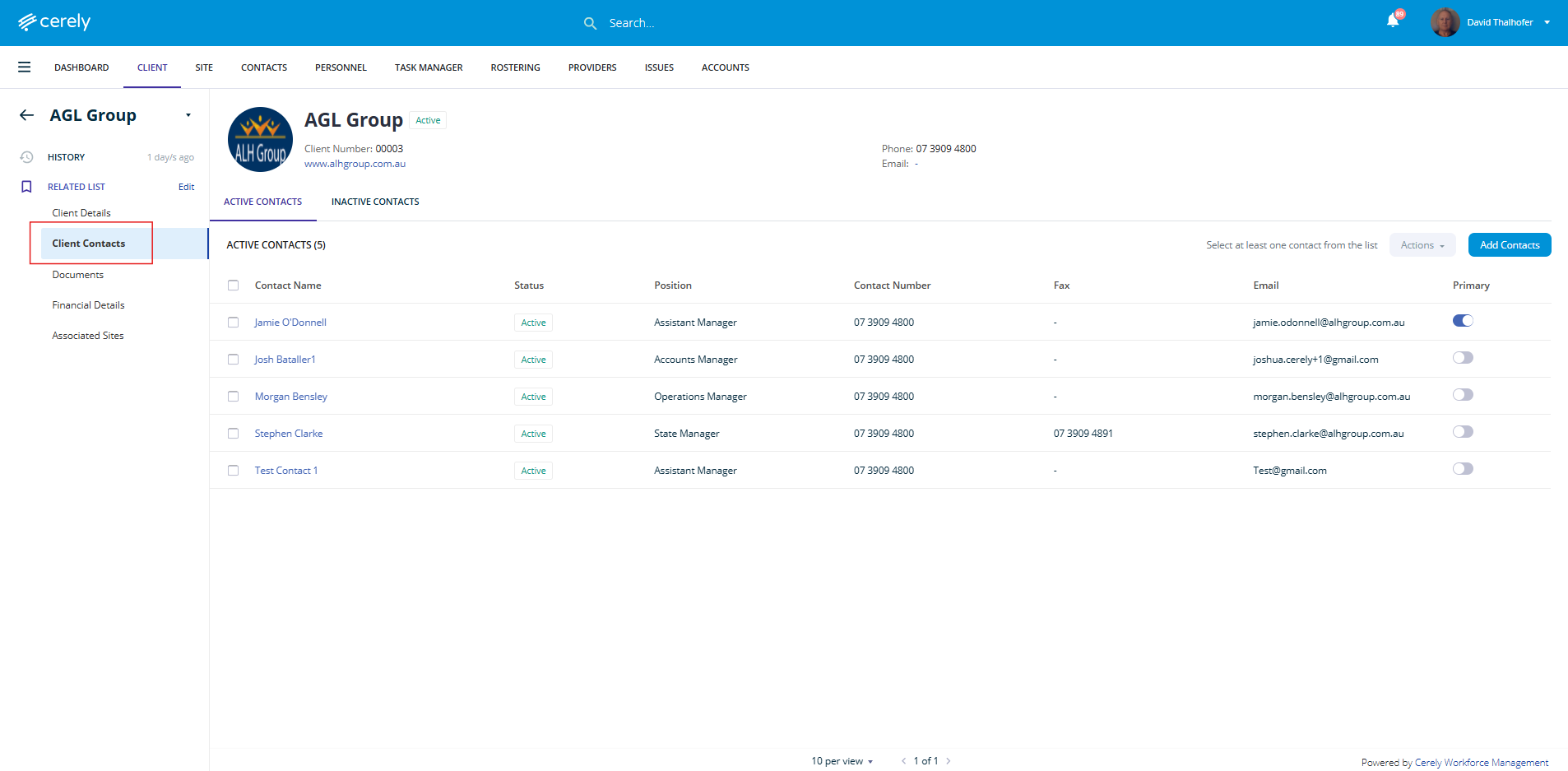
4. Select the contact you wish to deactivate in the list and click on their name to open the contact’s profile
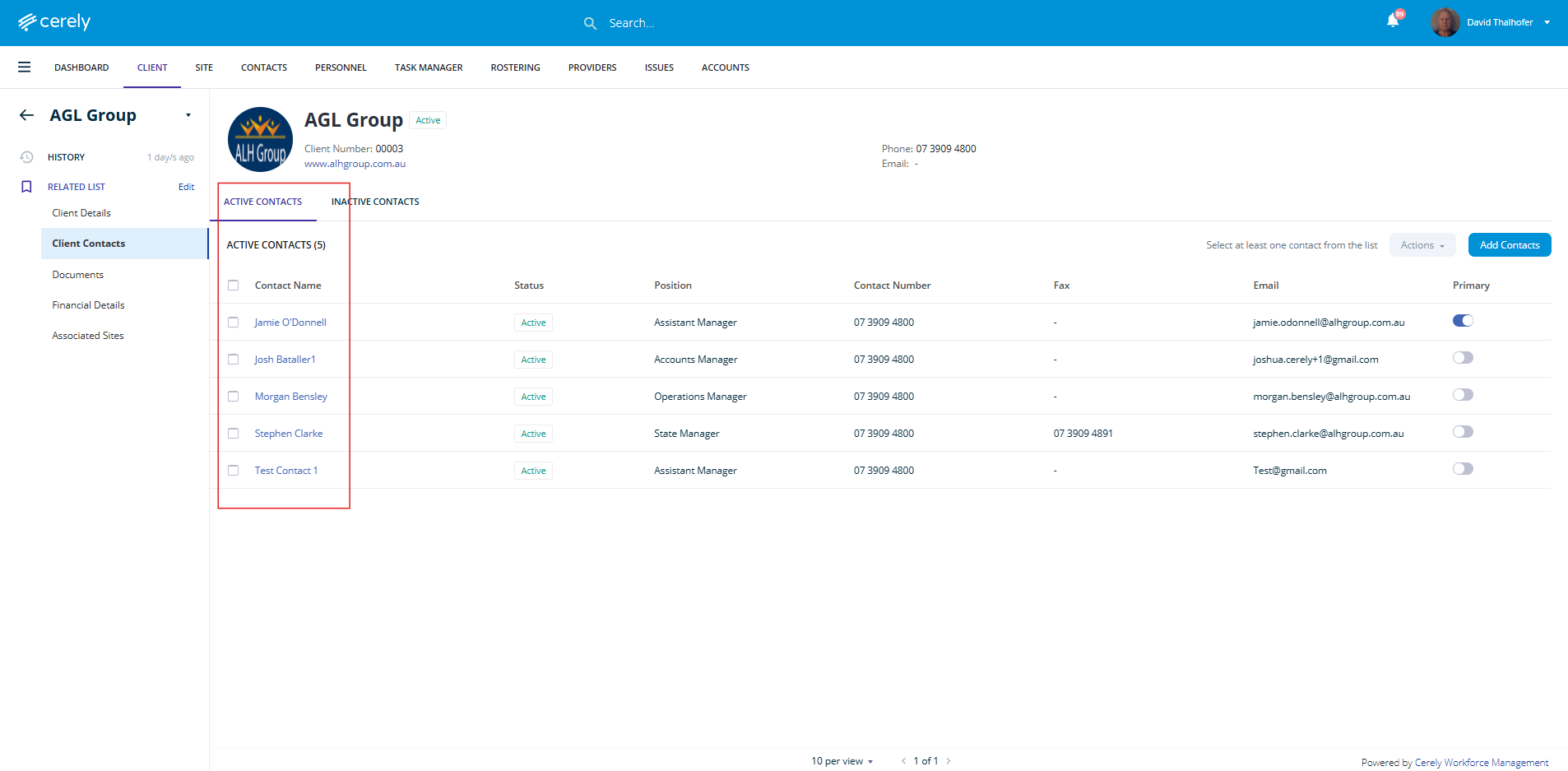
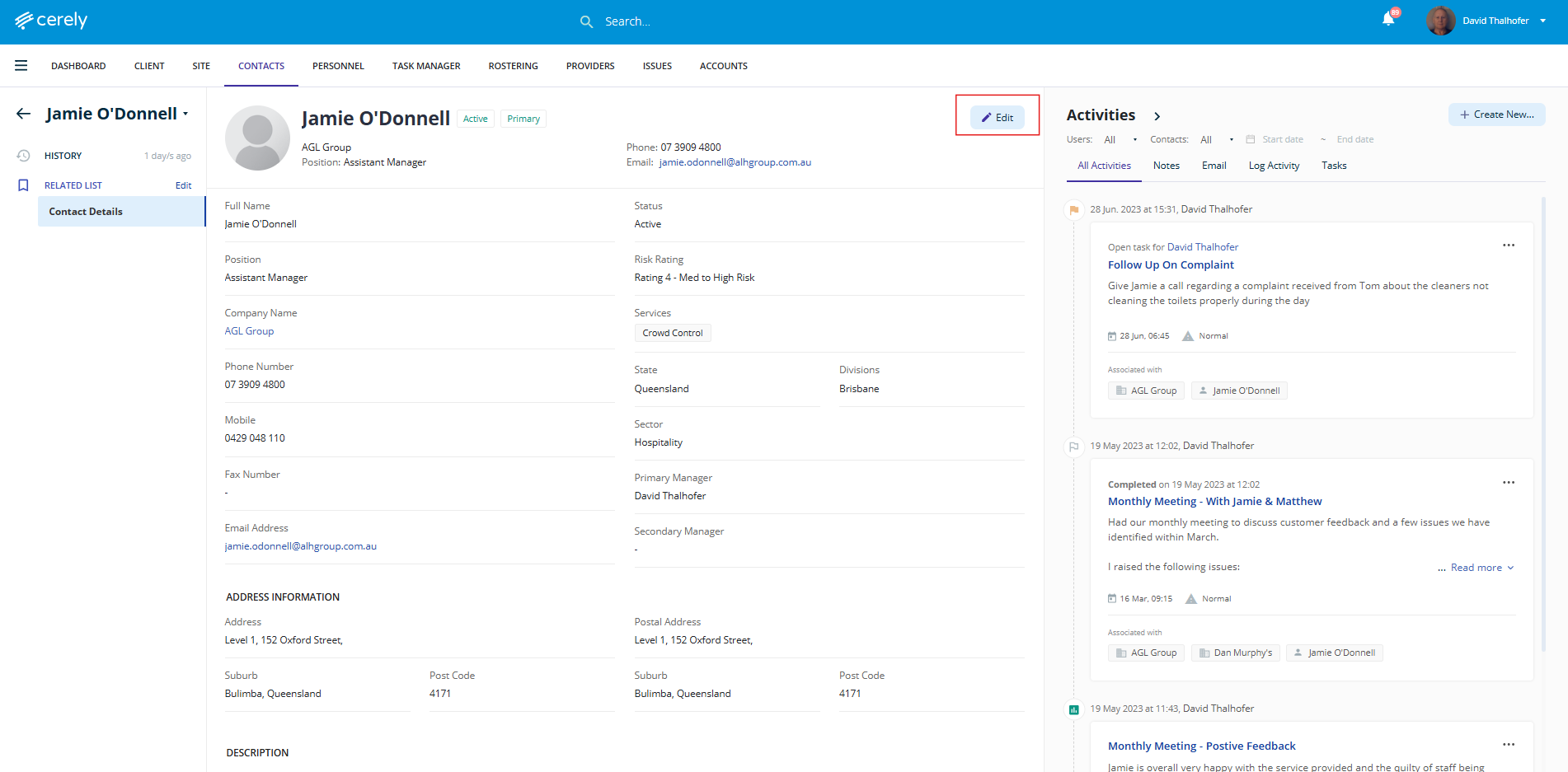
5. Select the edit button to Edit the contact’s information. The contact profile screen will appear.
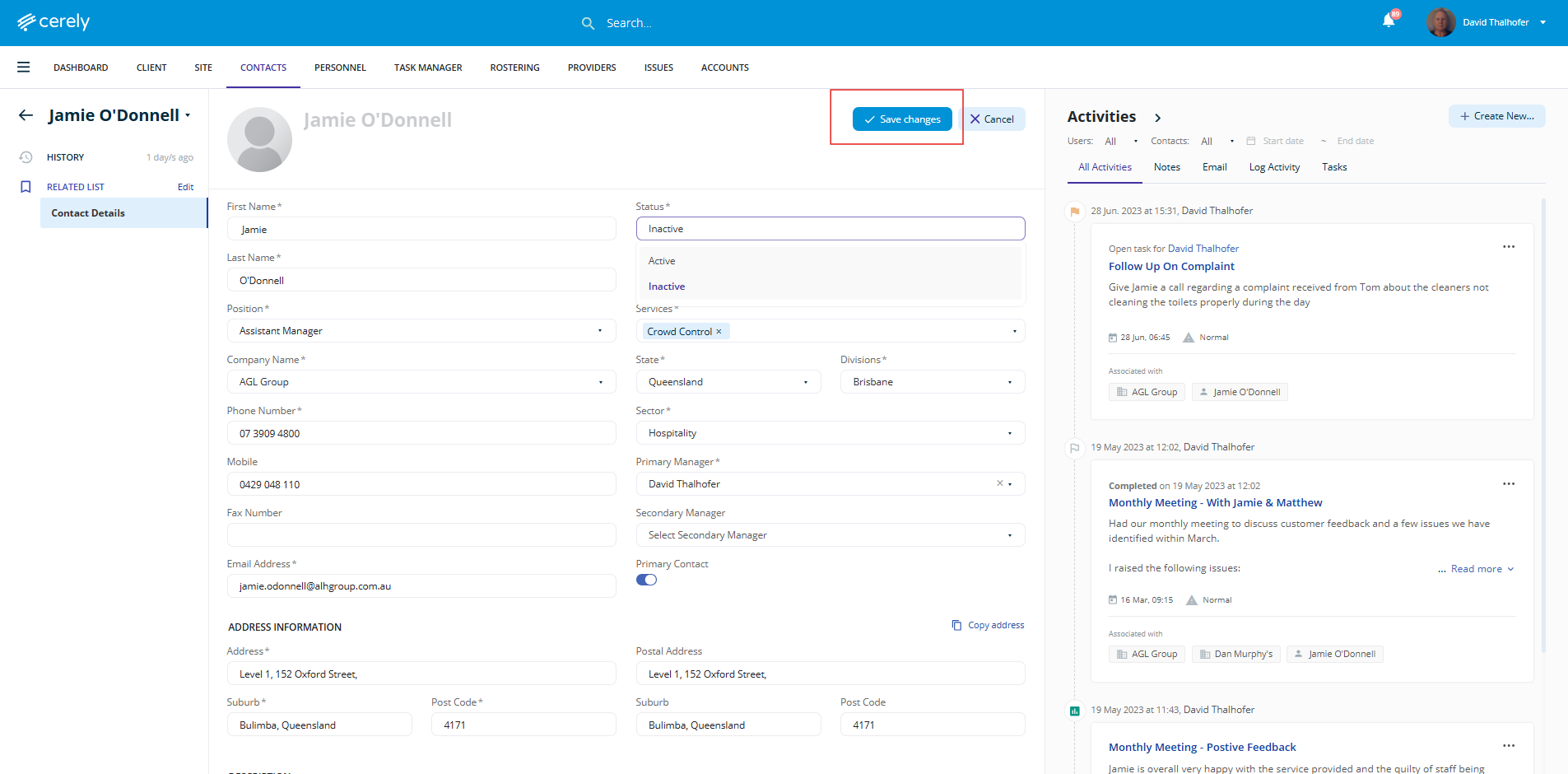
6. Change the status field to Inactive using the dropdown to change the contact’s Status from “Active” to “Inactive”
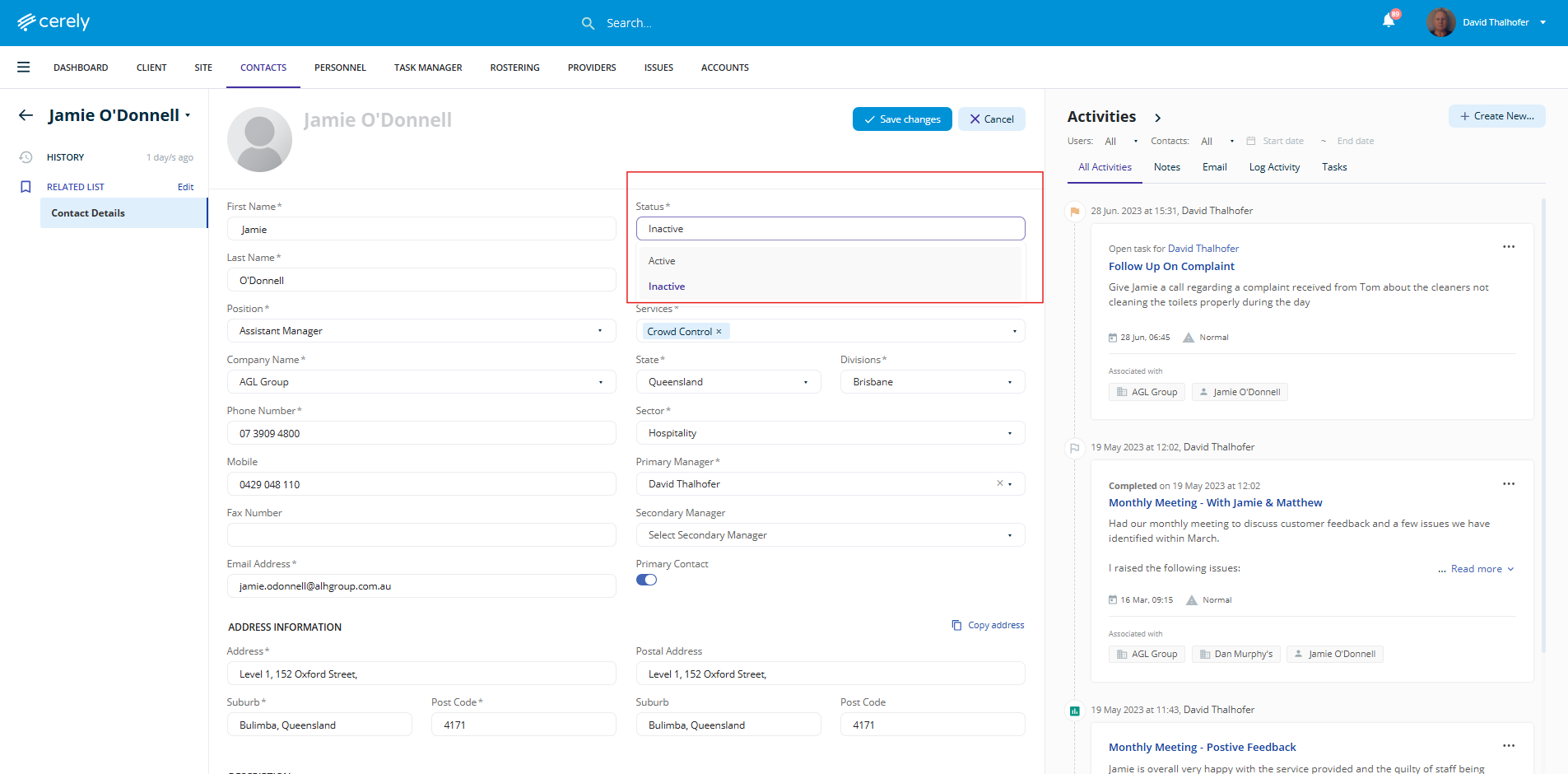
7. Click on the Save button. The contact will now be marked as inactive in the system.