
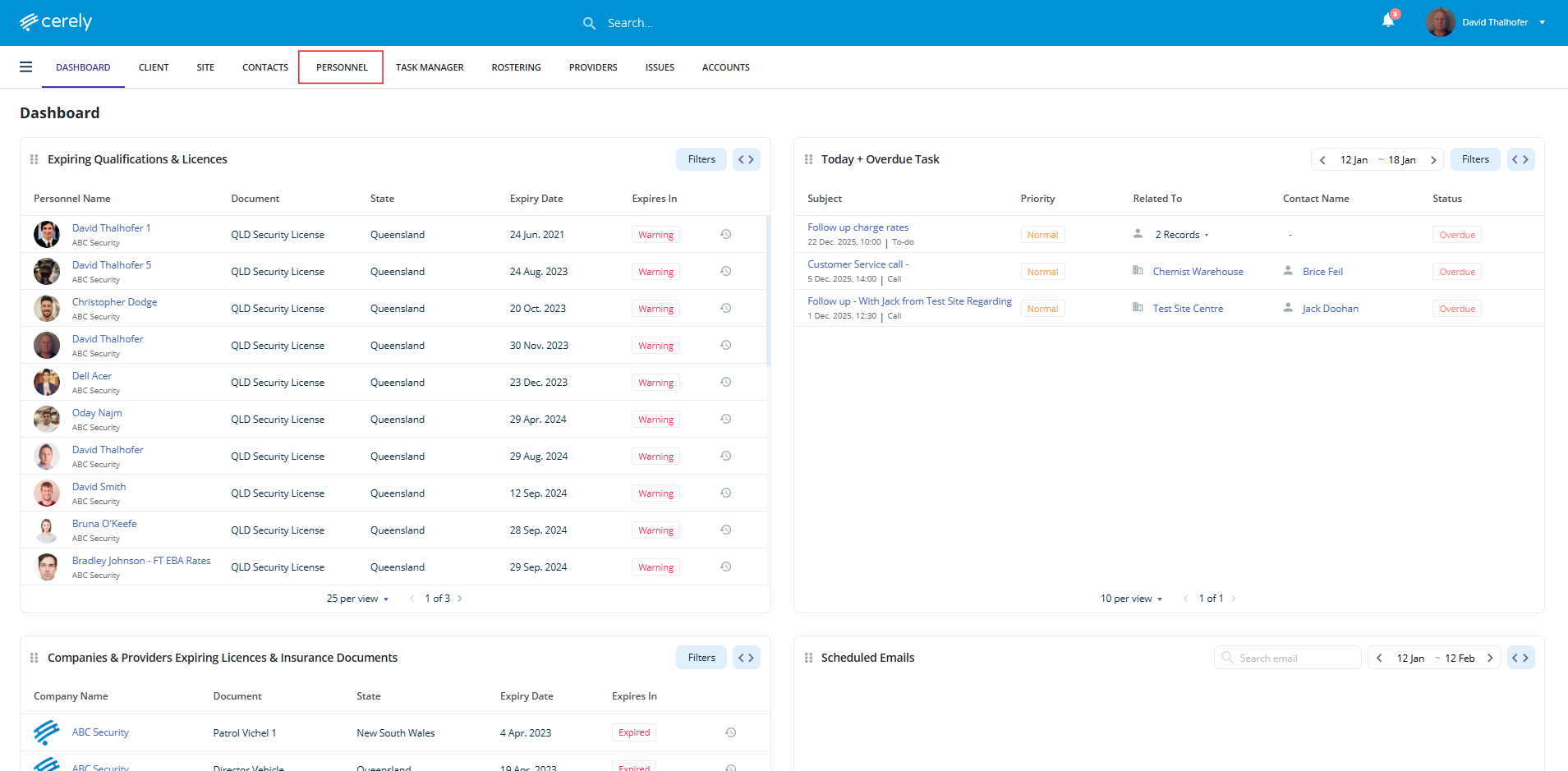
1. From the home screen in Cerely, click on the Personnel tab from the Cerely top main menu
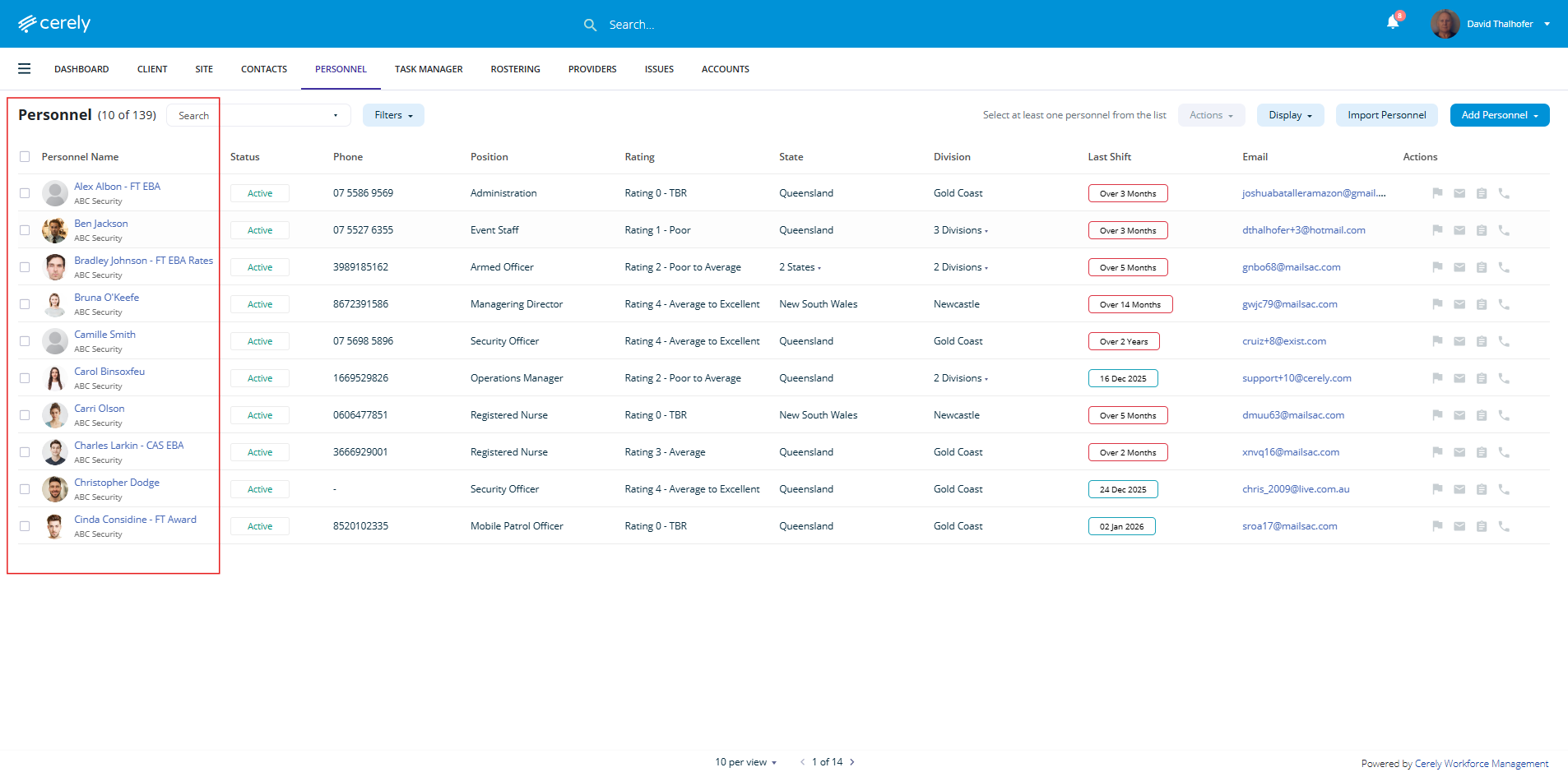
2. Locate and select the employee whose availability you want to update from the personnel list
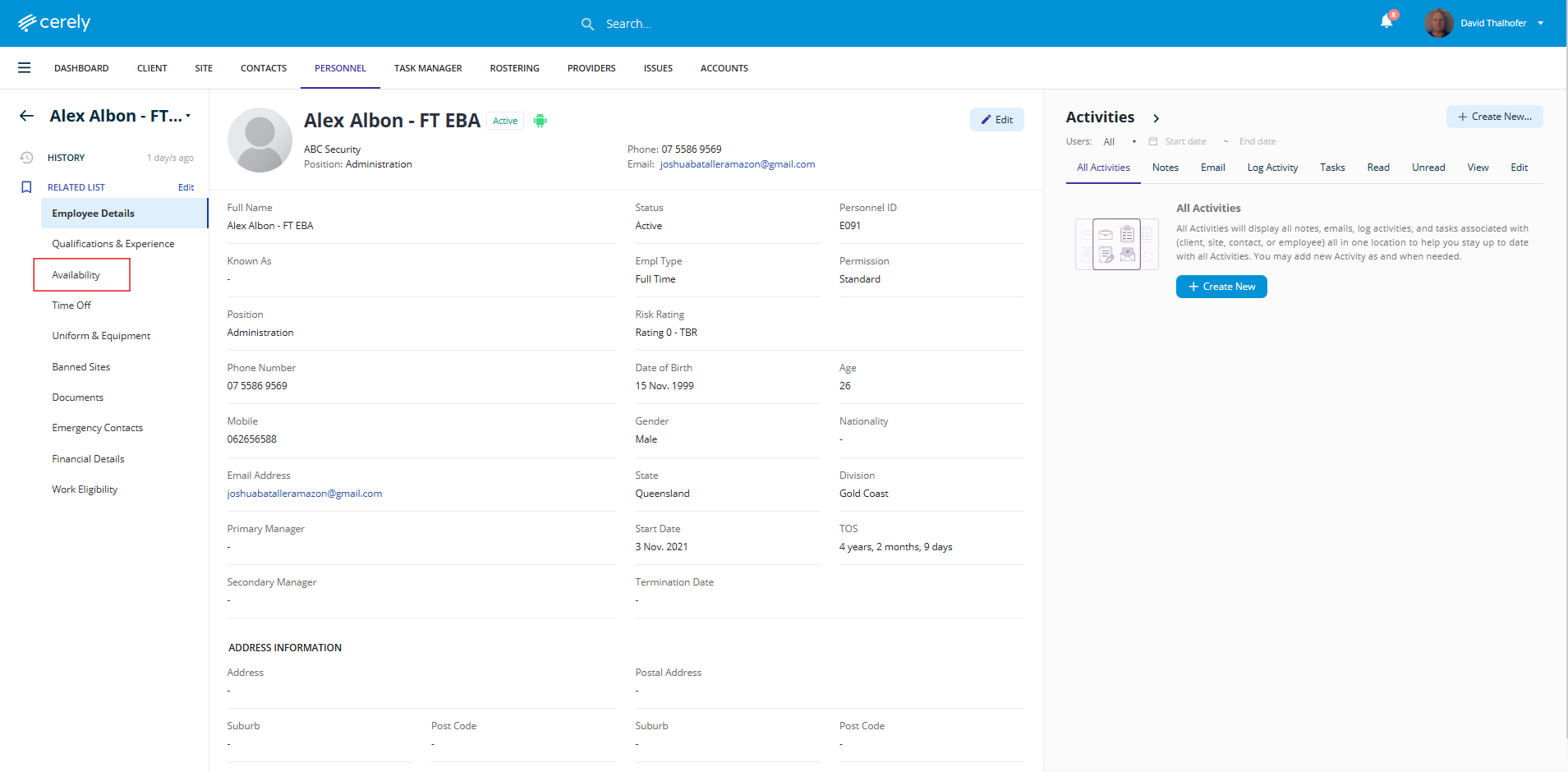
3. From the left-hand side menu within the employee profile, select Availability
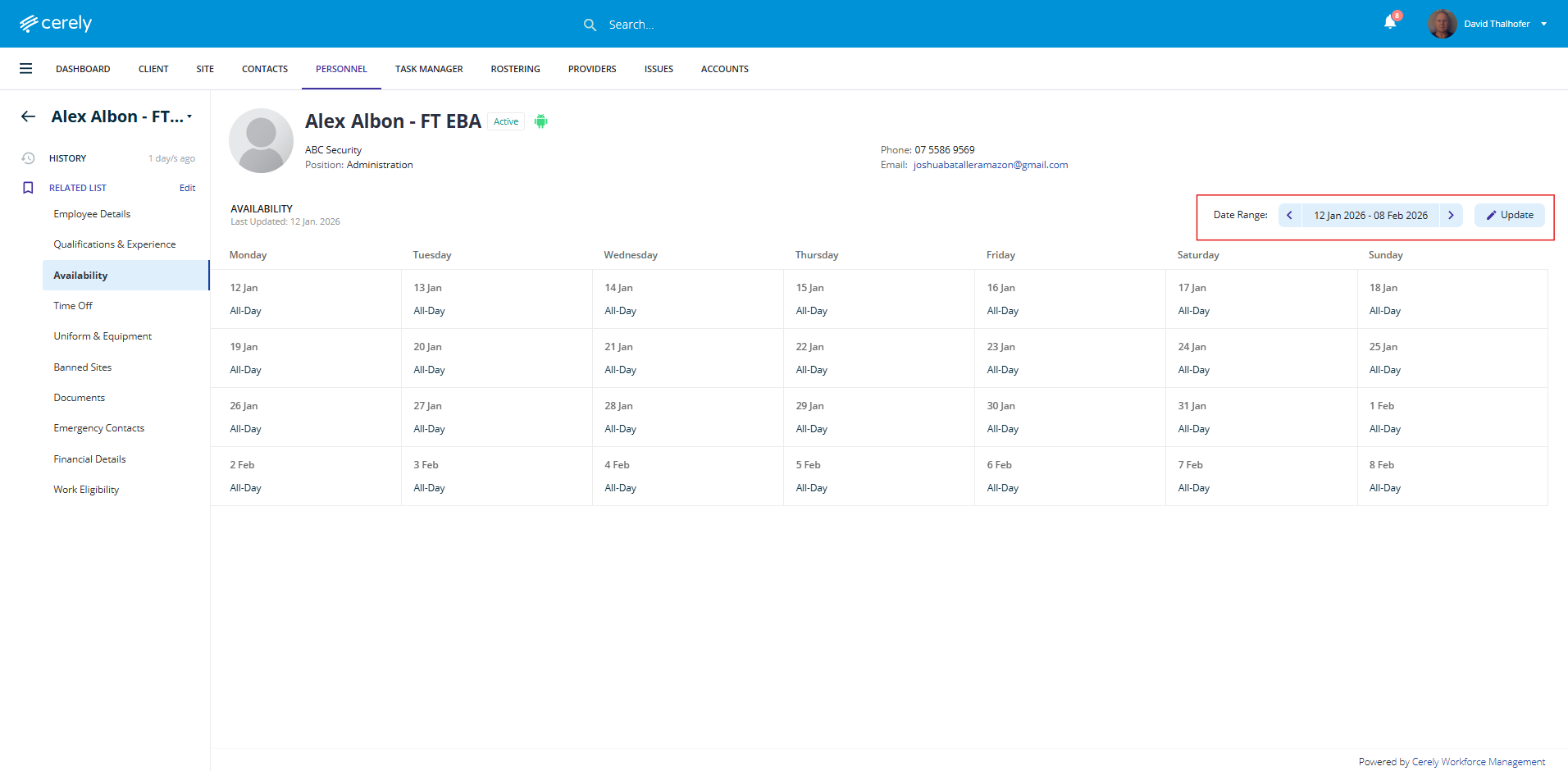
4. On the right-hand side, choose the date range you want the availability update to apply to. Click the Update icon to begin making changes.
5. In the pop-up window, the employee’s current availability will be displayed. Select the day you wish to update to open the availability settings for that day.
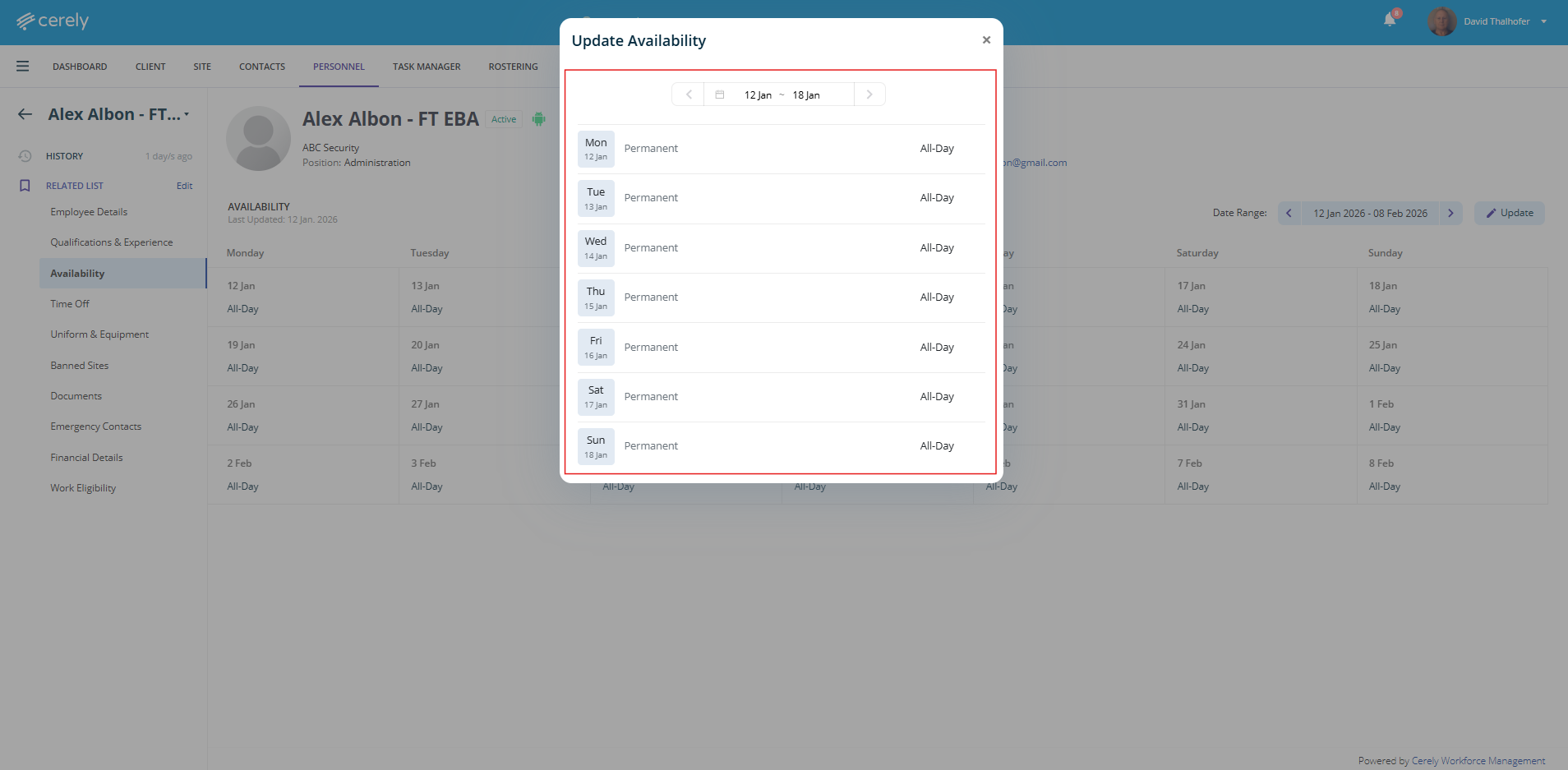
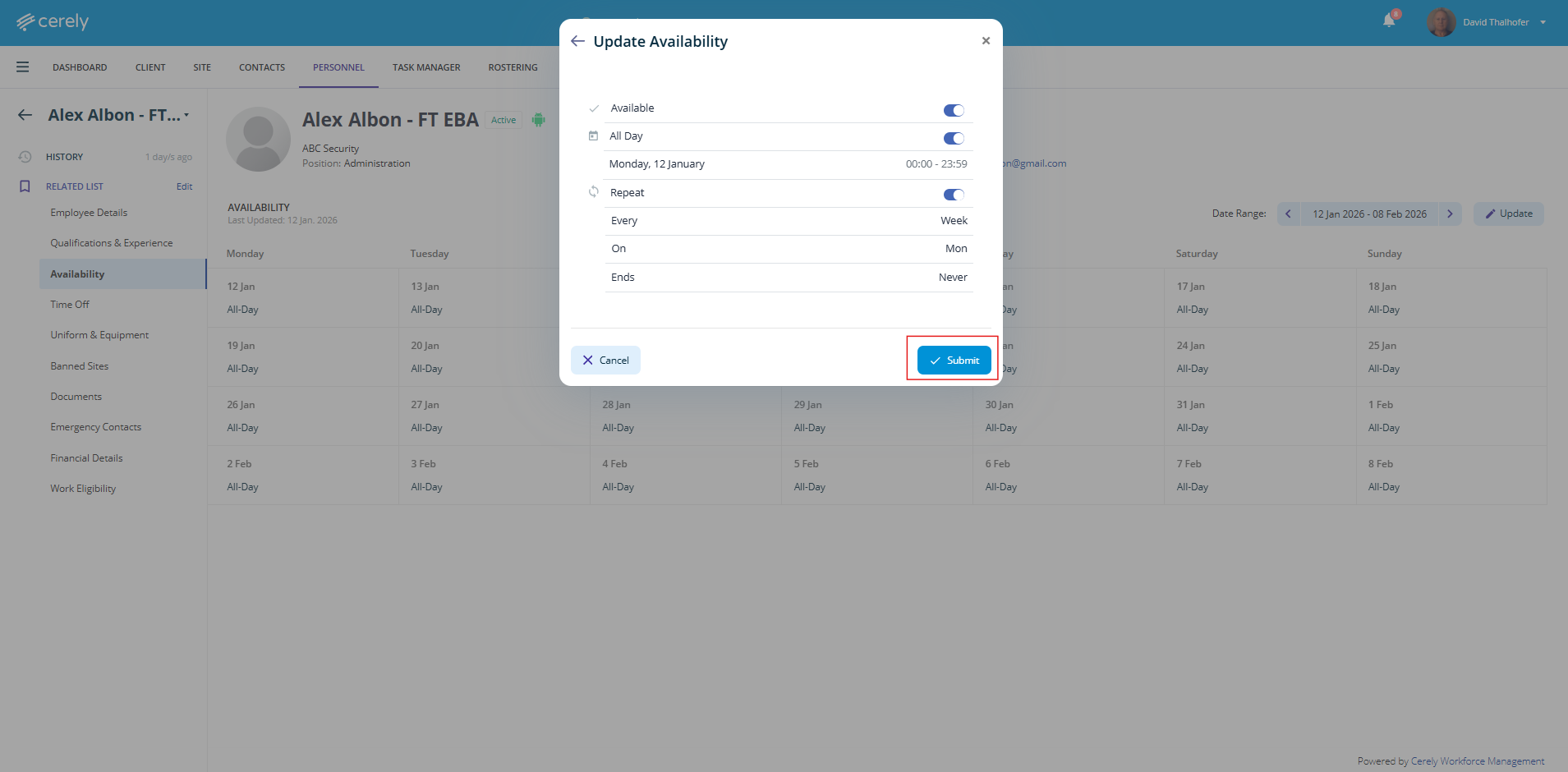
From here, you can:
-
Toggle Available on or off
-
Set availability as All Day
-
Enter specific start and end times
-
Toggle Repeat on or off
-
Apply an End Date if the change is temporary and not ongoing
6. Once the availability for that day has been updated, select Submit
7. Repeat this process for each day you need to update
Note:
The employee’s availability is now updated. Cerely’s rostering algorithm will automatically use the new availability when creating or assigning shifts for this employee.